Question

Add text to description

  • March 3, 2026
  • 5 replies
  • 75 views

Bkatzman
Influencer III
Forum|alt.badge.img+1

Morning All,

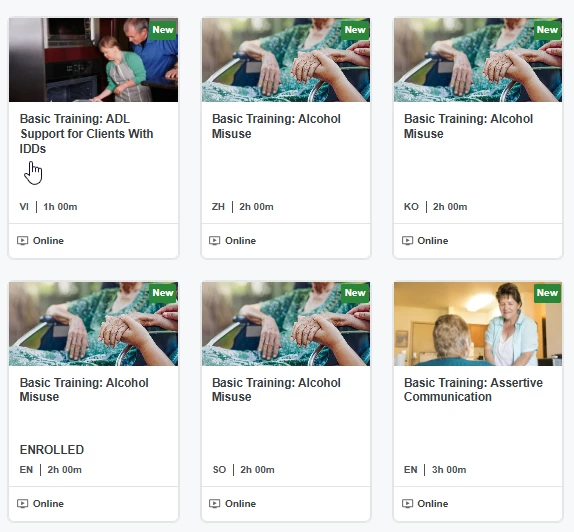
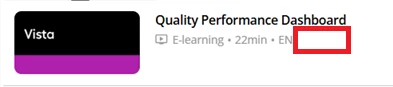
I know this would probably be a CSS thing, but is it possible to add text after the language marker?


5 replies

Moshe.Machlav
Guide I
Forum|alt.badge.img+2

You can technically inject static text after the language marker using a CSS ::after pseudo-element targeting .ui-card-language, but it will show the exact same text on every course card — there's no way to pull course-specific content through CSS alone.

If you're looking to display dynamic text (like a category, duration, or custom field) in that space, CSS won't get you there. That kind of per-course data isn't exposed in the card's HTML in a way that CSS can manipulate.

You'd need to reconsider either what text you're adding (if it's truly static and the same for all courses, CSS works) or look at a different field/placement if it needs to be course-specific.


Bkatzman
Influencer III
Forum|alt.badge.img+1
  • Author
  • Influencer III
  • March 3, 2026

You can technically inject static text after the language marker using a CSS ::after pseudo-element targeting .ui-card-language, but it will show the exact same text on every course card — there's no way to pull course-specific content through CSS alone.

If you're looking to display dynamic text (like a category, duration, or custom field) in that space, CSS won't get you there. That kind of per-course data isn't exposed in the card's HTML in a way that CSS can manipulate.

You'd need to reconsider either what text you're adding (if it's truly static and the same for all courses, CSS works) or look at a different field/placement if it needs to be course-specific.

Thanks so much! I am looking to add course credit information. The course details/description method is not enough, because I am not optimistic that they look at it. 


Moshe.Machlav
Guide I
Forum|alt.badge.img+2

You can technically inject static text after the language marker using a CSS ::after pseudo-element targeting .ui-card-language, but it will show the exact same text on every course card — there's no way to pull course-specific content through CSS alone.

If you're looking to display dynamic text (like a category, duration, or custom field) in that space, CSS won't get you there. That kind of per-course data isn't exposed in the card's HTML in a way that CSS can manipulate.

You'd need to reconsider either what text you're adding (if it's truly static and the same for all courses, CSS works) or look at a different field/placement if it needs to be course-specific.

Thanks so much! I am looking to add course credit information. The course details/description method is not enough, because I am not optimistic that they look at it.

Thanks for the context — that changes things! Since course credits vary per course, adding static text via CSS after the language marker won't work here (CSS can only inject the same hardcoded string across all cards, with no connection to individual course data).

That said, have you looked at Docebo's Training Credits feature? It might be the workaround you need — it's designed to associate credit values with courses and surface them to learners as part of the learning experience, without relying on the description field that often gets overlooked.

More details here: Learning with Training Credits – Docebo Help

Worth exploring to see if it fits your use case!


hwolfehall
Helper I
Forum|alt.badge.img+3
  • Helper I
  • March 3, 2026

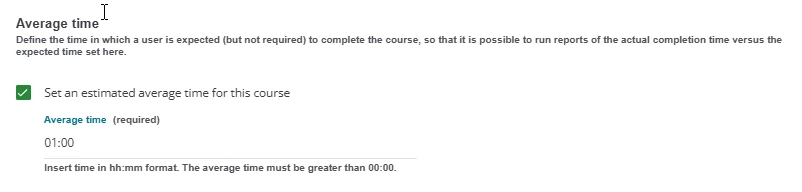
We have leveraged the “Duration” information in order to simulate “credits” for our users.  The time is equivalent to credits in that 1 hour = 1 credit.  This allows our users to both see credits in the “catalog’ view...and estimate the amount of time that they will need to complete that training.  Something like this might work for you if you’re ok with the hh:mm approach to credits. 


hwolfehall
Helper I
Forum|alt.badge.img+3
  • Helper I
  • March 3, 2026

Sorry, I neglected to attach the second screenshot of where that time is entered in the Course Properties.  It’s at the bottom of the Details panel:  Average Time.