Where do I find the web server address for adding images to an iframe in a html widget?
I’m vague on where it may be. Is there a place where I can view the path of all images uploaded across the platform?
I know where to upload images for courses and widgets and went to the image UI for both, I get lost from there.
Thank you again for your time! nick
Best answer by Bright.b
Adding to this old thread. I plan to use images for a horizontal navigation bar in a custom CSS page layout. Since these images need to be hosted on a server, I follow the steps below to obtain S3 image URLs:
Go to Manage Pages and create a Widget custom page.
In Composer view, add a new widget > select "HTML/WYSIWYG" widget > click Next.
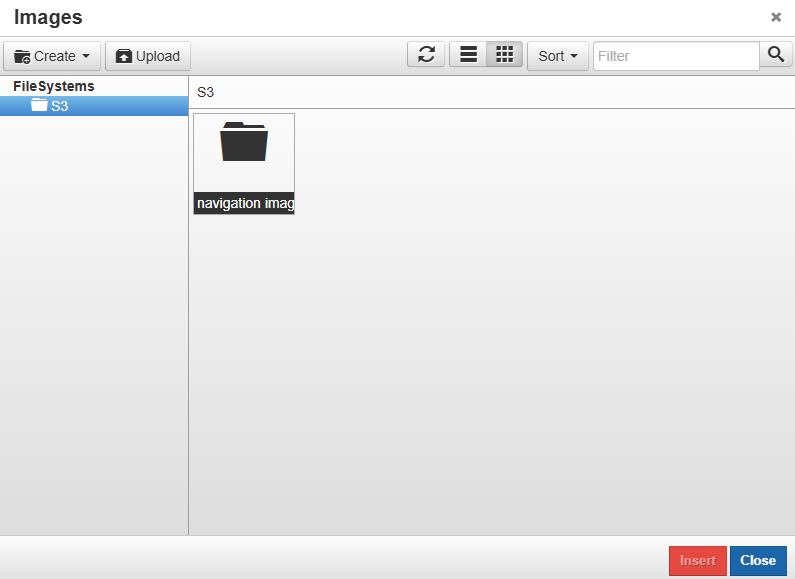
Once created, select the WYSIWYG editor, click on "Insert/edit image" icon and then click on the Source icon.
Create a folder or click Upload, then drag files or click “Add files” (it is recommended to create a folder beforehand).
Click Insert. Repeat these steps for each image.
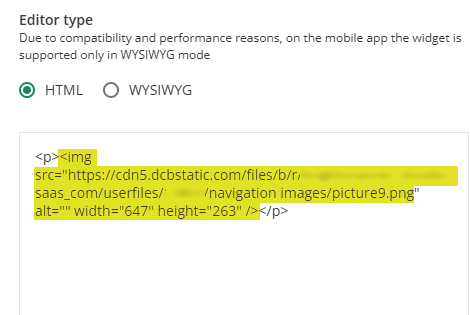
Switch to the HTML editor view and copy the S3 image URL(s).
Click “Add Widget” to save your work, or click “Cancel” if you only need the image URL(s) for a CSS custom page layout. Once uploaded to the Docebo S3 bucket, you can reuse the same image(s) on any page using this process.
Hi - so my understanding - (and @Adam Ballhaussen correct me if I am wrong) is that there is a “shared S3 bucket” going on. You would access the bucket when you want to load images and such…and can retrieve a url to the image. But access controls are in place by author so one cannot see the others folder structure. I have heard folks recommend a single shared account? To make something like gathering urls more straightforward…please someone correct me if I am wrong….
@dklinger do you mean we have access to a Docebo content server directly? Can you elaborate? Thx
No @lrnlab - let me clarify - purely the links from uploading images into the HTML widget. Those links can be used to display those images elsewhere with your HTML and other HTML widgets.
A person can game it and upload a ton of images hold onto those images for their HTML later.
@ncassella If you are using Microsoft Edge and you right click on an image, you can choose the option to Open Image in a New Tab. That will give you the URL for that image. Is that what you were looking for?
Thank you for your suggestions. @spotratz when you say right click the image where do you do this?
I may not know the name of the image I uploaded. Lets say I uploaded 100 images for example and they are not being used yet in the platform. At a later time, I want to look through them to find the correct one, then get the path of that image so I can put the path in my iframe. @dklinger Yes, your clarification with @lrnlab is correct. I just want to be able to pick out a specific image that was uploaded to the platform to strictly obtain the path of that image. For use in Html widgets.
@dklinger do you mean we have access to a Docebo content server directly? Can you elaborate? Thx
No @lrnlab - let me clarify - purely the links from uploading images into the HTML widget. Those links can be used to display those images elsewhere with your HTML and other HTML widgets.
A person can game it and upload a ton of images hold onto those images for their HTML later.
gotcha...yes and I also use the “inspect” on the browser developer console to grab the url and/or download some assets we use throughout the site
@ncassella ah okay. Yeah, my method assumes the image shows on your site somewhere. One thing you could possibly do is create a course you don’t publish and plug those images into an HTML page. That would create the links you need following the method I suggested.
Create a course
add an HTML page
Insert the images you’ve uploaded or just paste in new images
You have access to the AWS server by using the HTML widget in a page, once there, click the WYSIWYG editor and there is an upload image button. From there you can see all images uploaded by the account you’re logged into.
There is a video posted somewhere in the community showing how to do this. I’ll see if I can dig it out later today (unless @nick.tosto has the link handy!)
Using a shared account is a good option as suggested.
Adding to this old thread. I plan to use images for a horizontal navigation bar in a custom CSS page layout. Since these images need to be hosted on a server, I follow the steps below to obtain S3 image URLs:
Go to Manage Pages and create a Widget custom page.
In Composer view, add a new widget > select "HTML/WYSIWYG" widget > click Next.
Once created, select the WYSIWYG editor, click on "Insert/edit image" icon and then click on the Source icon.
Create a folder or click Upload, then drag files or click “Add files” (it is recommended to create a folder beforehand).
Click Insert. Repeat these steps for each image.
Switch to the HTML editor view and copy the S3 image URL(s).
Click “Add Widget” to save your work, or click “Cancel” if you only need the image URL(s) for a CSS custom page layout. Once uploaded to the Docebo S3 bucket, you can reuse the same image(s) on any page using this process.
Adding to this old thread. I plan to use images for a horizontal navigation bar in a custom CSS page layout. Since these images need to be hosted on a server, I follow the steps below to obtain S3 image URLs:
Go to Manage Pages and create a Widget custom page.
In Composer view, add a new widget > select "HTML/WYSIWYG" widget > click Next.
Once created, select the WYSIWYG editor, click on "Insert/edit image" icon and then click on the Source icon.
Create a folder or click Upload, then drag files or click “Add files” (it is recommended to create a folder beforehand).
Click Insert. Repeat these steps for each image.
Switch to the HTML editor view and copy the S3 image URL(s).
Click “Add Widget” to save your work, or click “Cancel” if you only need the image URL(s) for a CSS custom page layout. Once uploaded to the Docebo S3 bucket, you can reuse the same image(s) on any page using this process.
Adding to this old thread. I plan to use images for a horizontal navigation bar in a custom CSS page layout. Since these images need to be hosted on a server, I follow the steps below to obtain S3 image URLs:
Go to Manage Pages and create a Widget custom page.
In Composer view, add a new widget > select "HTML/WYSIWYG" widget > click Next.
Once created, select the WYSIWYG editor, click on "Insert/edit image" icon and then click on the Source icon.
Create a folder or click Upload, then drag files or click “Add files” (it is recommended to create a folder beforehand).
Click Insert. Repeat these steps for each image.
Switch to the HTML editor view and copy the S3 image URL(s).
Click “Add Widget” to save your work, or click “Cancel” if you only need the image URL(s) for a CSS custom page layout. Once uploaded to the Docebo S3 bucket, you can reuse the same image(s) on any page using this process.
you have saved my life thank you for this :-)
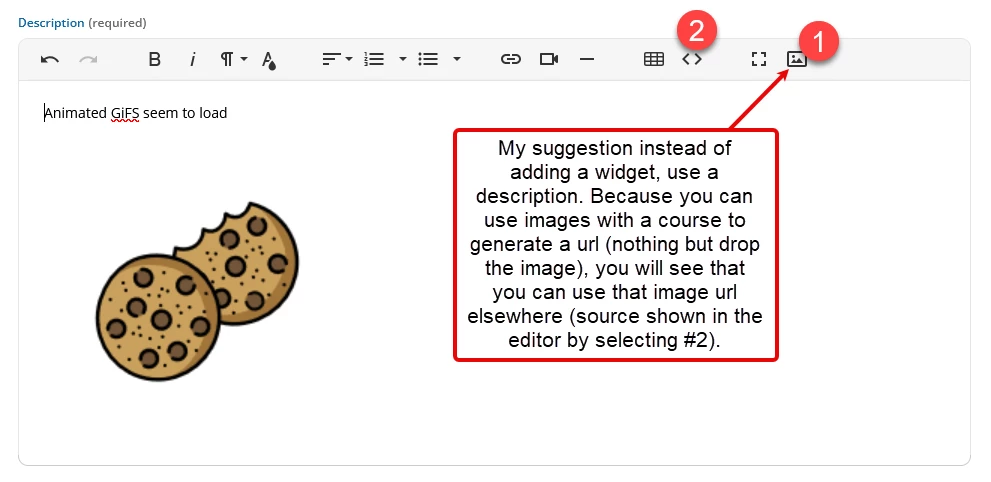
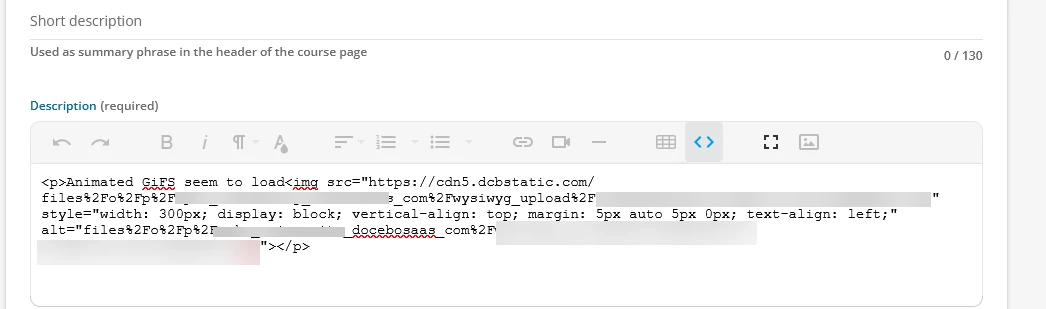
@TraceyH - good morning from the East Coast - I found that placing images into the description section and then reviewing the html for the description may save a cycle or two for you.
So I would say as a practice - build a non-published course and call it something like do not publish. And keep throwing images into the description and then rinse and repeat the approach of getting the image urls back...no need for a widget page is my point….
Adding to this old thread. I plan to use images for a horizontal navigation bar in a custom CSS page layout. Since these images need to be hosted on a server, I follow the steps below to obtain S3 image URLs:
Go to Manage Pages and create a Widget custom page.
In Composer view, add a new widget > select "HTML/WYSIWYG" widget > click Next.
Once created, select the WYSIWYG editor, click on "Insert/edit image" icon and then click on the Source icon.
Create a folder or click Upload, then drag files or click “Add files” (it is recommended to create a folder beforehand).
Click Insert. Repeat these steps for each image.
Switch to the HTML editor view and copy the S3 image URL(s).
Click “Add Widget” to save your work, or click “Cancel” if you only need the image URL(s) for a CSS custom page layout. Once uploaded to the Docebo S3 bucket, you can reuse the same image(s) on any page using this process.
you have saved my life thank you for this :-)
@TraceyH - good morning from the East Coast - I found that placing images into the description section and then reviewing the html for the description may save a cycle or two for you.
So I would say as a practice - build a non-published course and call it something like do not publish. And keep throwing images into the description and then rinse and repeat the approach of getting the image urls back...
Hi dklinger,
I am confused with this approach , how do you get the URL of the picture to use in a HTML from a course ?
Using the description field - it supports images.The url to image uploaded starts after the img src= tag.
Thank you, this makes sense. To confirm ( newbie to this side of things, the last time I went near coding was over 30 yrs ago ! so brushing a lot of cobwebs away) .
Understood - but No coding necessary! That’s the beauty of it. Just know what you are snipping and moving forward. If and when you get uncomfortable? w3schools helps you remember with online playgrounds and testing places (and guess what that you collect doing the above will work there too).
I’m using an API request to create many courses and want to include thumbnail which requires the image ID. Where would I obtain the image ID? Unfortunately, I’m not able to access the S3 image source folders so I’m uploading images one at a time. Thanks for the support.