
Question

Training Material Expiration Dates

  • August 20, 2026
  • 3 replies
  • 35 views

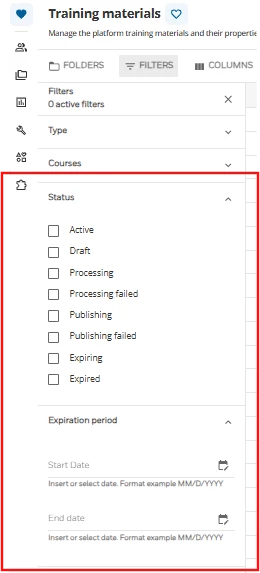
In Admin > Training Materials, what are the "Expiration Period" and "Expiring/Expired" under Status filters based on? I don't see a place to set an expiration date on training materials, and course expiration dates don't seem to affect these filters. My team is looking to see if there is a way to add in review dates for training material. 
 

3 replies

lrnlab
Hero III
Forum|alt.badge.img+10
  • Hero III
  • August 20, 2026

Ha! recently had the same question, thanks for posting. I get “draft” as it relates to the Creator lessons but since there is no option ‘deactivate’ a training object not sure what those are all for. 


fjacobs
Novice II
Forum|alt.badge.img+2
  • Novice II
  • August 20, 2026

We have only seen Expiring and Expired on SCORM files imported from Go1.


Moshe.Machlav
Helper III
Forum|alt.badge.img+2

Hi ​@tasha.sanchez ,

Great question! It's completely understandable why those filters are confusing.

The "Expiring" and "Expired" statuses in the Central Repository aren't actually meant for your internally uploaded training materials. They are specifically tied to the Docebo Content and Docebo Content Classic libraries. When the publisher of an off-the-shelf course is preparing to decommission it, Docebo flags it as "Expiring" and eventually "Expired". You can verify this in the Managing the Training Materials Page documentation.

Since Docebo handles the lifecycle of off-the-shelf content automatically, you don't need to worry about those. However, because there isn't a native "review date" setting for your internally created training materials (like your own SCORMs, videos, etc.), you'll need a different approach to manage your internal content lifecycle.

The recommended approach for internal content: When I've set up content governance for organizations with similar requirements, the pattern that holds up best is managing this at the Course level rather than the Training Material level.

  1. Go to Admin Menu > Course Additional Fields.

  2. Create a new Date field and name it something like "Next Content Review".

  3. Require your team to set this date whenever they create or update an internal course.

  4. Build a Custom Report (using the Courses template) that includes this additional field. Your team can schedule this report to run monthly to see exactly what internal content is coming up for audit.

Hope this helps clear up the mystery of those filters!