
Enroll into two different workshops BUT you have to attend this one first!

  • May 22, 2023
  • 5 replies
  • 89 views

Hi Everyone,  

I have an instructor that will be teaching 2 different classes AM & PM in 2 days.  This will give a learner ability to attend the AM on Day 1 and attend the PM on Day 2.  The AM class is the prerequisite for the PM class.  How do I set this up, where a learner can’t enroll in the PM class first? Thank you 

5 replies

Annarose.Peterson
Hero III
Forum|alt.badge.img+7

Hi @C0PanaS

Good question!  There might be some ways to approach this in the discussion of this post: 


caycocho
Influencer II
Forum|alt.badge.img
  • Influencer II
  • May 23, 2023

Hi, my solution (idea) involves using a learning plan.

  1. Create a learning plan with 2 ILTs as courses.
  2. Determine how an ILT courses will be marked ‘completed’, ie passing a test or instructor marks attendance as completed.
  3. Make the AM ILT course the pre-requisite for the PM ILT course.

I hope this makes sense.

Good luck!

PS. Let me know if this works out :-)


Bfarkas
Hero III
Forum|alt.badge.img+6
  • Hero III
  • May 23, 2023

The enrolling upon completion of the first seems the built in, good way to go. Only downside is they wouldn’t get the invite/enrollment until the night before basically, so need to make sure they are aware of the second class at least ahead of time.


  • Author
  • Novice II
  • May 23, 2023

Hi, my solution (idea) involves using a learning plan.

  1. Create a learning plan with 2 ILTs as courses.
  2. Determine how an ILT courses will be marked ‘completed’, ie passing a test or instructor marks attendance as completed.
  3. Make the AM ILT course the pre-requisite for the PM ILT course.

I hope this makes sense.

Good luck!

PS. Let me know if this works out :-)


Hi,

I setup per directions above and it wouldn’t work for me. The LP was locked to the viewer and not sure how that happened.  Thank you  


Forum|alt.badge.img+4

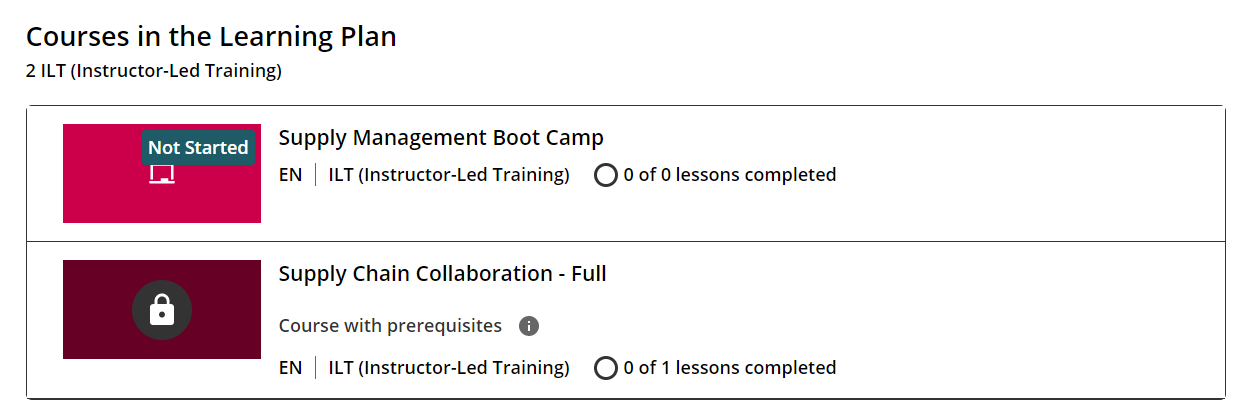
@C0PanaS The functionality should be functional. Below is an example of how it appears on the learning plan page. You'll notice a lock icon on the second course, indicating that completion of the first course is required to unlock it. Have you specified a deadline for the learning plan? If the set deadline has already passed, it could be the reason why the lock icon is displayed on the learning plan.