


When you’re managing hundreds, or even thousands, of courses in Docebo, small governance changes can feel enormous. Updating course codes, moving content into new folders, or aligning properties across multiple enablement teams might sound simple, but at scale, manual updates become a major burden.
That’s where automation comes in.
At Datadog, our Learning Technology team works closely with enablement leads to identify large-scale governance changes, then uses the Docebo API to apply updates in bulk. This removes repetitive work from our enablement partners while ensuring every change is consistent across the learner experience.
With automation, we can:
-
Set or correct course properties in bulk
-
Move content into new governance structures
-
Ensure bulk course creation starts with the right foundation
-
Maintain a full audit trail of changes
And the best part? You don’t need to be a developer to do it. 🙌
Why Google Apps Script?
Google Apps Script is a free tool built into Google Workspace that lets you write JavaScript code to automate tasks in Google Sheets, Docs, and other Google apps.
For Docebo admins, it’s a perfect bridge between your spreadsheet and the API, allowing you to make large-scale changes with a single click instead of hours of UI work.
In my case, I built a script (with help from ChatGPT!) that:
-
Reads course data directly from a Google Sheet
-
Sends it to Docebo via the API with one click
-
Logs each action back into the sheet for tracking
-
Generates a summary in Google Docs for governance records
Tips for Success
-
Start small → Test with 2–4 rows of varying data before running a big update.
-
Log actions → Write results back to the sheet for tracking.
-
Test in sandbox first → Never push straight to production.
-
Adapt to your environment → If you don’t have Google Workspace, alternatives I’ve tested include Postman and sending code through your computer’s terminal. You never know what tools may be available to you!
👀 Interested in Creating Your First Script?
See below for my example on how to update course properties in bulk!
Getting Started
1) Create your Google Sheet
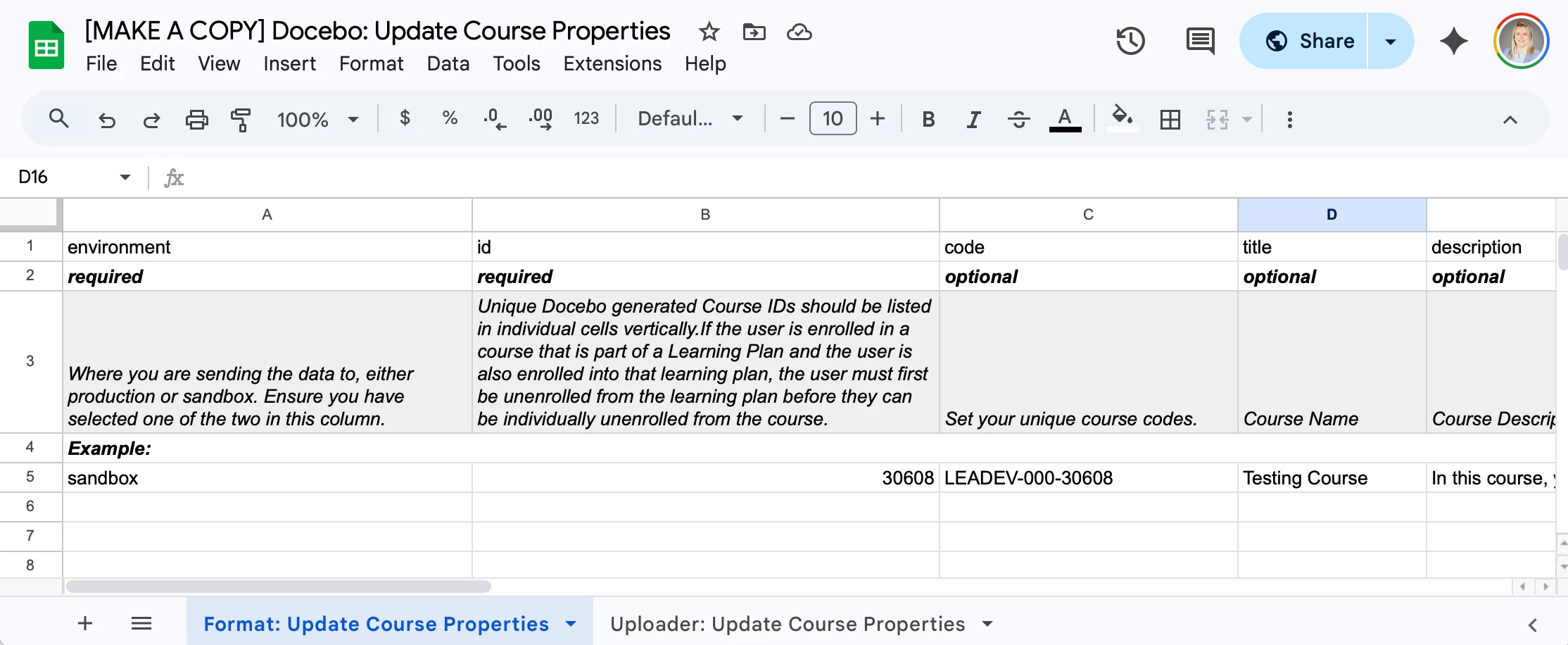
List the details you want to update—like course name, code, and any property changes. Include an Environment column with values like sandbox or production so the script knows where to send the data.
2) Open Apps Script
In your sheet, go to Extensions → Apps Script.
3) Store your API tokens
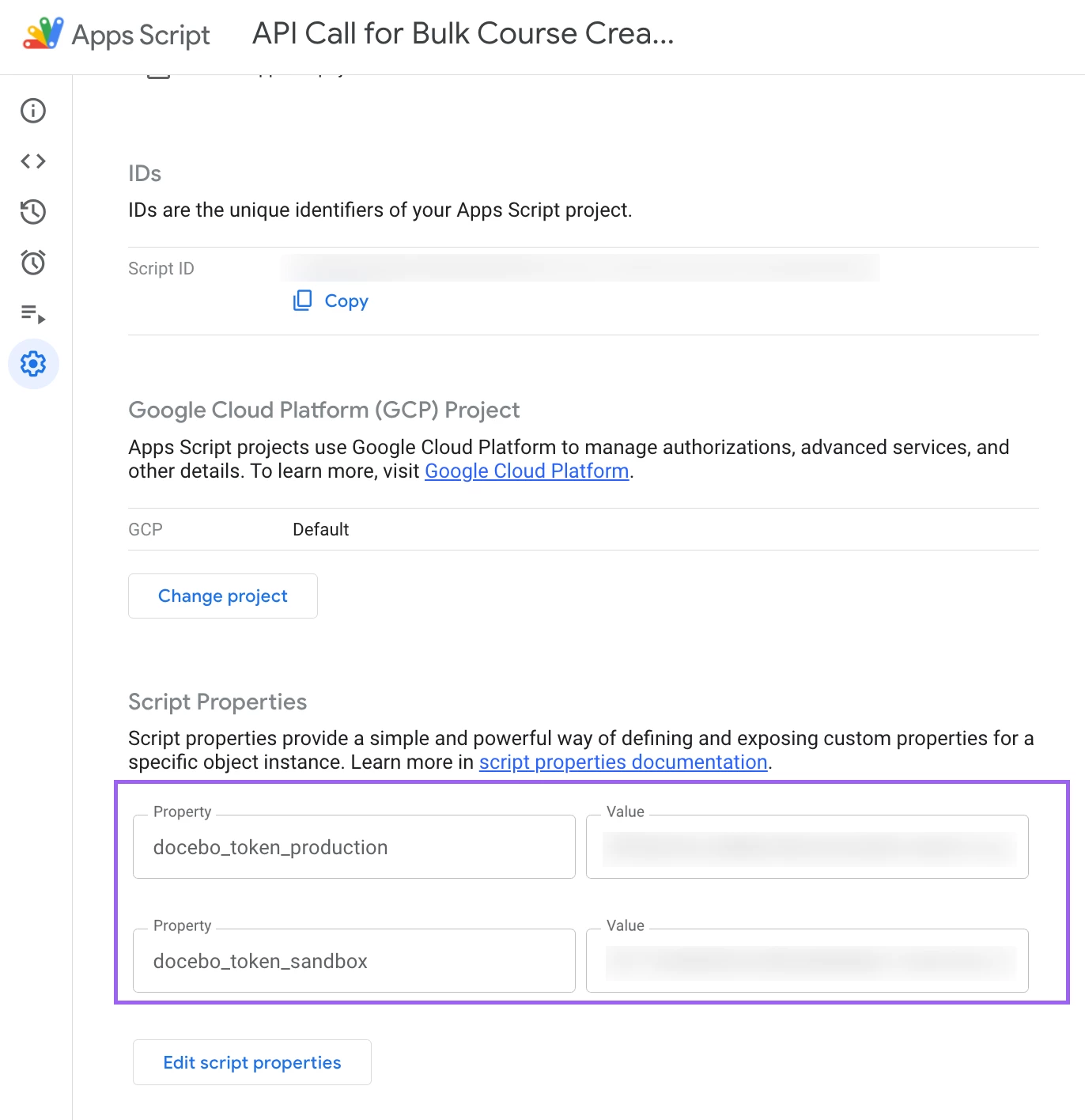
Under Project Settings → Script Properties, create two properties:
-
docebo_token_production→ for your live environment -
docebo_token_sandbox→ for testing safely
🔄 Important: Docebo access tokens expire after a short period (often an hour).
-
Before running the script, generate a fresh token from your Docebo environment and update these values.
-
If you’ve closed your browser or it’s been a while since you last ran the script, refresh the token first to avoid authorization errors.
🔐 Environment Awareness
Your sheet controls both where your data goes and which token the script uses for authorization.
-
If a row is marked
sandbox, the script will use yourdocebo_token_sandbox. -
If it’s marked
production, it will use yourdocebo_token_production.
This means you can run both testing and live updates from the same script—just make sure your sheet’s Environment column is correct before clicking “Run.”
Add a Menu Button in Google Sheets
You can make running the script as easy as clicking a menu item:
// =====================================================
// Google Sheets script: Docebo Menu Setup
// Adds options to run course automation functions
// =====================================================
function onOpen() {
  const ui = SpreadsheetApp.getUi();
  ui.createMenu('Docebo Tools')
    .addItem('Update Course Properties', 'updateCoursesInBulk')
    .addToUi();
}
Once added, your sheet will show a Docebo Tools menu with an “Update Course Properties” button—no need to open the script editor to run it.
How to Add This Script in Google Apps Script (Step-by-Step)
-
Open your Google Sheet
Create or open the sheet you’ll use (with columns A–J as defined below). -
Open the Script Editor
Go to Extensions → Apps Script. A new project opens.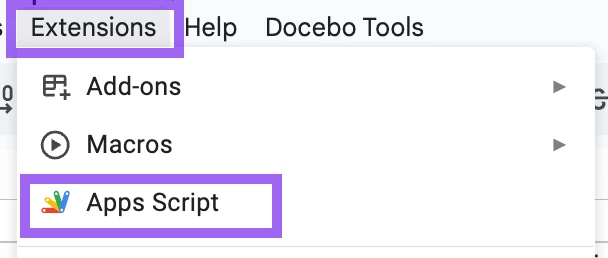
-
Name the project
Click Untitled project at the top and give it a clear name (e.g., “Docebo Course Updater”). -
Paste the code
-
In
Code.gs, paste theupdateCoursesInBulk()code from below. -
Below it (or in the same file), paste the
onOpen()menu script.
-
-
Save
Press ⌘S / Ctrl+S (or click the disk icon). -
Add Script Properties (tokens)
-
Click the gear icon Project Settings (left sidebar).
-
Under Script Properties, click Add script property twice:
-
Name:
docebo_token_production→ Value: (your current production token) -
Name:
docebo_token_sandbox→ Value: (your current sandbox token)
-
-
Save.
-
Remember: Update these tokens with fresh ones before running the script if they’ve expired.
-
-
-
Reload your Sheet
Go back to the sheet and refresh the page. You should now see a Docebo Tools menu. -
Authorize on first run
-
Click Docebo Tools → Update Course Properties.
-
Google will prompt for permissions. Review and allow.
-
(Apps Script uses the least scopes your code needs, like
UrlFetchApp,DocumentApp, andSpreadsheetApp.)
-
-
Test with 2–4 rows
-
Fill in columns A–J (start with
sandbox). -
Run the update and check the Status column and the Google Doc log link in the final alert.
-
-
Move to production
-
When happy with results in sandbox, change column A to
productionfor your target rows and run again.
Example Script: Update Course Properties
Update Course codes, thumbnails, status, etc, in bulk!
Template: [MAKE A COPY] Docebo: Update Course Properties
What the script does
-
Reads columns A–J and only updates fields that have values (whitespace = blank/ignored).
-
Sends PUT to
/course/v1/courses/{id}for core properties. -
Creates a timestamped Google Doc audit log with details per row.
-
Ends with a UI alert containing a link to the log.
Script name: updateCoursesInBulk()
Tab name: Uploader: Update Course Properties
Environment & tokens: Uses Script Properties docebo_token_production / docebo_token_sandbox. Column A (production / sandbox) selects the base URL and which token authorizes the call.
The script
/**
 * Script: updateCoursesInBulk (properties only)
 * Purpose: Update core Docebo course properties from one sheet (no additional fields).
 * Sheet: "Uploader: Update Course Properties"
 *
 * Columns (fixed):
 *   A=environment, B=id, C=code, D=title, E=description, F=course_status,
 *   G=category_id, H=Duration Hours, I=Duration Minutes, J=thumbnail_id
 *
 * Endpoints:
 *   - PUT /course/v1/courses/{courseId}
 *
 * Tokens (Script Properties):
 *   - docebo_token_production
 *   - docebo_token_sandbox
 */
function updateCoursesInBulk() {
  const SHEET = "Uploader: Update Course Properties";
  const ss = SpreadsheetApp.getActiveSpreadsheet();
  const sheet = ss.getSheetByName(SHEET);
  if (!sheet) return SpreadsheetApp.getUi().alert("❌ Sheet not found.");

  const data = sheet.getDataRange().getValues();
  const hdr = data[0];
  const rows = data.slice(1);

  const statusCol = hdr.length + 1;
  if (!hdr[statusCol - 1]) sheet.getRange(1, statusCol).setValue("Status");

  const ts = Utilities.formatDate(new Date(), Session.getScriptTimeZone(), "yyyy-MM-dd HH:mm:ss");
  const doc = DocumentApp.create("Docebo Bulk Course Update Log - " + ts);
  const body = doc.getBody();
  body.appendParagraph("🛠️ Docebo Bulk Course Update Log");
  body.appendParagraph("🕒 " + ts + "\n");

  const normEnv = v => String(v || "").toLowerCase().trim();
  const norm    = v => (v === null || v === undefined) ? "" : String(v).trim();

  const mapStatus = (s) => {
    const v = (s || "").toLowerCase().trim();
    if (!v) return "";
    if (v === "published") return "published";
    const off = ["unpublished","under maintenance","under_maintenance","inactive","maintenance","off"];
    return off.includes(v) ? "under_maintenance" : "";
  };

  for (let i = 0; i < rows.length; i++) {
    const r = rows[i];
    const rowNum = i + 2;

    const environment = normEnv(r[0]);
    if (!["sandbox", "production"].includes(environment)) {
      const m = `⚠️ Row ${rowNum}: Invalid environment`;
      body.appendParagraph(m); sheet.getRange(rowNum, statusCol).setValue(m); continue;
    }

    const courseId = Number(r[1]);
    if (!courseId) {
      const m = `⚠️ Row ${rowNum}: Missing or invalid Course ID`;
      body.appendParagraph(m); sheet.getRange(rowNum, statusCol).setValue(m); continue;
    }

    const code            = norm(r[2]);
    const title           = norm(r[3]);
    const description     = norm(r[4]);
    const statusMapped    = mapStatus(r[5]);
    const categoryId      = r[6];
    const durationHours   = parseInt(r[7], 10) || 0;
    const durationMinutes = parseInt(r[8], 10) || 0;
    const thumbnailId     = r[9];

    const BASE_URL = environment === "production"
      ? "https://YOUR_PROD_SUBDOMAIN.docebosaas.com"
      : "https://YOUR_SANDBOX_SUBDOMAIN.docebosaas.com";
    const TOKEN = PropertiesService.getScriptProperties().getProperty(
      environment === "production" ? "docebo_token_production" : "docebo_token_sandbox"
    );

    const payload = {};
    let hasUpdates = false;

    if (code)        { payload.code = code; hasUpdates = true; }
    if (title)       { payload.name = title; hasUpdates = true; }
    if (description) { payload.description = description; hasUpdates = true; }
    if (statusMapped){ payload.status = statusMapped; hasUpdates = true; }
    if (categoryId)  { payload.category_id = Number(categoryId); hasUpdates = true; }
    if (thumbnailId) { payload.thumbnail_id = Number(thumbnailId); hasUpdates = true; }

    const totalSeconds = (durationHours * 3600) + (durationMinutes * 60);
    if (totalSeconds > 0) {
      payload.average_completion_time = totalSeconds;
      hasUpdates = true;
      body.appendParagraph(`⏱️ Row ${rowNum}: average_completion_time = ${totalSeconds} seconds`);
    }

    if (!hasUpdates) {
      const m = `⚠️ Row ${rowNum}: No fields to update`;
      body.appendParagraph(m); sheet.getRange(rowNum, statusCol).setValue(m); continue;
    }

    try {
      const res  = UrlFetchApp.fetch(`${BASE_URL}/course/v1/courses/${courseId}`, {
        method: "put",
        contentType: "application/json",
        headers: { Authorization: `Bearer ${TOKEN}` },
        payload: JSON.stringify(payload),
        muteHttpExceptions: true
      });

      const http = res.getResponseCode();
      const txt  = res.getContentText();

      if (http !== 200) {
        const m = `❌ Row ${rowNum}: Core update failed (HTTP ${http})`;
        body.appendParagraph(m); if (txt) body.appendParagraph(txt);
        sheet.getRange(rowNum, statusCol).setValue(m); continue;
      }

      body.appendParagraph(`✅ Row ${rowNum}: Core course properties updated`);
      sheet.getRange(rowNum, statusCol).setValue("✅ Update successful");
      Utilities.sleep(400);
    } catch (e) {
      const m = `❌ Row ${rowNum}: Script error during core update — ${e.message}`;
      body.appendParagraph(m); sheet.getRange(rowNum, statusCol).setValue(m);
    }
  }

  doc.saveAndClose();
  SpreadsheetApp.getUi().alert(`✅ Update complete!\n\n📄 Log: ${doc.getUrl()}`);
}
Want to Build More Scripts?
You can use this guide and script as a baseline for almost any Docebo API automation.
Simply copy the script into your prompt for ChatGPT and say something like:
“Here’s my current Google Apps Script for Docebo. Please adapt it so it works with this (provide api endpoint) API endpoint to archive enrollments, keeping the same environment selection, logging, and sheet structure.”
ChatGPT can then help you:
-
Swap in new API endpoints
-
Adjust the payload structure
-
Add or remove columns in your sheet
-
Keep the same environment-awareness, logging, and governance structure
This way, you can create scripts for:
-
Bulk enrollments or unenrollments
-
User updates
-
Catalog changes
-
Reporting exports