


Answer

How to track all courses?

  • February 9, 2022
  • 5 replies
  • 222 views

willingworth
Influencer III
Forum|alt.badge.img+3

Does anyone have some creative setups for reports that helps you track all of your courses?

With a new director in L&D, we wanted to get a one-shot report that had all courses and specific data points on each. Found out that there is no pre-built report for this, so we had to get creative.

I did a report for all courses with enrollments (which of course means courses without enrollments are ignored), and then removed all of the duplicate enrollments to funnel it down to each individual course.
Best answer by Rosalie

Hi @willingworth 

Regarding how to get the list of courses, this is what I do.

  1. Go to Admin > Course Management
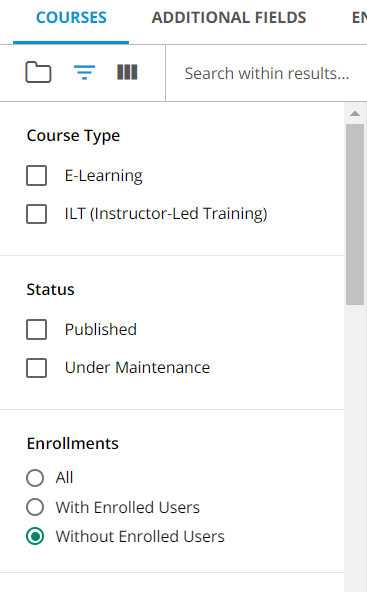
  2. Use the filters, scroll down to Enrollments and flag “Without enrolled users” 
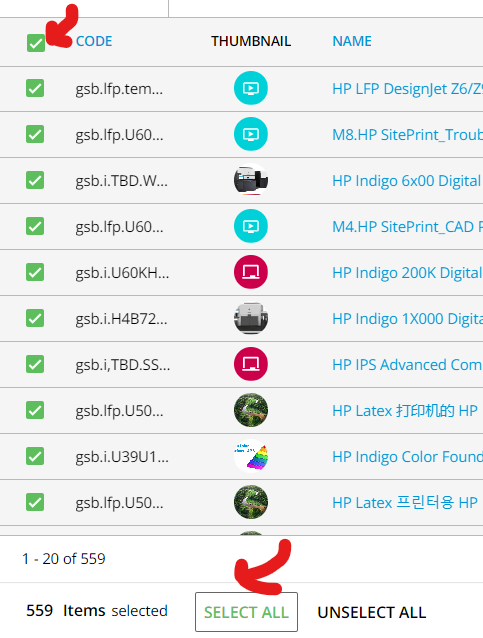
    1. Flag the first column, and then press “Select all” 
      1. Then press “Choose action” and “Export data”.
      2. From the options to choose from, include the course code and follow the next steps
      3. A background job will be created. Once available download the file

Now you have the list of courses without enrollments. As suggested by @lrnlab with this information you can enroll a single user in multiple courses. To do so:

  1. Go to Admin > Course management
  2. Manage enrollments, manage enrollments through CSV and download the template if you don’t have it
  3. Fill out the form following the sample and upload it in your LMS

Again, a new background job will be created.

Once this process is completed, you will be able to run a custom report and include all the courses.

I think I didn’t miss anything. 

I hope this helps


5 replies

lrnlab
Hero III
Forum|alt.badge.img+10
  • Hero III
  • February 9, 2022

Hi @willingworth unfortunately there is no such report...as you say above you can only see data for course that have enrolments. To get around this I enrolled a test ID into ALL course and used that to pull a report. You can do this via the CSV import to save you some time; then use the same CSV file to unenroll if you wish. There are a few ideas posted in this topic you can vote up


dklinger
Hero III
Forum|alt.badge.img+11
  • Hero III
  • February 9, 2022

@lrnlab said it well. People struggle with the reporting..there is a new analytics tool that is improving data that can help here. But the current state or many of us means mashing up elsewhere.


lrnlab
Hero III
Forum|alt.badge.img+10
  • Hero III
  • February 9, 2022

You can add that for a fee but due to the cost you need to balance whether it’s worth the investment or whether you use creative, mashed reports that can sometimes serve the same purpose…

If you have an IT specialist who is familiar with APIs, you can extract that info that way…

ex: https://doceboapi.docebosaas.com/api-browser/#!/course/Courses/Courses_course_v1_courses_id_catalogs


willingworth
Influencer III
Forum|alt.badge.img+3
  • Author
  • Influencer III
  • February 9, 2022

Thanks for the insights! @lrnlab support suggested I do that as well. How did you get a list of all courses to enroll the user in? I found that part a little bit of “Chicken before the egg” as they say. 


Rosalie
Guide II
Forum|alt.badge.img+1
  • Guide II
  • Answer
  • February 3, 2023

Hi @willingworth 

Regarding how to get the list of courses, this is what I do.

  1. Go to Admin > Course Management
  2. Use the filters, scroll down to Enrollments and flag “Without enrolled users” 
    1. Flag the first column, and then press “Select all” 
      1. Then press “Choose action” and “Export data”.
      2. From the options to choose from, include the course code and follow the next steps
      3. A background job will be created. Once available download the file

Now you have the list of courses without enrollments. As suggested by @lrnlab with this information you can enroll a single user in multiple courses. To do so:

  1. Go to Admin > Course management
  2. Manage enrollments, manage enrollments through CSV and download the template if you don’t have it
  3. Fill out the form following the sample and upload it in your LMS

Again, a new background job will be created.

Once this process is completed, you will be able to run a custom report and include all the courses.

I think I didn’t miss anything. 

I hope this helps