


Reporting

2 Quick Ways to Report on All Assets in Docebo Learn

  • April 30, 2021
  • 6 replies
  • 1279 views

Adam Ballhaussen
Guide III
Forum|alt.badge.img+7

Note: These tips only apply to you if you are using Discover, Coach & Share or if you are using Channels without DC&S in Docebo.


It’s common for Superadmins to want to report on the total number of assets in Docebo Learn and to understand what types of assets are most common in their platform.


Here are two quick ways to discover the total number of assets in your platform and gain a better understanding of the type of content that your users are contributing.


Create an Assets - Statistics Report

This is the most straightforward way to report on all of the assets in your platform. This report type allows you to report on all assets in your platform and view statistics like total views, ratings, questions, answers, etc.


How to create an Assets - Statistics Report

  1. Navigate to New Reports
  2. Scroll down to Discover, Coach & Share Reports
  3. Select Assets - Statistics
  4. Give your report a Name (for this, I recommend something like All Assets)
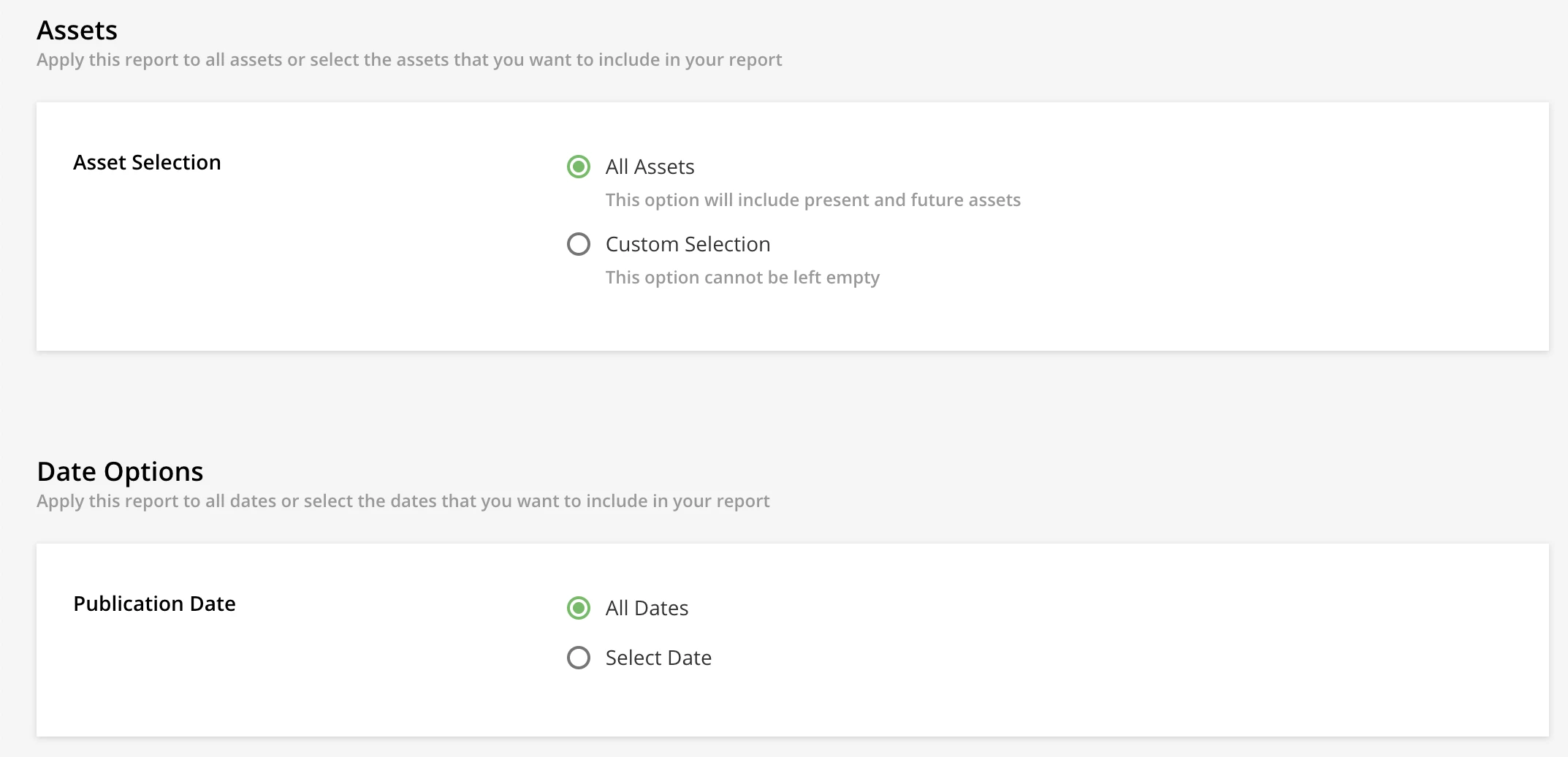
  5. Configure your Filters (in this case, keep All Assets and All Dates selected)
 

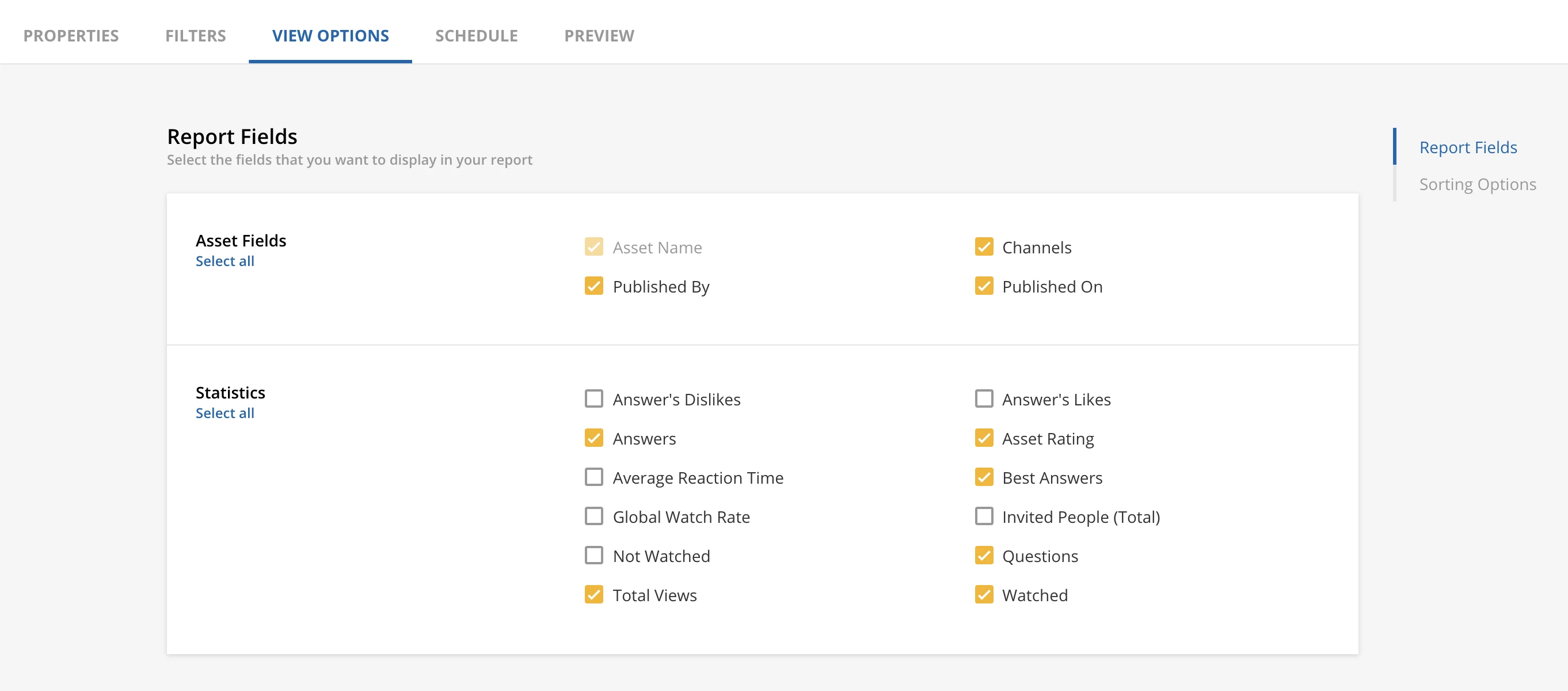
  1. Select the Report Fields you’d like to view in the View Options tab
  1. Configure your Sorting Options
  2. Schedule, Preview, and/or export your report to view the data


Pros

  • Easily view all assets in your platform
  • Report on statistics like total views, ratings, questions, answers, etc.
  • Schedule this report to receive weekly updates and see what net-new content has been added
  • Sort/filter/report by date to see historical trends in content creation

Cons

  • Cannot sort/filter by type
  • Cannot report on playlists


View Assets within Channel Management

You can easily view a total count of all assets (including playlists) within Channel Management in Docebo. Simply follow these steps:

  1. Navigate to the ⚙️ Admin Menu
  2. Select Channels
  3. Navigate to the Assets tab
  4. View the total number on the bottom left of the page
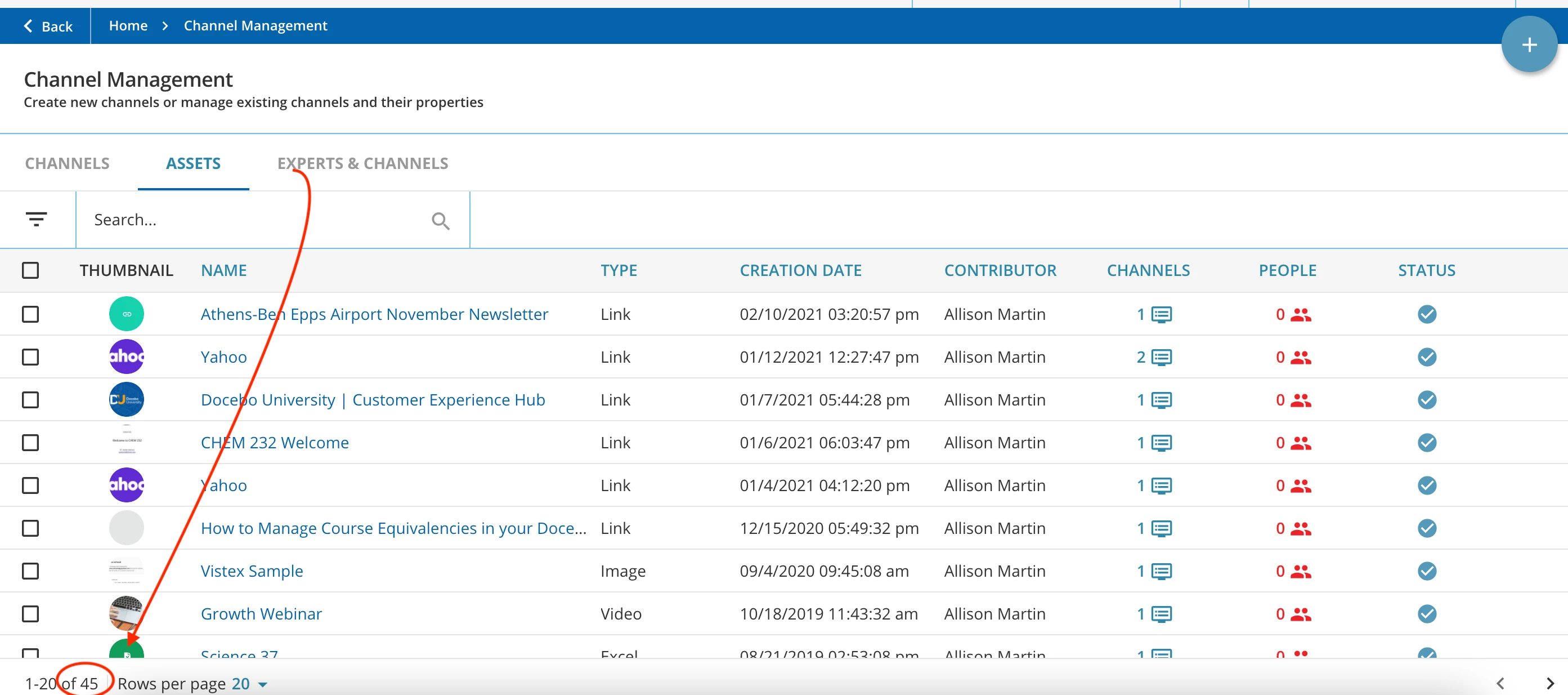
View total number of assets in your platform

Keep in mind that the first number you see in the bottom left of the Assets tab includes all assets including playlists. If you want to filter down to a specific Type of asset, or view all assets without playlists, simply expand the filter option on the left of the Assets to select the types of assets you would like to view. ​​
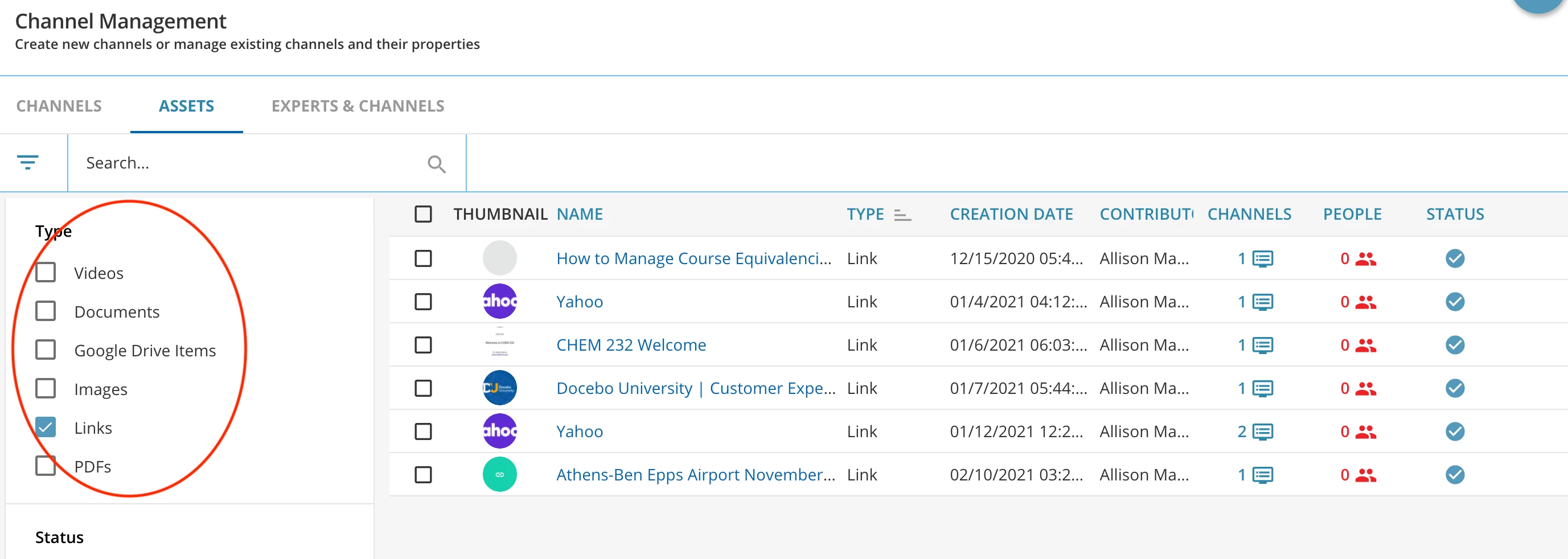
 

Filter by Asset Types by expanding the filter option on the left side of the page. Notice that this updates the total number displayed in the bottom left.


Pros

  • Quickly view total number of assets in your platform
  • Filter by types of assets in your platform (and view total number of each type)
  • Easily assign assets to channels or assign skills to assets

Cons

  • Total number includes playlists
  • Cannot view statistics


Can you think of any other ways to view all assets within Docebo? Leave your tips in the comments below! ⬇️


This question was originally asked by@Cindy McElhinney in Product Q&A


​​​​

Credit to@abartunek for the recommendation for the Assets - Statistics report and to @Allie for the tip on viewing the Asset page in Channel Management


6 replies

JeanetteMcVeigh
Hero III
Forum|alt.badge.img+7

Ah, well, the con to both of these is that if you are not using Discover, Coach and Share or Channels (yet), these are not an option. Might want to clarify that in the beginning of the post.  :grinning:  


Adam Ballhaussen
Guide III
Forum|alt.badge.img+7

Excellent callout @JeanetteMcVeigh! I updated the beginning of this guide to include that information. Thank you!


ASykes
Novice III
  • Novice III
  • August 3, 2022

Ok, so I followed these instructions to pull a report and only one item shows up on the report...even though there is most definitely more than one asset in our platform.

We have two SuperAdmins still in our system who are no longer with the business, one of them actually hasn’t been with the business for a couple of years and had been gone a year and a half before I took the role. I would like to remove them from the system but, of course it gives me the warning that any assets they’ve created will be removed with them. I know I can leave them inactive but I’m trying to tidy up and would like to know what they published/any assets they are associated with. 

I share the platform with other divisions of our company. Though we share the space, we do not share content and are completely siloed operationally. It’s been tricky trying to figure out what things my division set up versus what things other divisions have set up. We would like to all clean up and be good “roommates” as it were, but since they also had turnover for their SuperAdmins, we are kind of scratching our heads about what is safe to remove/what belongs to which division. I was hoping pulling this report would do the trick but the fact that only one thing came up on the report is very confusing. 

There are 77 channels and 169 assets in the system. I am not sure why only one asset with one publisher of said asset is showing up on the report? Who published all the other assets and channels? I cannot find an answer.

I opened a ticket and the support tech (very friendly and tried their best) sent me a video showing me how to pull the report (mimics what you have here) but still, same results as when I tried on my own before opening the ticket and receiving instructions-just one asset on the report. I am wondering where I am going wrong since I cannot pull a report/find who published the other 245 assets.


Any guidance on this would be appreciated!


kfortenb
Influencer I
  • Influencer I
  • October 7, 2022

I have a suggestion/request for the Assets - Statistics report. Can Docebo please change the report to export with a semicolon “;” as the delimiter for the Channel names, rather than the comma “,”? Many of our channels have commas in the titles. When you run the Assets - Statistics report, all the Channels for each asset appear in a single cell, separated by a comma. Because our Channels already contain commas in them, there is not an easy way to separate them from each other for analysis. Having Channel names separated by a “;” would allow me to use “;” as a column delimiter in the report, and separate out the Channel names. We could then easily use Channel name as a grouping in data analysis.

For example, Asset A appears in these channels:

  • Pricing, Calculators, and Estimates
  • Financial Applications

This is how the channels appear in the report for Asset A:

Pricing, Calculators, and Estimates, Financial Applications


Instead, if the channels appeared like this…

Pricing, Calculators, and Estimates; Financial Applications

...we could easily split the column using “;” as the delimiter. I think a semicolon would be much less common than a comma with general labeling habits among admins.

I’ll be posting this in the Ideas section as well, my apologies in advance for any perceived spamming :)

Thank you!


Adam Ballhaussen
Guide III
Forum|alt.badge.img+7

This makes a lot of sense @kfortenb. Thank you for the feedback! Please share the link to your idea in this thread after you’ve created it so that others can easily find it. I’m looping in our community moderator, @elliott.vickrey, who can ensure that this information gets to the right contacts on our product team.


kfortenb
Influencer I
  • Influencer I
  • October 11, 2022

Thank you for the reminder @Adam Ballhaussen! I have posted my idea here:

I appreciate your feedback!

Kristen