


There are two options when it comes to formatting code in the text editor in Community Posts:
Option 1: Inline code formatting
The first option is Inline code formatting. This option allows you to select a specific portion of text and format it as code, well, inline. Inline code formatting is useful to share short snippets of code or to draw attention to text within your instructions that should be copied/pasted exactly. Inline code formatting is additive, meaning you can also apply styles like Bold, Italics, and Underline. Here are some examples:
Bold inline code formattingItalic inline code formattingUnderline inline code formatting
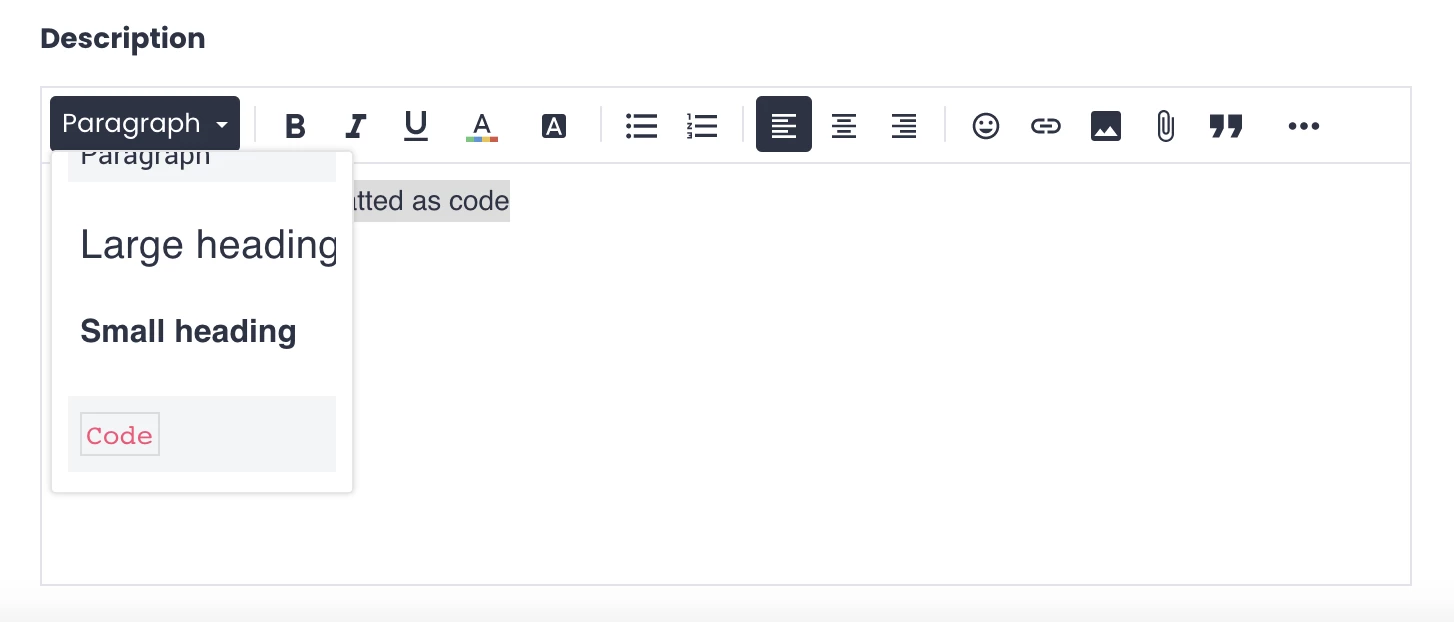
To format text as code inline, select the text you’d like to format as code, navigate to the Formatting Styles option in the top left of the text editor (will most likely display as Paragraph for you), and select Code. It’s as easy as that!
Option 2: Code blocks with syntax highlighting
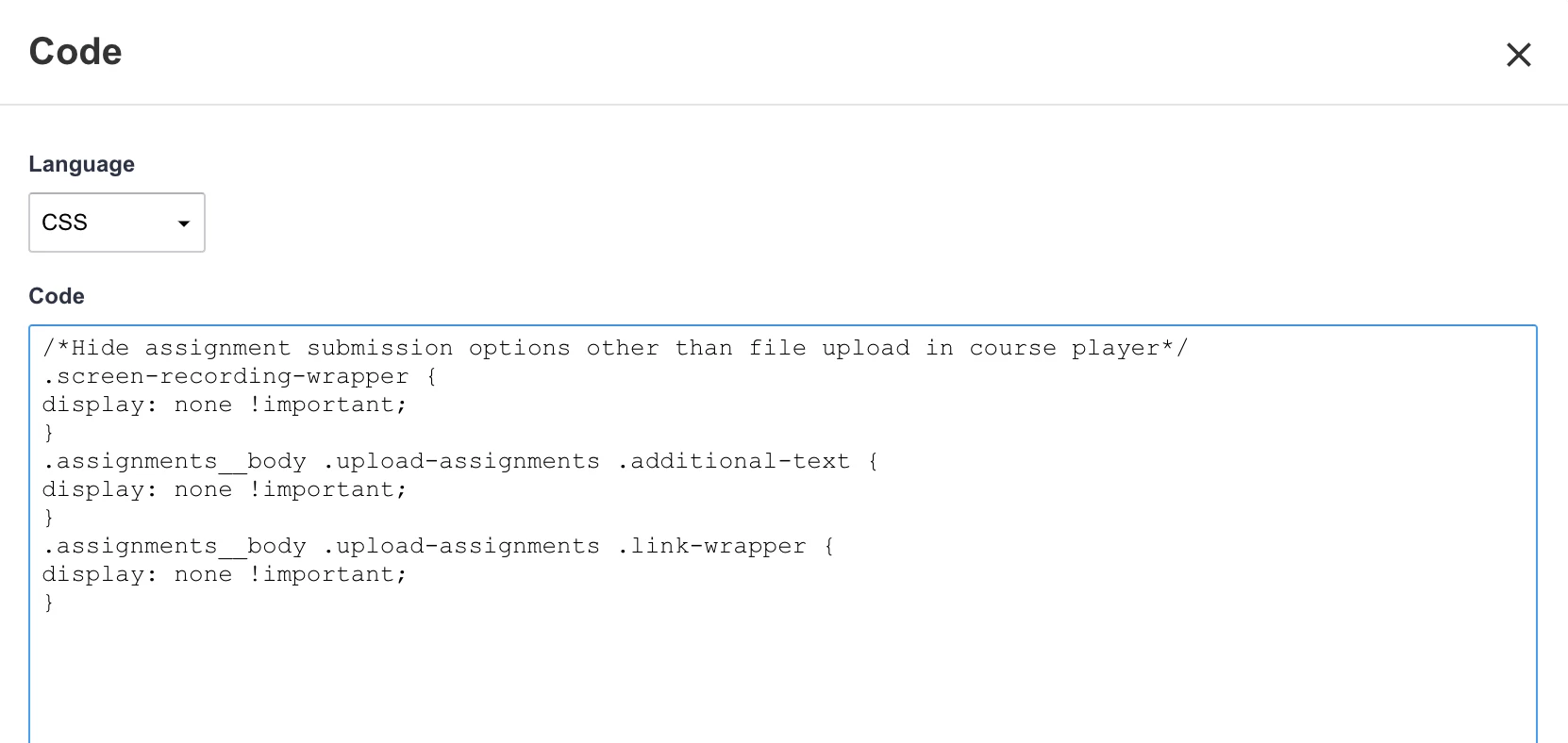
The second option is Code blocks with syntax highlighting. These code blocks are best used to share entire blocks of code with users. The great thing about code blocks is that they present code in the same way it would look in a code editor, with indenting and a monospaced font. Syntax highlighting extends code blocks by adding color and other styling to further emulate the presentation of a code editor. Here’s an example:
/*Hide assignment submission options other than file upload in course player*/
.screen-recording-wrapper {
display: none !important;
}
.assignments__body .upload-assignments .additional-text {
display: none !important;
}
.assignments__body .upload-assignments .link-wrapper {
display: none !important;
}
To use code blocks, position your cursor where you’d like to insert the code block in the body of your post, select the ellipsis in the text editor, and select Code. Next, select the coding language you’d like the syntax highlighting to align with, then either type or paste your code in the body and select Add.