



Question

Pages and how to populate them in Global Search

  • Nov 4, 2026 11:07 PM UTC
  • 1 reply
  • 5 views

kbrink1
Influencer I
Forum|alt.badge.img+4

Hi everyone!

I would like my users to be able to search keywords and for pages from a visible but “hidden” menu to populate along with other platform results. 
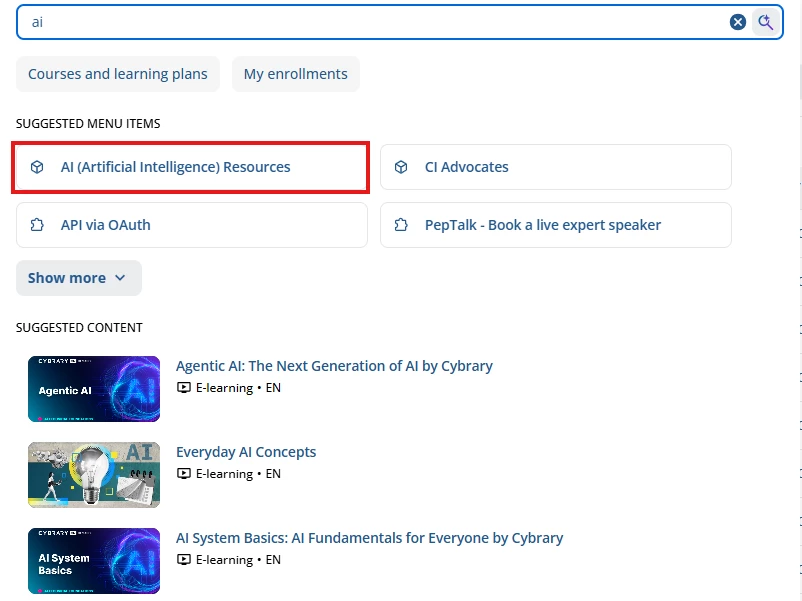
As a super admin, my global search populates menu items for me within the global search, but I have all pages on my primary menu, so I cannot tell if that is the reason. When I log in as a regular user, though, I don't see the page when I use the same keyword/letters, even if it's visible to that user via a hidden menu. 
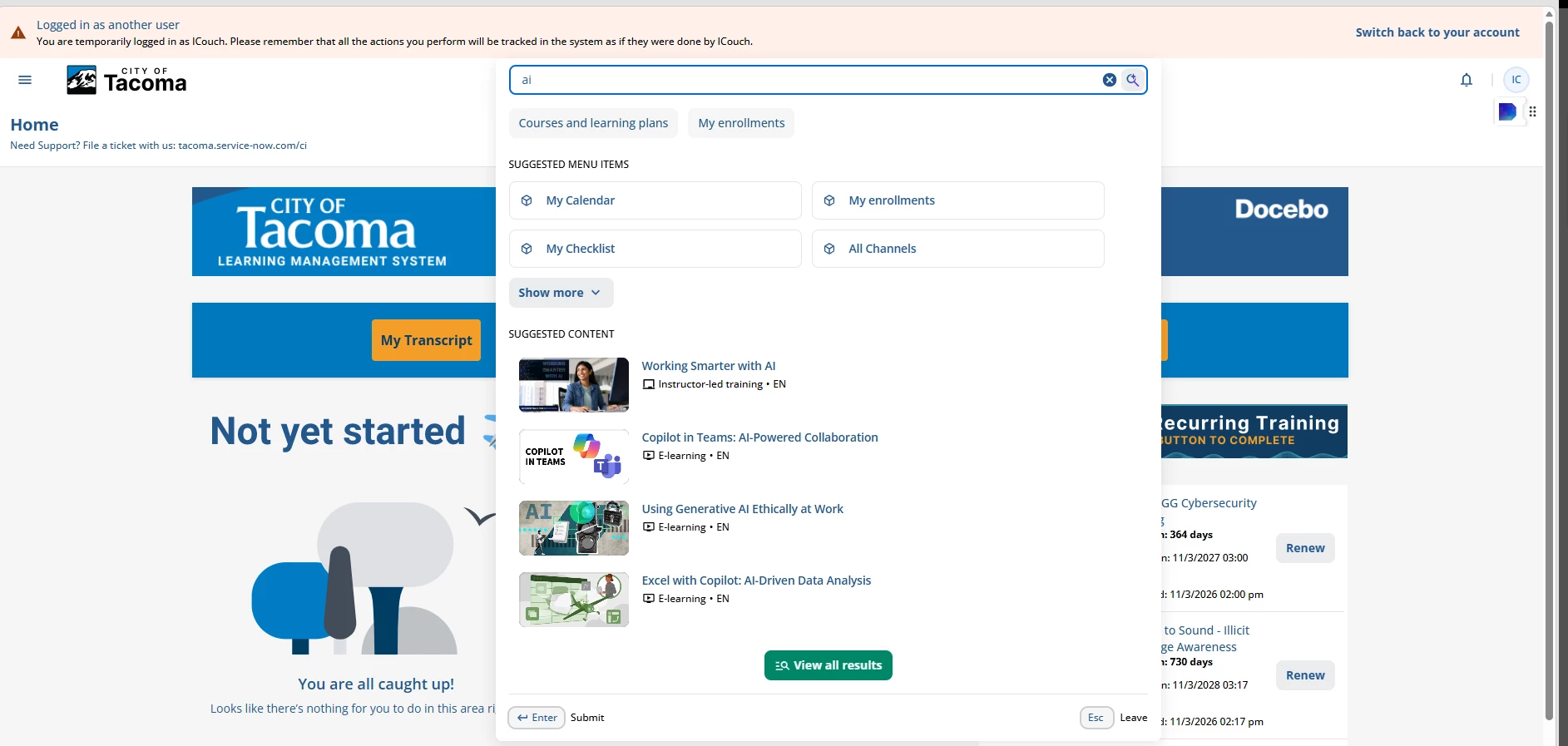
Can you point me to any documentation or guidance on how to leverage this so users can search for pages in hidden menus?

1 reply

Moshe.Machlav
Guide I
Forum|alt.badge.img+2

Hi there!

What you are experiencing comes down to how Docebo’s menu search indexing works, and it helps to separate searching for navigation menus from searching for actual learning content.

1. Why the Page isn't Showing Up in Your Learner Test

With the New Navigation Interface, Global Search only suggests navigation menu items that are actively rendered in that specific user's sidebar.

  • Even though your learners have permission to view those pages via your "Hidden/Catch-All" menu (placed lower in Manage Menus), Docebo only loads their single highest-priority primary menu into the active navigation bar.

  • Because the hidden menu is superseded by their primary menu, Global Search doesn't suggest those pages as menu shortcuts for learners. You see them as a Superadmin simply because those pages live on your active primary menu.

2. The Good News: Your Content is Searchable Either Way

Before worrying about making the custom pages themselves show up in search, it helps to look at how employees actually use the search bar. In organizations I've worked with, we typically find that learners don't search for container pages—they search for the content itself (specific courses, learning plans, training materials, or assets).

The great news is that hiding a page never hides the content on it from Global Search:

  • Courses, Learning Plans, Channels, and Assets placed on your hidden pages are still 100% indexed by Global Search based on Catalog and Channel visibility.

  • As long as the learner has permission to view the underlying catalog or channel, typing keywords into Global Search will immediately surface the exact Courses, Lessons, or Assets they need—regardless of whether the custom page hosting that widget is on their active menu or a hidden one.

Instead of trying to force hidden pages into the search dropdown, the pattern that holds up best is making sure the Titles, Descriptions, and Tags of the Courses and Assets on those pages include the exact keywords your employees are searching for. That way, your primary navigation menu stays clean, your hidden pages still work for direct links or banners, and learners find what they need right away in the search results.

For more details on what Global Search indexes and how menu search visibility works, check out these two guides:

Hope this helps clarify why you're seeing that difference!