
Question

Customize Sign in Page

  • April 1, 2026
  • 2 replies
  • 71 views

Forum|alt.badge.img+1

Hi,
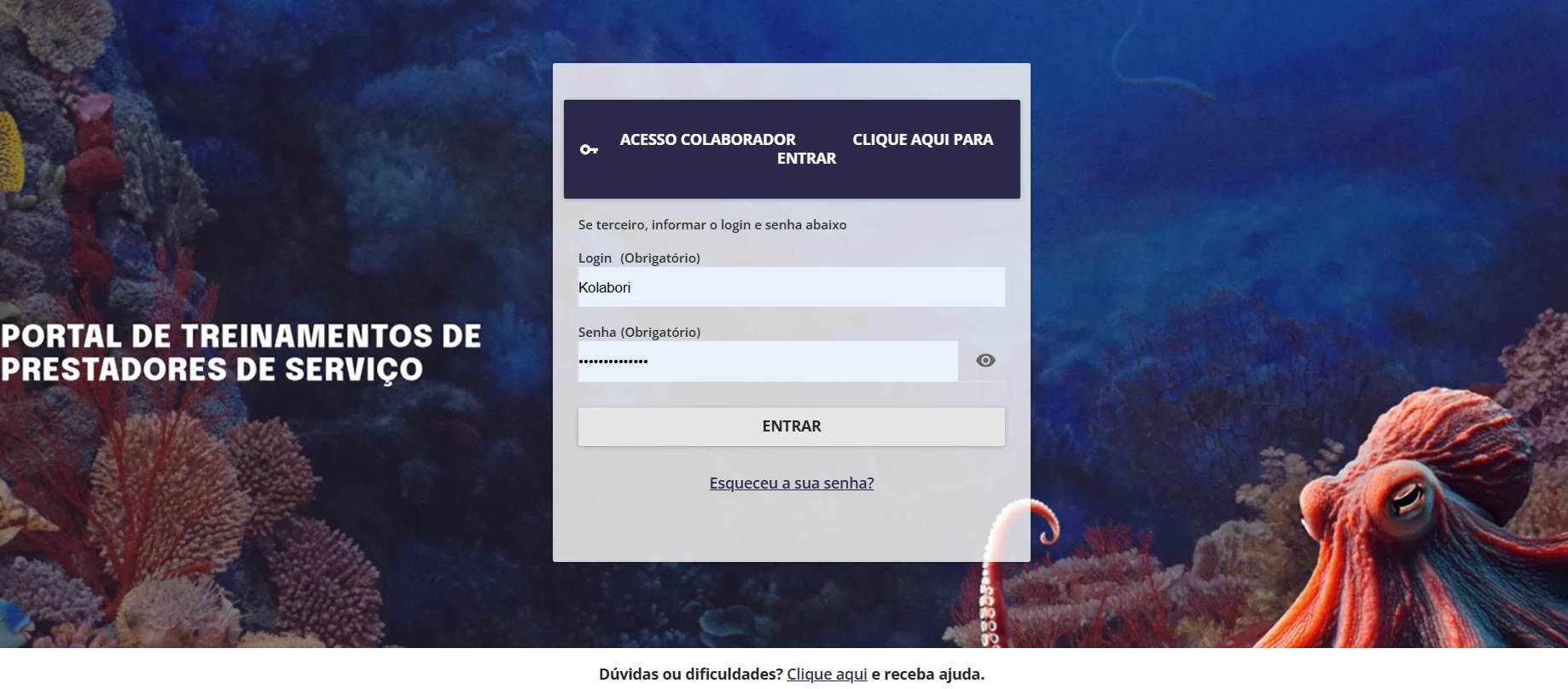
I am looking for some help in customizing the sign in page. Docebo provide options to use color code, image, or video as sign in page background.

I would like to know if it is possible to move the position of the login information box. Also, can we hide the hero banner on the sign in page?

2 replies

  • Contributor I
  • April 1, 2026

Hi ​@ponnammal.sundaram

Yes, it's possible to add a solid color, an image, or even a video to the login page. The article below can help you with that:

https://help.docebo.com/hc/en-us/articles/360020125479-Configuring-the-branding-look-and-feel-of-your-platform#subtitle-4

And through CSS on that same page, you can create code to move the login box and even add a login image or manipulate the blocks. We developed this for two of our clients here in Brazil.
 

We offer this type of service/development for our clients here in Brazil, if you are interested.

I hope this helps.


Moshe.Machlav
Helper III
Forum|alt.badge.img+1

Before diving into code to hide the hero banner, have you looked at the native layout options? Under Admin Menu (gear icon) > Configure branding and look > Sign In Page Background, you can switch away from the image/video layout to a solid color or the Basic page layout. This gives a minimal, clean layout natively and might remove the banner element you are trying to hide.

For your other question—moving the actual login information box—there isn't a native drag-and-drop setting for this. You will need to use Custom CSS. You can target the login container (typically the .login-wrap class) and use CSS properties like transform: translate() to shift its position horizontally or vertically.

When I've deployed custom login screens for organizations with specific branding requirements, we often use CSS to reposition the login box so it sits perfectly over a custom background image. The gotcha that catches everyone here is mobile responsiveness: if you force the box 400px to the right, it will likely fly off the screen on a smartphone. Always make sure to wrap your positioning CSS in @media queries so it only applies to desktop screens.

You can read up on the native background and layout settings here: Configuring the branding, look and feel of your platform

Let me know if you want to dig deeper into the specific CSS needed for this.