Best Answer

CSS to hide the Course score on a specific course landing page

  • June 11, 2026
  • 2 replies
  • 39 views

kelly.newsome
Novice III
Forum|alt.badge.img+1

I’m looking for help with CSS to hide the course score on the course landing page after completion of a specific course. Any help would be greatly appreciated!



Best answer by Moshe.Machlav

Hi ​@kelly.newsome ,

I understand exactly what you're trying to do. Often, we need to track completion but don't want to cause learner anxiety or confusion by displaying a score on the landing page, especially for compliance or purely informational courses.

However, there is a technical limitation to be aware of when using CSS for this specific scenario.

The CSS Limitation with the Course Player

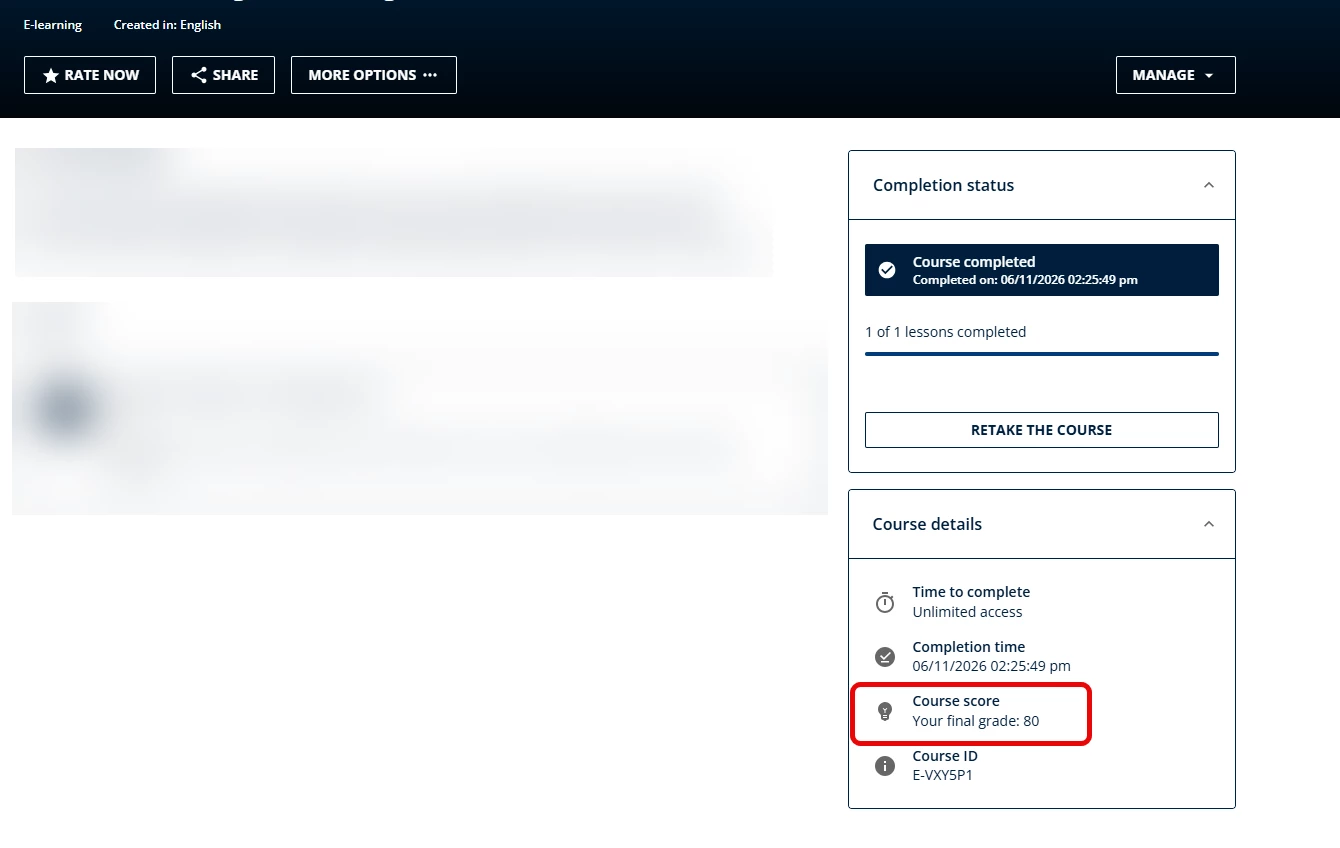
While you can easily target specific Custom Pages (like dashboards) using their unique #doc-page-[ID] wrapper, Docebo's New Course Player does not inject the specific Course ID into the HTML structure. Because of this, it is not currently possible to write custom CSS that hides the score for only one specific course.

Here are the two best ways to handle this:

Option 1: Use Native Settings (Recommended)

When I've deployed this for organizations with similar requirements, we usually lean toward the native settings to avoid using CSS that might accidentally hide critical passing grades on other courses.

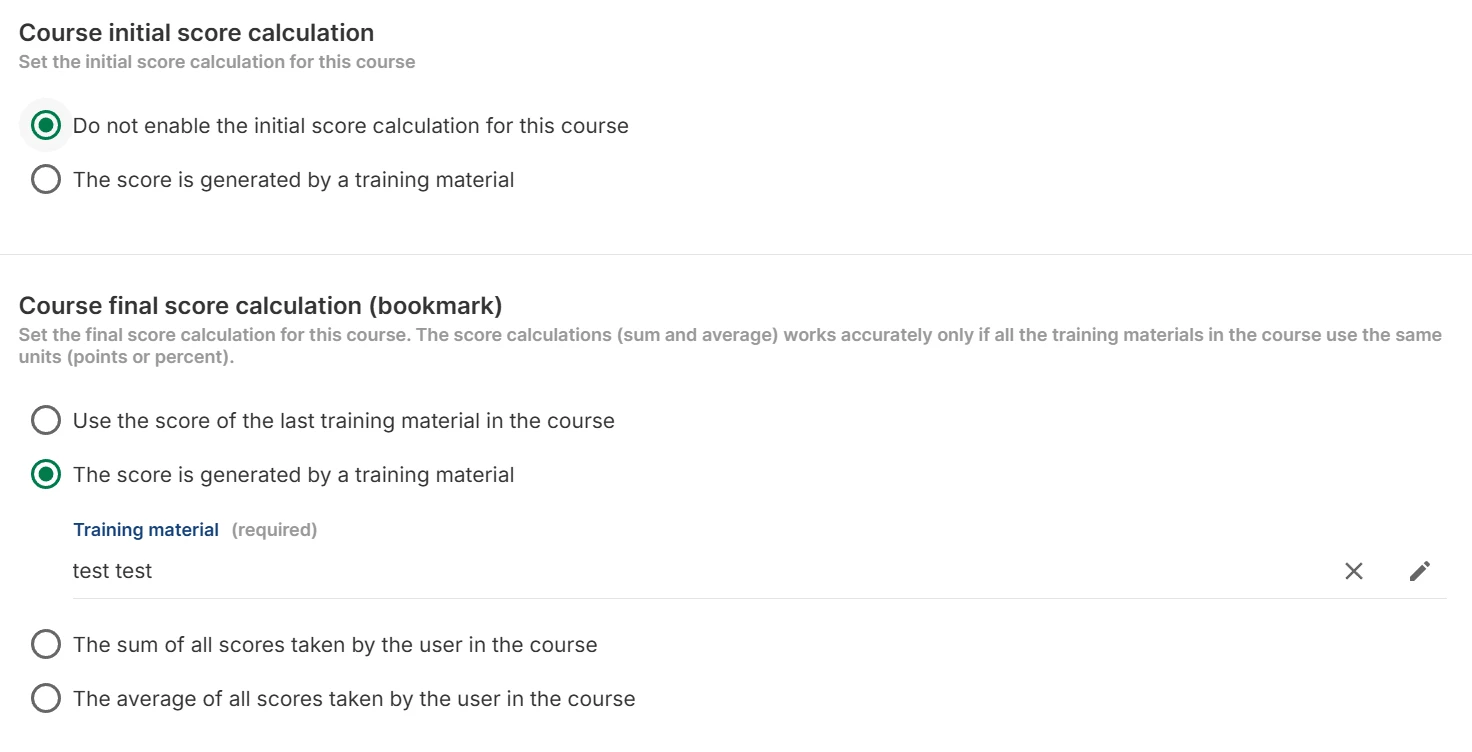
Instead of CSS, simply stop this specific course from generating a final score. Go to Course Management > [Course] > Properties > Score and credits and adjust the calculation settings. If the platform doesn't calculate a score for the course, it won't display the score row in the Course Details widget at all.

Option 2: Hide the Score Globally (CSS)

If you don't mind hiding the score widget across all courses on your platform, you can apply this snippet to your Admin Menu > Configure Branding and Look > Custom Styles > 7.0 Custom CSS:

CSS


/* Hide the course score globally in the Course Details widget */
li.lrn-widget-content-details-course-score {
display: none !important;
}

You can read more about how final scores are managed natively under the "Score and credits" section in the official documentation here: Managing properties for courses – Docebo Help Center.


2 replies

Moshe.Machlav
Guide I
Forum|alt.badge.img+2

Hi ​@kelly.newsome ,

I understand exactly what you're trying to do. Often, we need to track completion but don't want to cause learner anxiety or confusion by displaying a score on the landing page, especially for compliance or purely informational courses.

However, there is a technical limitation to be aware of when using CSS for this specific scenario.

The CSS Limitation with the Course Player

While you can easily target specific Custom Pages (like dashboards) using their unique #doc-page-[ID] wrapper, Docebo's New Course Player does not inject the specific Course ID into the HTML structure. Because of this, it is not currently possible to write custom CSS that hides the score for only one specific course.

Here are the two best ways to handle this:

Option 1: Use Native Settings (Recommended)

When I've deployed this for organizations with similar requirements, we usually lean toward the native settings to avoid using CSS that might accidentally hide critical passing grades on other courses.

Instead of CSS, simply stop this specific course from generating a final score. Go to Course Management > [Course] > Properties > Score and credits and adjust the calculation settings. If the platform doesn't calculate a score for the course, it won't display the score row in the Course Details widget at all.

Option 2: Hide the Score Globally (CSS)

If you don't mind hiding the score widget across all courses on your platform, you can apply this snippet to your Admin Menu > Configure Branding and Look > Custom Styles > 7.0 Custom CSS:

CSS


/* Hide the course score globally in the Course Details widget */
li.lrn-widget-content-details-course-score {
display: none !important;
}

You can read more about how final scores are managed natively under the "Score and credits" section in the official documentation here: Managing properties for courses – Docebo Help Center.


kelly.newsome
Novice III
Forum|alt.badge.img+1
  • Author
  • Novice III
  • June 12, 2026

Hi ​@kelly.newsome ,

I understand exactly what you're trying to do. Often, we need to track completion but don't want to cause learner anxiety or confusion by displaying a score on the landing page, especially for compliance or purely informational courses.

However, there is a technical limitation to be aware of when using CSS for this specific scenario.

The CSS Limitation with the Course Player

While you can easily target specific Custom Pages (like dashboards) using their unique #doc-page-[ID] wrapper, Docebo's New Course Player does not inject the specific Course ID into the HTML structure. Because of this, it is not currently possible to write custom CSS that hides the score for only one specific course.

Here are the two best ways to handle this:

Option 1: Use Native Settings (Recommended)

When I've deployed this for organizations with similar requirements, we usually lean toward the native settings to avoid using CSS that might accidentally hide critical passing grades on other courses.

Instead of CSS, simply stop this specific course from generating a final score. Go to Course Management > [Course] > Properties > Score and credits and adjust the calculation settings. If the platform doesn't calculate a score for the course, it won't display the score row in the Course Details widget at all.

Option 2: Hide the Score Globally (CSS)

If you don't mind hiding the score widget across all courses on your platform, you can apply this snippet to your Admin Menu > Configure Branding and Look > Custom Styles > 7.0 Custom CSS:

CSS


/* Hide the course score globally in the Course Details widget */
li.lrn-widget-content-details-course-score {
display: none !important;
}

You can read more about how final scores are managed natively under the "Score and credits" section in the official documentation here: Managing properties for courses – Docebo Help Center.


Thanks for the information! I was really hoping to only do it for one course, but it looks like we are restricted.

We were attempting to turn it off just for one course that is a “pre-test”, where we can test knowledge ahead of a live training then again after training. We still want score on the back end, just not viewable to the learners to avoid any learner anxiety beforehand. 


Moshe.Machlav
Guide I
Forum|alt.badge.img+2

Hi ​@kelly.newsome ,

Thanks for the added context! If the goal is to run a "pre-test" to gauge knowledge before a live training and then test them again afterward, the good news is that you don't need any CSS workarounds or to split this into multiple courses. Docebo has built-in functionality designed exactly for this scenario.

Instead of trying to hide the score on the landing page with code, you can manage the entire flow within a single course. To keep the score hidden from the learner (to avoid anxiety) while retaining the data for your backend reporting, you can use a combination of two native settings:
 

1. Leverage the Initial Score function (from screenshot) On the exact screen (Course Properties > Score and credits), set your pre-test training material under Course initial score calculation, and your post-test under Course final score calculation. By configuring it this way, the pre-test simply acts as a backend baseline for your reports. It won't become the prominent "Course Score" displayed on the landing page widget.

2. Hide the score within the Test itself To ensure learners don't see their score even immediately after submitting the pre-test, you'll want to adjust the settings on the training material itself. Navigate to the test in your training materials tab, go to Test Options > Set feedback options, and under Score display, choose not to show the final score (and ensure you don't display the correct answers).

You can read more about controlling what the learner sees upon test completion in the official documentation here: Managing test options – Docebo Help Center.