Hi everyone,
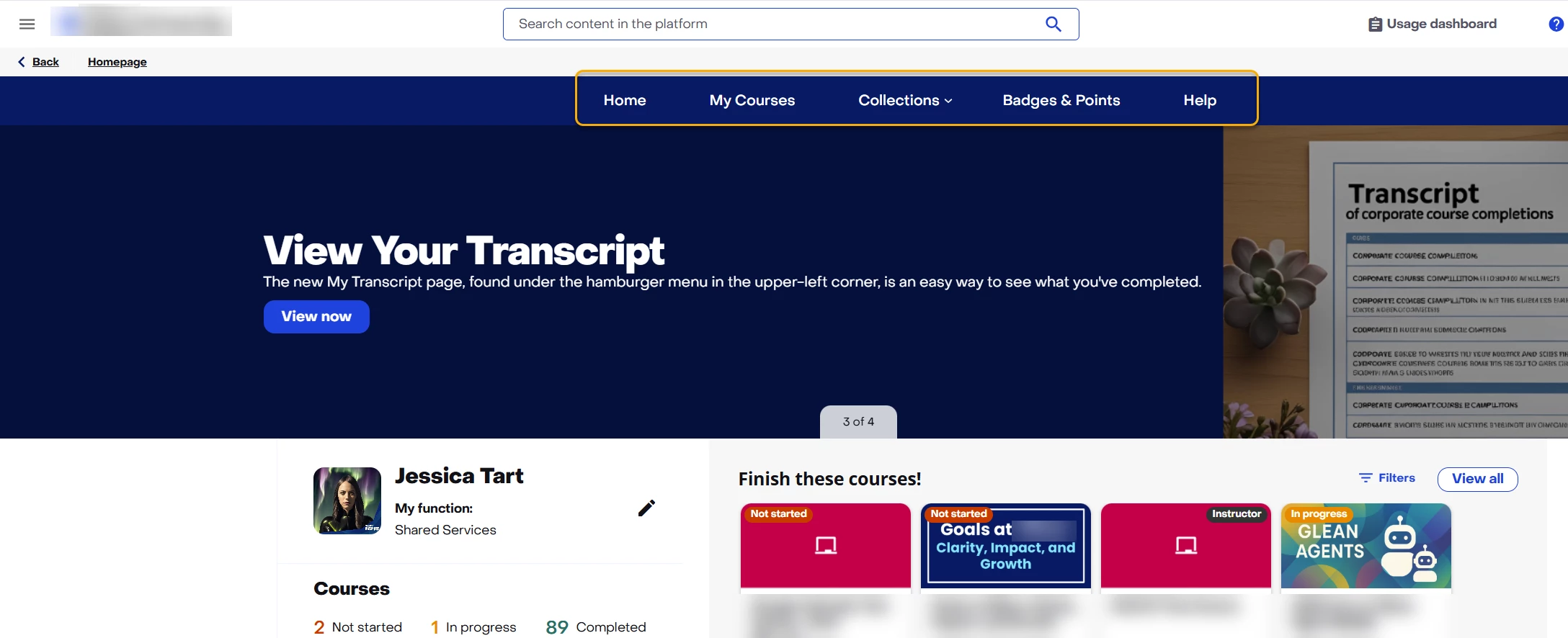
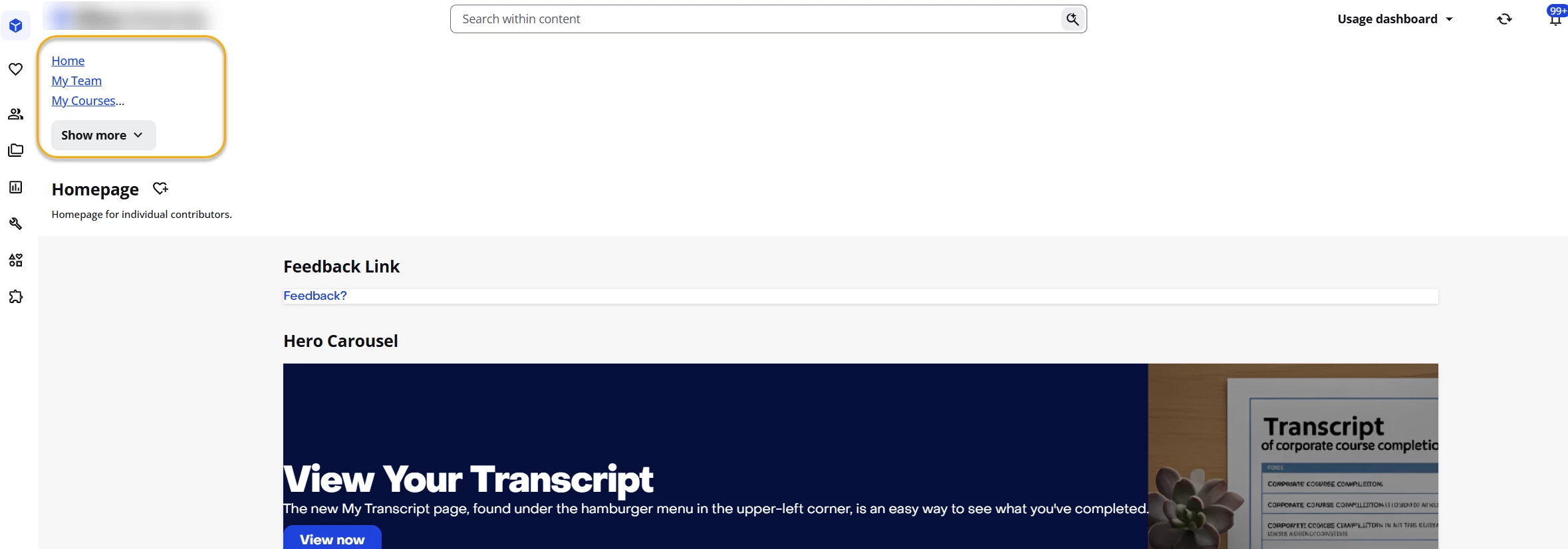
As shared in previous updates, the New Navigation System is now available to everyone in opt-in mode, with a preview option to try it out before switching, and GA scheduled for July 22nd.
I'd like to take this opportunity to recap what's changed, share what's coming next, and acknowledge the work still in progress.
The redesign was driven by a simple goal: make information easier to find, the structure clearer, and the experience better for both new users and seasoned admins.
What's new
A reorganised menu structure
The menu is now organised around predefined categories. This brings more order to the information hierarchy and makes it easier for users, especially newer admins or anyone looking for unfamiliar features, to understand how the menu is built and where to find what they need.
Search shortcuts to menu items
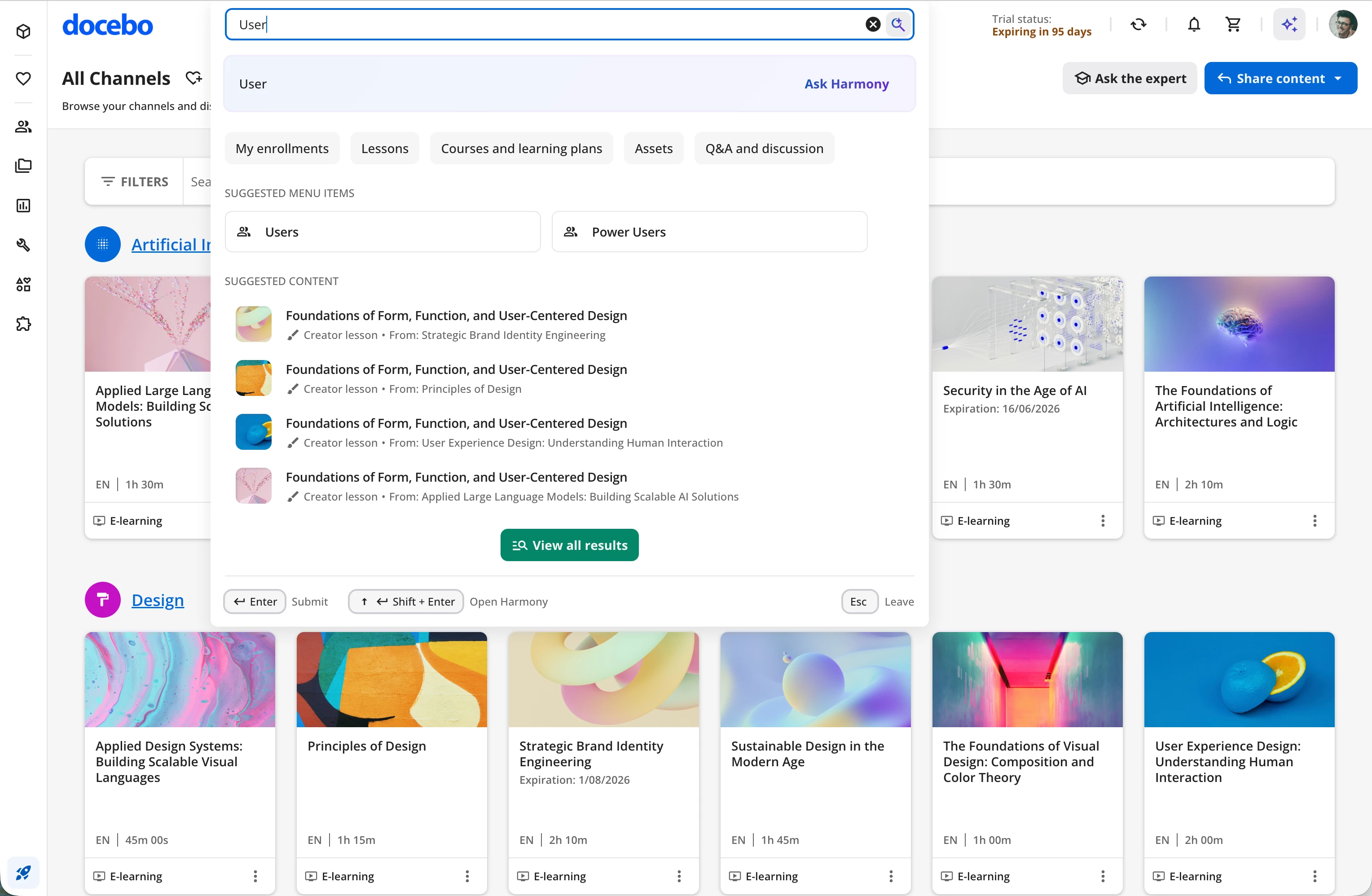
For users who already know the page they want to reach, we've added menu shortcuts directly inside search. Typing a term like "user," for example, will surface the matching pages in the "quick suggestions" section of the search results, allowing users to jump straight to the page without browsing the menu manually. A small change, but a meaningful one for more experienced users.
Favorites
The Favorites section has been very well received, thank you for the positive feedback. We're already working on the next iteration: the ability to reorder favorites via drag & drop. This will land before the July 22nd GA.
On custom CSS and the transition
We know one of the trickier parts of moving from the old navigation to the new one is handling existing custom CSS. The new system introduces structural changes in the underlying code that were necessary, and mandatory, to meet specific accessibility requirements. As a result, some existing customisations may not carry over automatically to the new navigation.
To support the transition, we've put together a reference document describing the hierarchy and the classes used in the New Navigation System.
Docebo New Navigation System - CSS reference
It's intended as a guide for anyone who needs to target specific classes and reapply structural or styling tweaks.
As an example, here's a snippet that addresses a frequently requested customisation, hiding the title bar, but only when it doesn't contain any action button or call to action:
Css
app-layout-title-bar:not(:has(app-layout-title-bar-end-slot button)) {
  display: none;
}
Still on our plate
The work isn't done. The team is actively addressing remaining glitches, minor visual issues, and unexpected behaviours surfaced during real-world use. Every piece of feedback we've received has been read and considered, please keep them coming.
A genuine thank you to everyone who's tested, reported, and shared input so far. The shape of the new navigation today reflects your contributions, and we're counting on it to make GA as smooth as possible.
Alessandro