

If you’ve ever been mystified while searching for asset IDs, look no further than this new guide brought to you by Docebo’s own Roberto Moscatelli (Manager, Enterprise Support)!
When using Docebo’s API endpoints or searching the Audit Trail, you often need unique IDs for users, courses, and other platform assets. Having access to these IDs can allow you to retrieve, post, and update data via API endpoints. They can even help you retrieve Audit Trail data on a user no matter how many username changes they’ve gone through. These IDs can be really convenient!
What’s less convenient is that unique IDs are rarely obvious if you don’t know how to find them. The goal of this guide is to show you how to find some of the most commonly used unique IDs and provide inspiration when you search for unique IDs on your own.
Below are some quick ways to retrieve IDs directly within your platform.
Guide Table of Contents
Users
Retrieve User_id
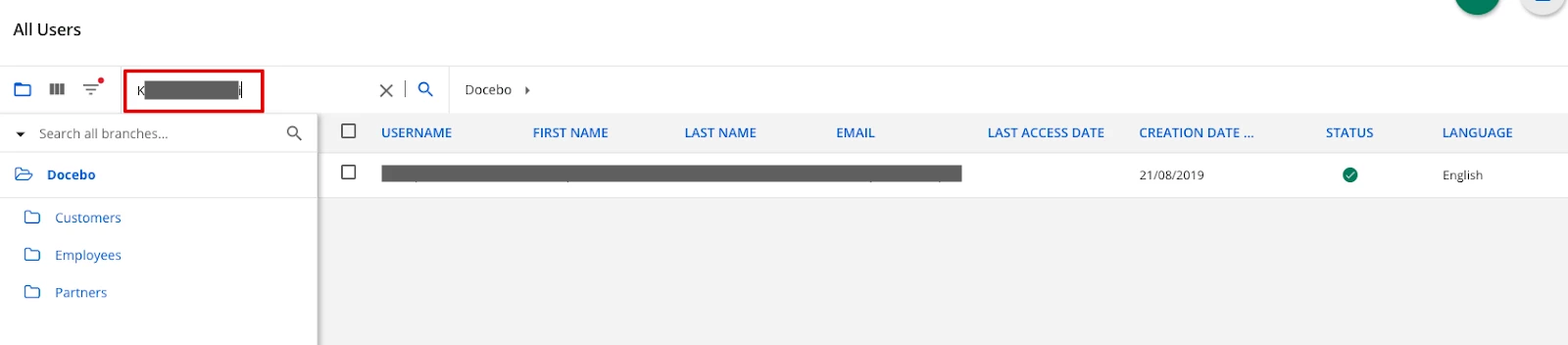
- To retrieve a unique user ID (user_id), go to Admin Menu -> E-Learning -> Users and search for the user in question.
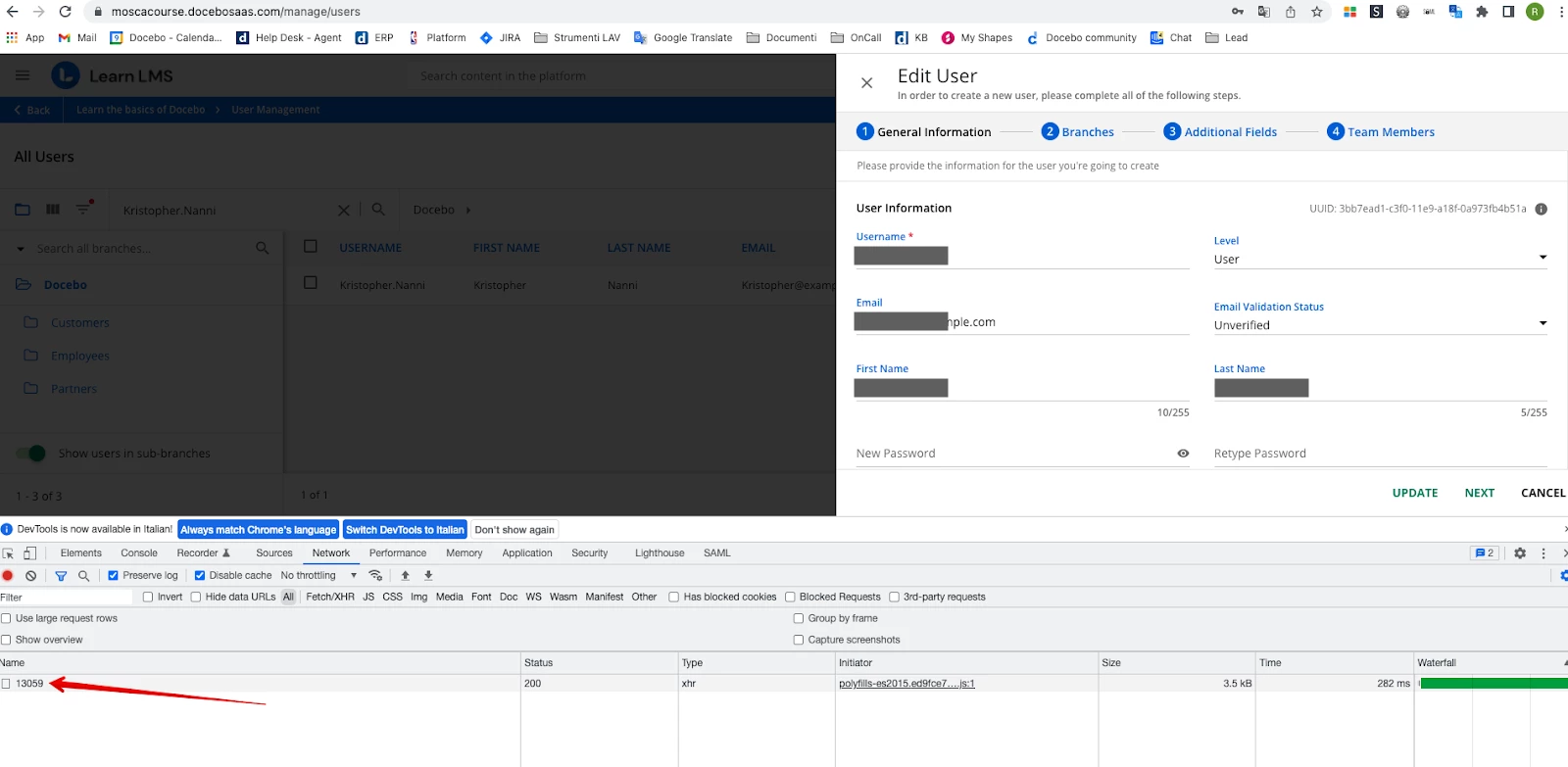
- Open your browser console and select the Network tab.

Note: In order to access the browser console, right-click any element of the page and select Inspect. In Safari, this will be listed as Inspect Element. The window that appears is the browser console.
- Click on the 3 dot menu at the end of the user’s row and select Edit. The User_id will appear under Name in the Network tab.
Retrieve Group_id
- To retrieve a unique group ID (group_id), go to Admin Menu -> E-Learning -> Groups.
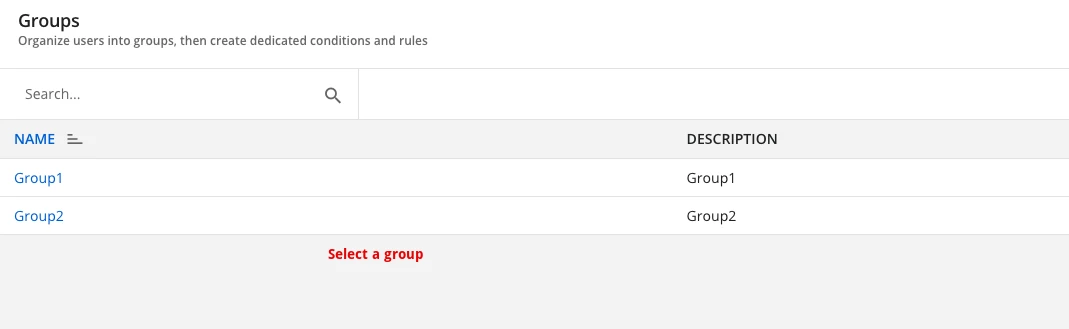
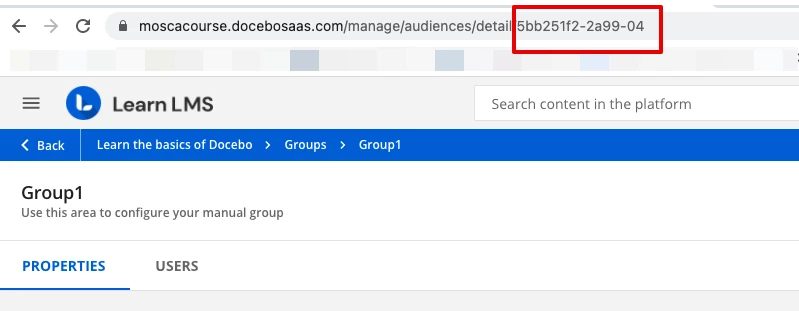
- Select your group. The group_id will appear at the end of the URL after /detail/
Courses
Retrieve Course_id
Important: The course ID used here is not the same as the ID listed in the “Course Unique ID” column in Course Management.
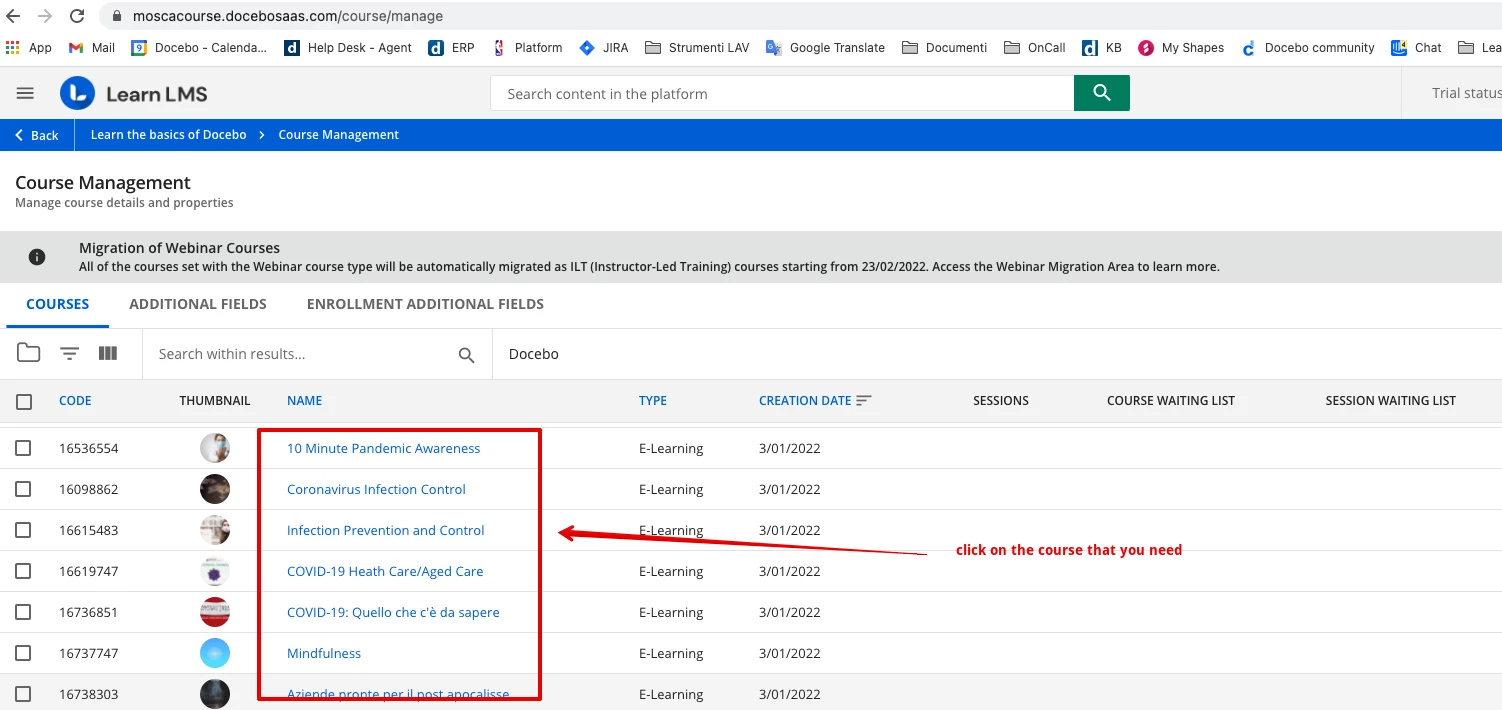
- To retrieve a course ID (course_id), go to Admin Menu -> E-Learning -> Course Management.
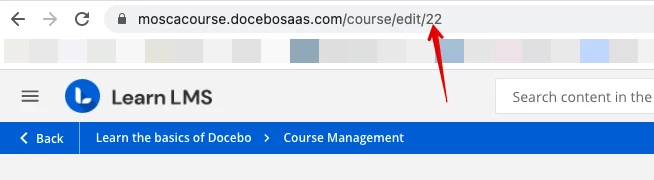
- Click on the course. The course_id will appear at the end of the URL after /edit/
Retrieve Session_id
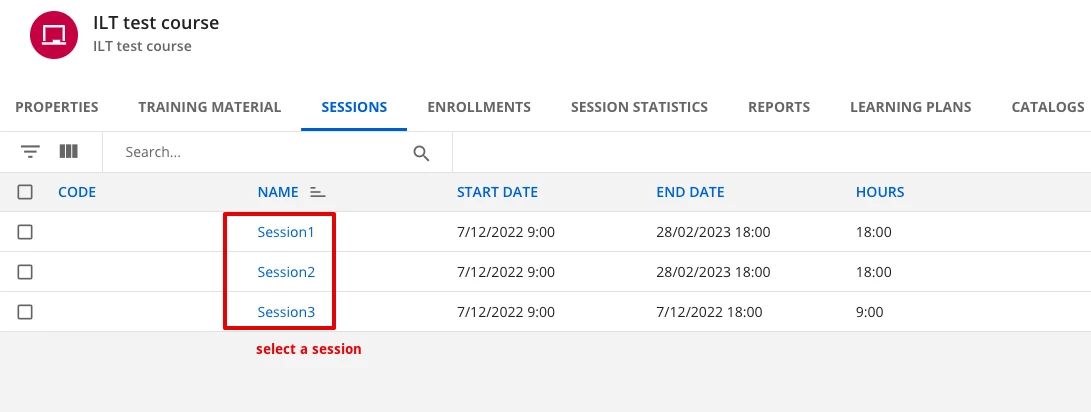
- To retrieve a session ID (session_id), go to Admin Menu -> E-Learning -> Course Management.
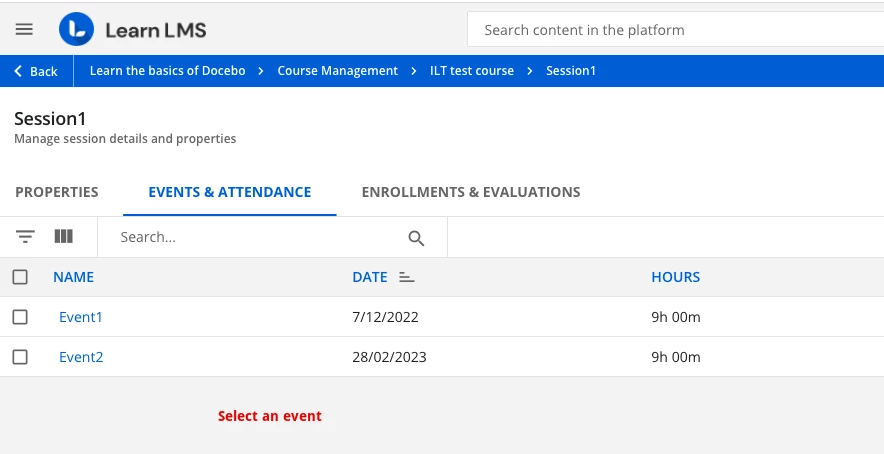
- Select the ILT course, then select the session.
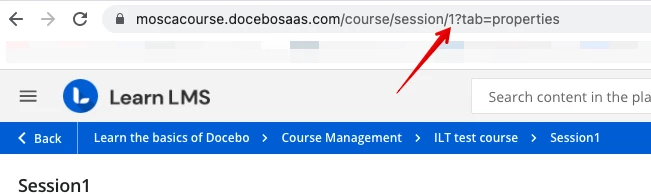
- The session_id will appear at the end of the URL after /session/. Do not include any characters that follow the ID number.
Retrieve Event_id
- To retrieve an event ID (event_id), follow the first two steps listed above for Retrieve Session_id.
- Select the event. The event_id will appear at the end of the URL after /event/. Do not include any characters that follow the ID number.

Retrieve LO_id (Training Materials)
- To retrieve a training material ID (LO_id), go to Admin Menu -> E-Learning -> Course Management.
- Click on the course, then select the Training Material tab.
- Click the hamburger menu to the right of your training material, then hover your mouse over “Delete”. Do not click delete.
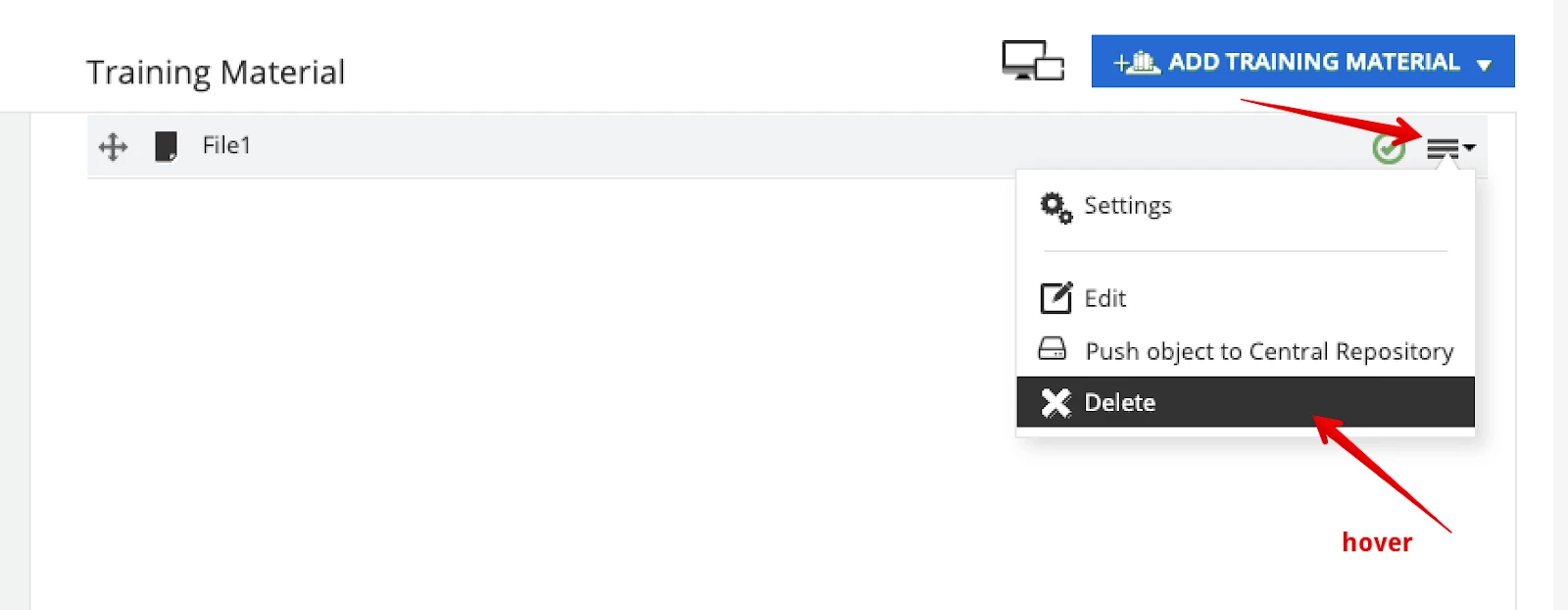
- At the bottom left of your window, you will see a string with “id_object=”. The following number is the ID of your training material. Do not include any characters that follow the ID number.

Other
Retrieve Page_id (Custom Pages)
- To retrieve a custom page ID (page_id), first access the custom page in question.
- The page_id will appear in the URL after /pages/. Do not include the page name that follows the ID number.
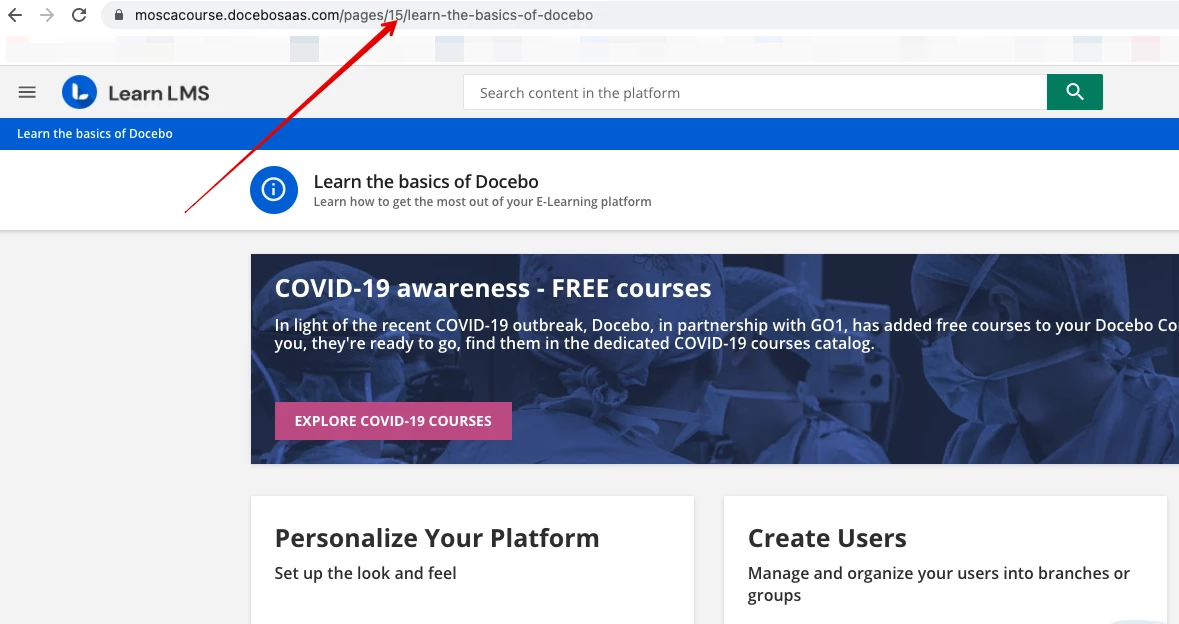
Note: Admins can also find this ID by going to Admin Menu -> Settings -> Manage pages. There you can select the page and find the ID in the URL after /settings/. Do not include any characters that follow the ID number.
Retrieve Catalog_id
- To retrieve a catalog ID (catalog_id), go to Admin Menu -> E-Learning -> Course Catalog.
- Find the catalog and hover your mouse over the assigned courses icon to the right. (The icon looks like a list.)
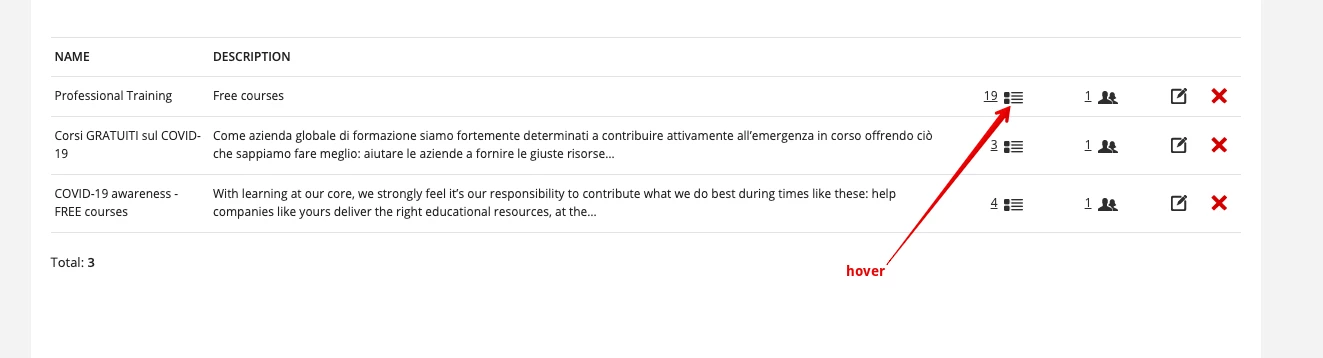
- At the bottom left of your window, you will see a string with “assignCourses&id=”. The following number is the catalog_id.

Retrieve Learning_Plan_id
- To retrieve a Learning Plan ID (learning_plan_id), go to Admin Menu -> E-Learning -> Learning plans.
- Find the Learning Plan and hover your mouse over the assigned users icon to the right. (The icon looks like silhouettes of two people.)

- At the bottom left of your window, you will see a string with “users&id=”. The following number is the learning_plan_id.

Retrieve Channel_id
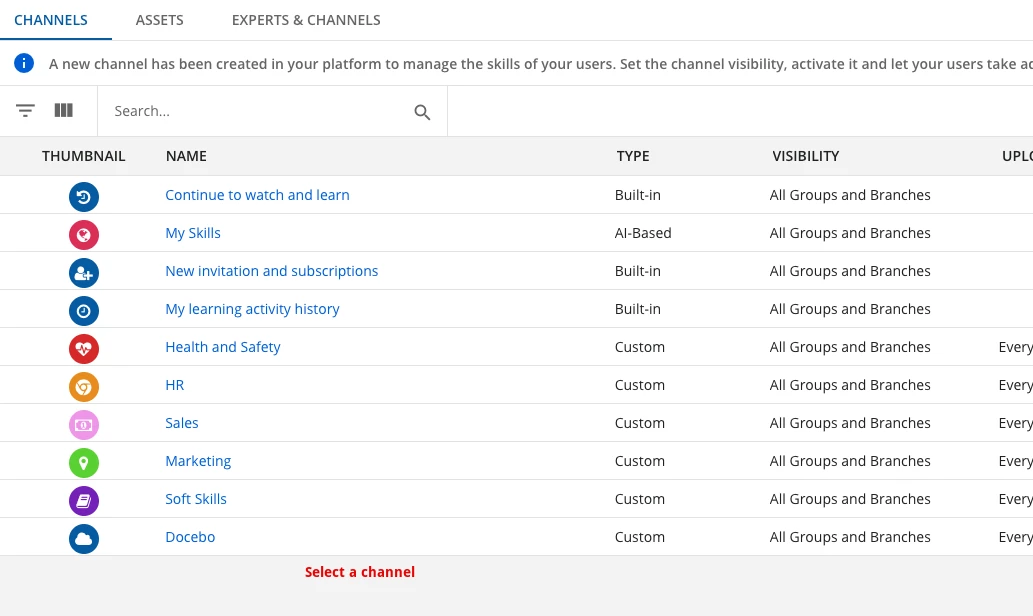
- To retrieve a channel ID (channel_id), go to Admin Menu -> E-Learning -> Channels.
- Select the channel.
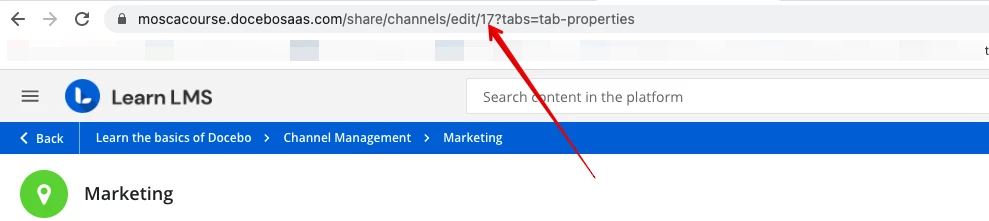
- The channel_id will appear in the URL after /edit/. Do not include any characters that follow the ID number.
Are there any crucial IDs you think are missing from this guide? Let us know with a comment below!