



Guide Table of Contents
Welcome to Docebo Community, where you can connect with your peers about everything Docebo. You’re excited to be here to check out all the community has to offer!
While you can browse through the community without logging in, there are portions of the community you will not have access to. These include our Ideas portal, where you can submit product enhancement requests, and our Product Research & Design category, where you can provide feedback to help us shape the future of the product.
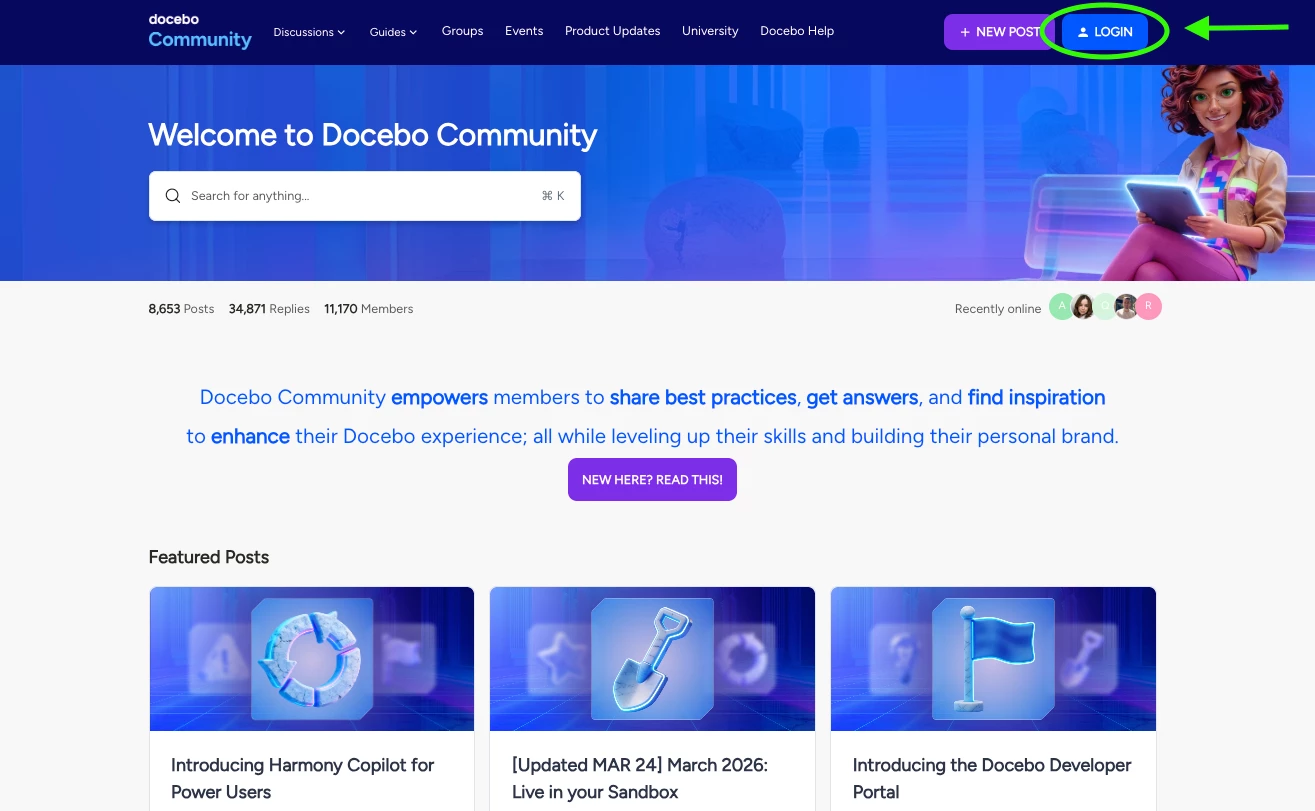
In order to get full access to the community, you are required to have a registered community account. If you aren’t sure if you’ve ever created a community account, click the “LOGIN” button in the top right and then click on ‘Create an Account’.
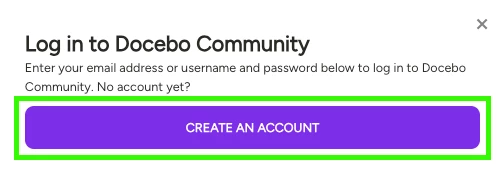
Fill in the required fields on the registration form and click ‘Register’ at the bottom. If nothing happens after clicking Register, scroll all the way to the top to see if an error message appears indicating the email is already in use or not.
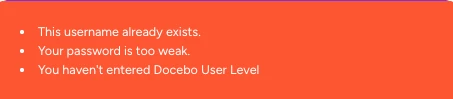
If you receive this message, please refer to the ‘Forgot Password’ section below.

Confirm Your Account Details
Forgot Password
First, you need to check to see if you’re using the correct password.
- Go to community.docebo.com in your browser.
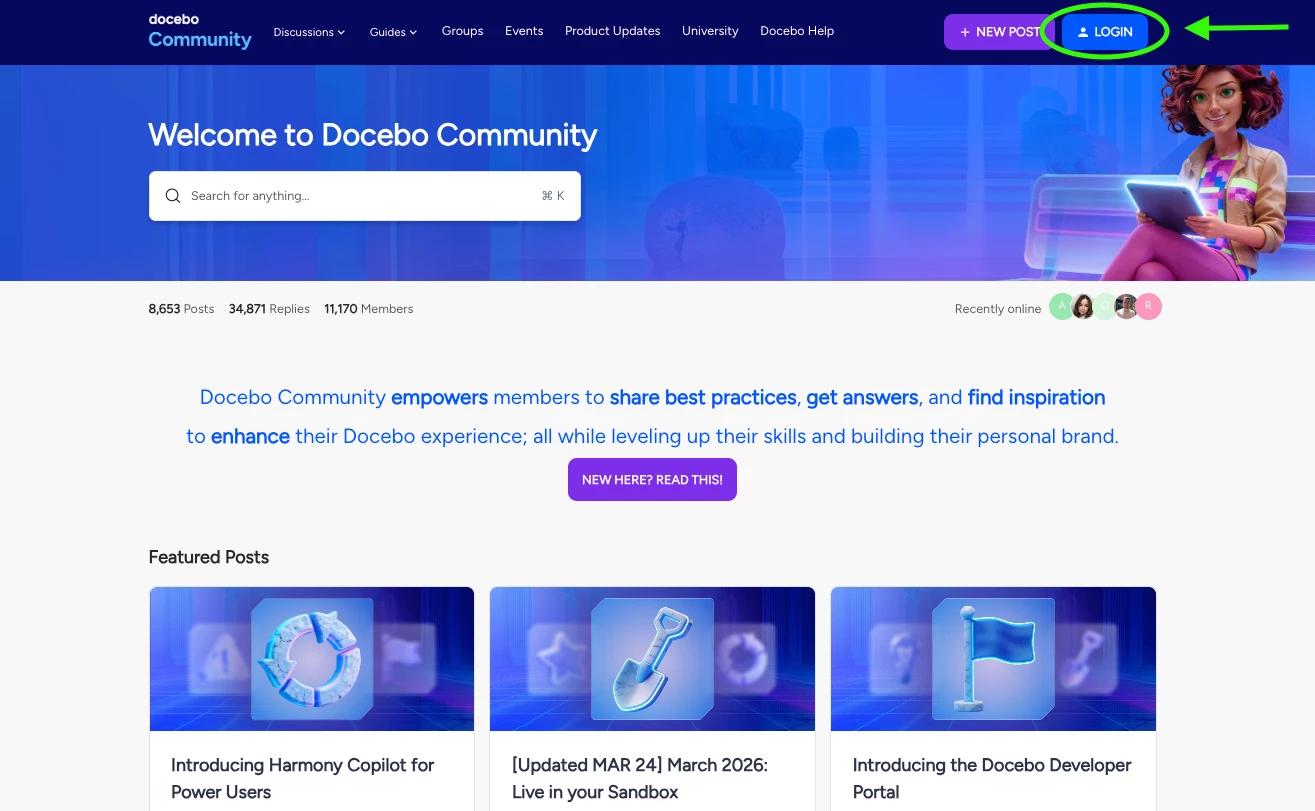
- Click the orange “LOGIN” button in the top right corner of the page.
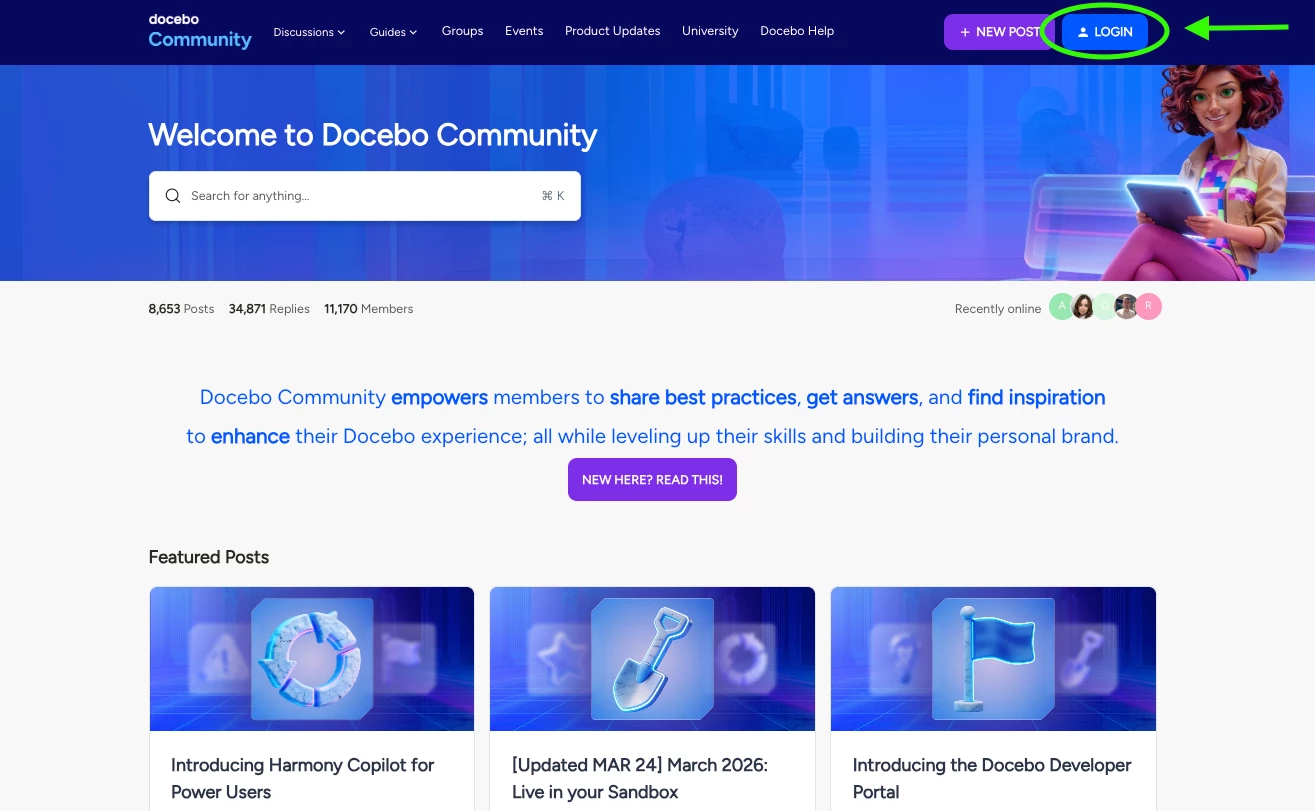
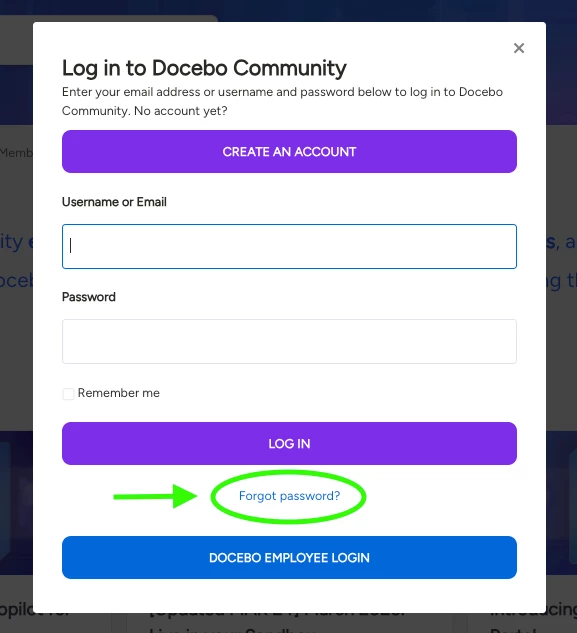
- A login form will appear in a popup. Click the “Forgot password?” link near the bottom of the login form.
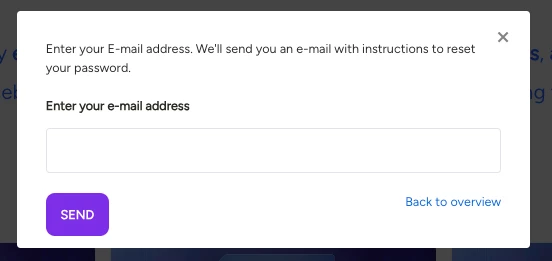
- Enter your email in the new field that appears and hit “SEND”. (Please note, this will only work if you’ve confirmed you have a community account associated with the email address.)
- You should receive an email titled “Request to reset password” from “community@docebo.com” in your email inbox. If you do not receive this email within 5 minutes, this likely means that you do not have a registered community account and you need to create one. Do this by following the steps in the ‘Create an Account’ section below.
Check Your Email
- Go to your email via application or in browser.
- Check your inbox for an email titled “Request to reset password” from “community@docebo.com”.
- If such an email does not appear in your search, check your spam filter.
- If there is no email in your inbox or spam filter, it is likely that you do not have an account. In that case, skip down to the “Create an Account” section.
Do you remember making a Docebo Community account, but you haven’t received a password reset email? You may have used a different email address. Repeat this process with any alternative emails that you may have used for account creation.
Create an Account
If you don’t have an account in the community, good news! It’s easy to create and activate an account. All you need is a business email and a little time. 💻
Account Creation
- Go to community.docebo.com in your browser.
- Click the orange “LOGIN” button in the top right corner of the page.
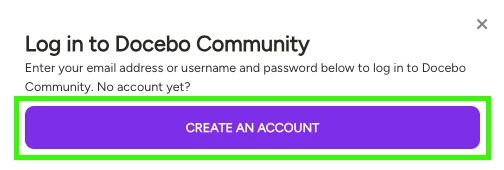
- A login form will appear in a popup. Click the orange “CREATE AN ACCOUNT” button near the top of the form.
- A registration form will appear. Fill out this form and ensure mandatory fields with an * are completed.
- Once you are done, click the orange “REGISTER” button at the bottom of the form.
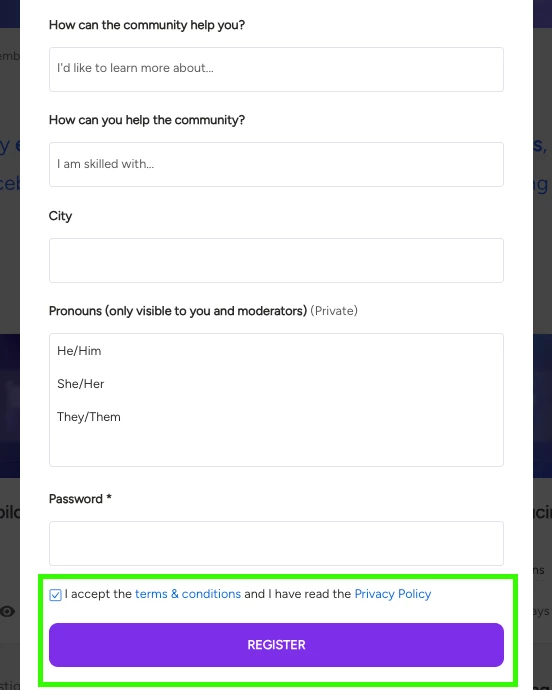
If nothing happens after you click ‘Register’, this means there may be errors on the form. Scroll all the way to the top to see if any error messages are present and fix them before trying to resubmit.
- If there are no errors present and your registration is successful, you will be redirected to the below screen immediately after clicking ‘Register’. Congratulations! 🎉 You’ve created an account in Docebo Community. But you still need to activate for access to everything our community has to offer.
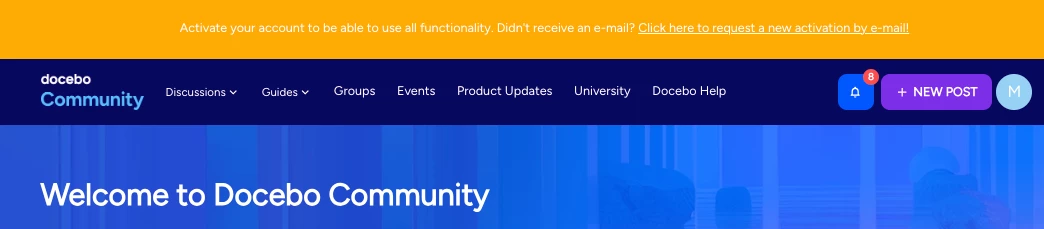
Account Verification
While it’s tempting to just dive right in, email verification is an important step in account activation that allows you access to the entire Docebo Community. Make sure to follow these steps so you don’t miss out! ⬇️
- Go to your email via application or in browser.
- If you have created an account recently, you should have (or be about to receive) an email from community@docebo.com titled “Activate your account”.
- If your account was created on a previous date, search your inbox for “community@docebo.com”.
- If you cannot find the email, check your spam filter. If this still does not reveal such an email, please contact community@docebo.com about your issue.
- If your account was created on a previous date, search your inbox for “community@docebo.com”.
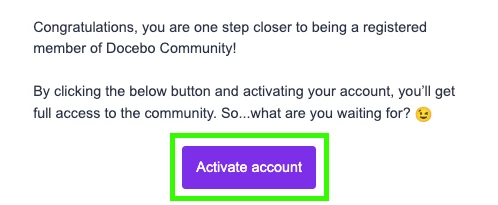
- This email will contain a button titled “Activate account”. Click that button!
- This should open Docebo Community in a new tab that shows the message “Your account is successfully activated” at the top of the page.
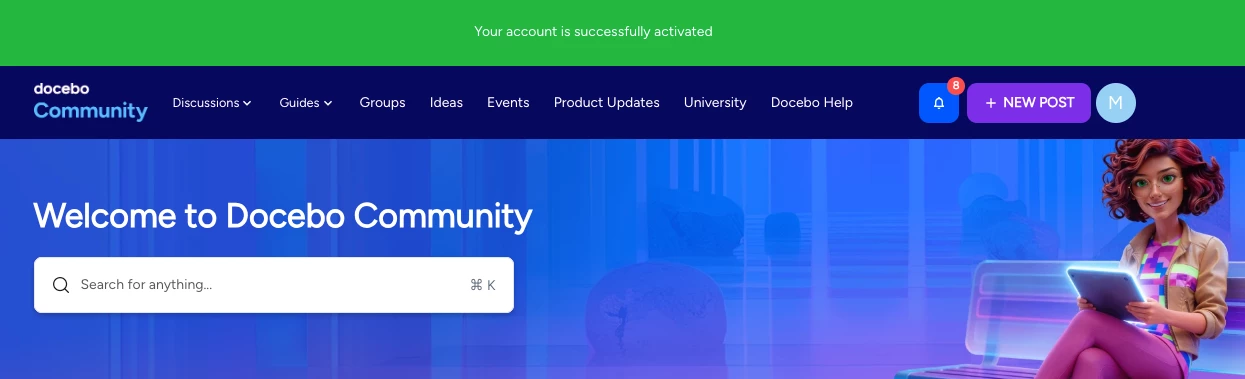
You did it! 👏 You now have a verified and activated account with full access to Docebo Community.
What if none of this is working?
You’ve checked for an existing account, created a new account, tried to verify it–but you still can’t log in! 🙀 There are a couple things you can do.
Check Your Email Blocklist
Contact your internal team to confirm that “community@docebo.com” is not on your organization’s email blocklist.
Clear Your Browser Cache and Cookies
Caching errors can create all kinds of problems in your browser, and it can be difficult to tell where the problem is if you haven’t cleared your cache in a while. If you are having trouble logging in with valid account information, there could be an issue with your browser.
You can find instructions for clearing your browser cache and cookies through your browser’s documentation, links to which are provided below:
| Google Chrome | Clear cache & cookies |
| Microsoft Edge | How to manage and clear your cache and cookies |
| Mozilla Firefox | |
| Safari | Clear cookies in Safari on Mac Clear the history, cache, and cookies from Safari on your iPhone, iPad, or iPod Touch |
Contact Your Community Team
You gave it your all, but can’t figure out what’s going on? It’s time to ask for help. 🤝
Have a quick question or need help investigating an issue? Feel free to send a private message to