



Guide Table of Contents:
Important Notice:
I hope you’ll find this tool to be helpful and valuable. But as with all HTML and CSS added to the platform, Docebo can’t guarantee that any modification can be achieved or that it will always work. Updates happen to the LMS all the time and things that used to work may stop working at some point. My creation of this guide as a fellow admin sharing knowledge is not an endorsement of an officially supported Docebo process.
Please also note: HTML and CSS do not work in the mobile app. The changes you make for desktop will not be reflected in the Go.Learn or Branded Mobile App. The recommended way to use the LMS on a mobile device or tablet is using the mobile app, so if you choose to optimize the LMS for the mobile browser in order to use more HTML and CSS, our support team may not be able to assist you with issues that occur on mobile and tablet fully.
Introduction
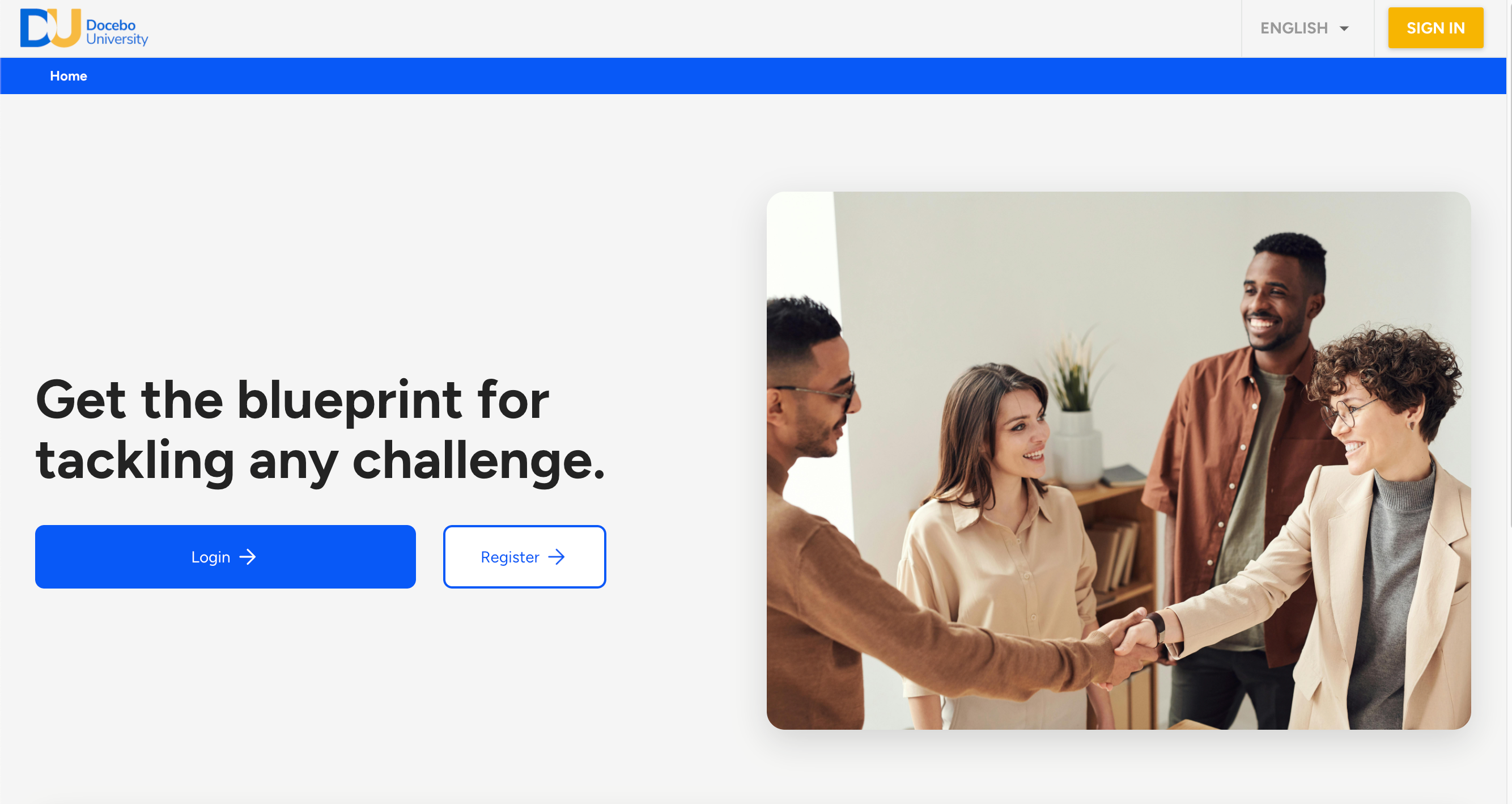
Customers have frequently requested more customization options for their login pages within Docebo. They've noticed the value of our external catalog pages and have often wished for a way to bring custom login pages to the forefront. This guide addresses this need by providing an example login page (HTML and CSS), as used by Docebo University, along with the necessary CSS to ensure this page displays as your login page.
An added benefit of using the public catalog is the ability to send users directly to course enrollment pages without requiring them to log in. This visibility can enhance your platform's prominence in external communications. For those concerned about protecting content while using the public catalog feature, rest assured—there's no need to worry.
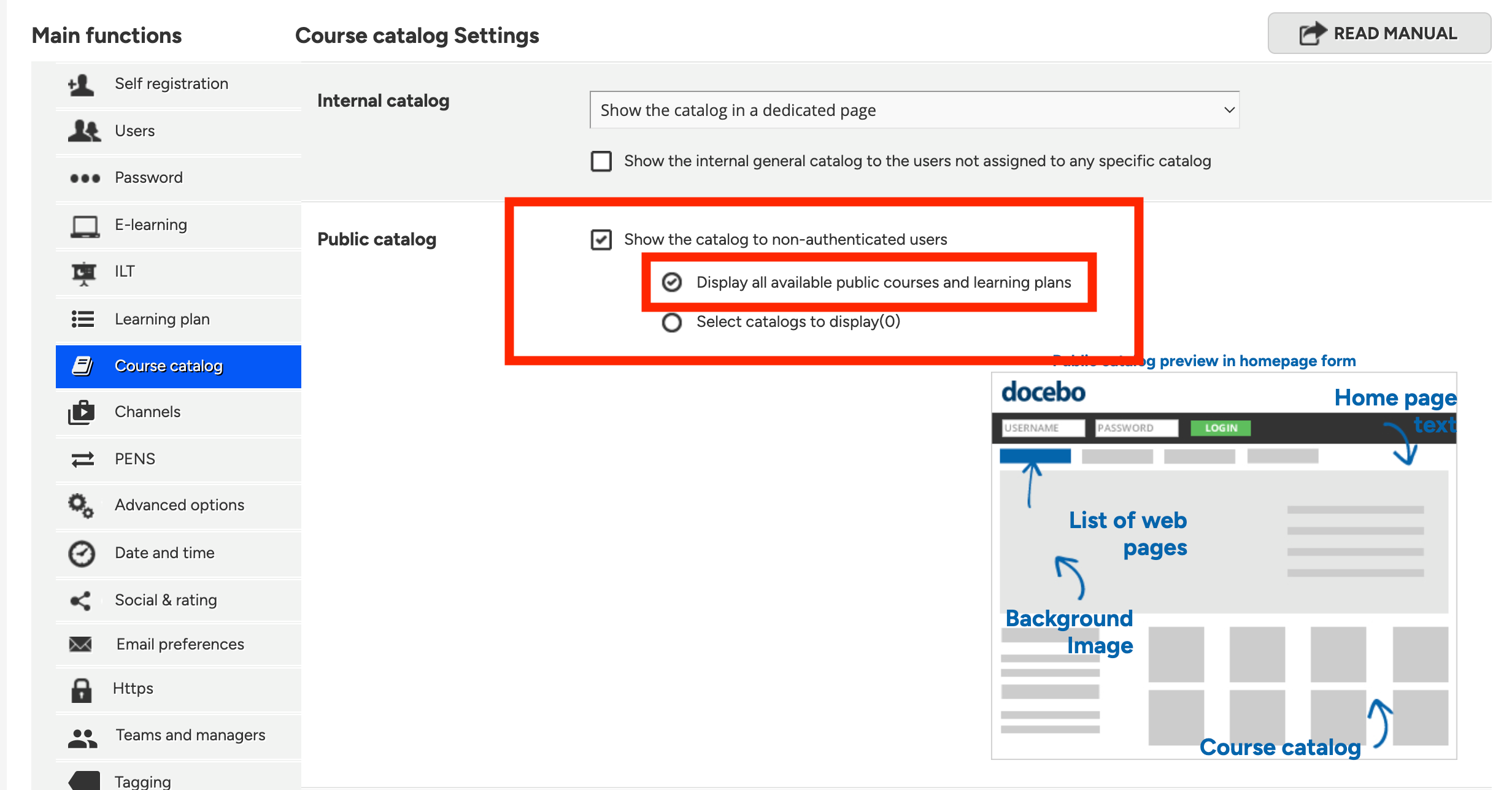
Enabling the Public Catalog
To utilize this process, you will need to enable the public catalog. Note that this allows your course catalog to be visible externally, though with some critical considerations detailed below.
🚩 Important Reminder - Catalog Settings within Courses
It is important to set your course catalog visibility settings to 'internal only' if you want to ensure your content remains gated. While it would be challenging for external users to find the content, it is not impossible, so thorough considerations should be made. Only courses marked
Creating a Custom External Page with HTML and CSS
Follow these steps to create a custom external page:
- Log in to your Docebo LMS admin account.
- Navigate to the gear icon and then “Public catalog custom pages”
- Click on the “New Web Page” button..
- Here, you can insert your custom HTML code for the login page.
Docebo University HTML and CSS
HTML
<div id="externalPageAllHolder-AllHolder-HolderofAll-1315">
<div id="externalPageAllHolder-564">
<div id="externalPageHalfHolder-1839">
<div id="externalPageLeft-9598" class="externalPageHalf-4396">
<h1 id="externalPageHeaderText-9507">Get the blueprint for tackling any challenge.</h1>
<div id="externalPageLeftButtonHolder-340">
<div class="externalPageCTAHolder-4640 externalPagePrimaryButton-5140">
<a class="externalPageLoginCTALink-4128" href="https://university.docebo.com/learn/signin" target="_parent" rel="noreferrer">Login</a>
<img class="externalPageArrow-3897" src="https://cdn5.dcbstatic.com/files/d/o/docecademy_docebosaas_com/userfiles/19674/arrow_forward_40dp_ffffff_fill0_wght400_grad0_opsz40.png" alt="arrow_forward_40dp_ffffff_fill0_wght400_grad0_opsz40.png" />
</div>
<div class="externalPageCTAHolder-4640 externalPageSecondaryButton-6837">
<a class="externalPageLoginCTALink-4128" href="https://www.docebo.com/university" target="_blank" rel="noreferrer">Register</a>
<img class="externalPageArrow-3897" src="https://cdn5.dcbstatic.com/files/d/o/docecademy_docebosaas_com/userfiles/63083/arrow_forward_48dp_0259f7_fill0_wght400_grad0_opsz48.png" alt="arrow_forward_40dp_ffffff_fill0_wght400_grad0_opsz40.png" />
</div>
</div>
</div>
<div id="externalPageRight-8414" class="externalPageHalf-4396"> </div>
</div>
<!-- ************************** -->
<!-- Second HTML Block - set of links -->
<div id="extPageLinkBoxHolder-817">
<!-- 1st Box -->
<div class="extPageLinkBoxLeft-168">
<div id="externalPage-replaceBox1" class="replaceBox-335"> </div>
<div class="externalPageLinkBoxTextHolder-922">
<div class="externalPageLinkBox-Title-464">ILT Training</div>
<div class="externalPageLinkBox-Text-266">
Docebo’s Instructor-Led Training (ILT) empowers teams to master platform administration with the guidance of expert instructors, tailored to real customer needs. Designed for both new admins and enterprise teams, ILT shortens onboarding time, reduces downtime, and enhances team collaboration, ensuring a fast, smooth path to platform proficiency. Choose from public sessions, private courses, or fully customized training designed to tackle specific organizational challenges and boost internal alignment. With ILT, your team gains hands-on skills, support continuity, and the confidence to make a lasting impact on your organization’s learning strategy.
</div>
<div class="externalPageLinkBox-CTA-Wrapper-779 externalPageSecondaryButton-6837">
<a class="externalPageLoginCTALink-4128" href="https://university.docebo.com/learn/courses/595/fundamentals-of-system-administration" target="_blank" rel="noreferrer">Check it out!</a>
<img class="externalPageArrow-3897" src="https://cdn5.dcbstatic.com/files/d/o/docecademy_docebosaas_com/userfiles/63083/arrow_forward_48dp_0259f7_fill0_wght400_grad0_opsz48.png" alt="arrow_forward_40dp_ffffff_fill0_wght400_grad0_opsz40.png" />
</div>
</div>
</div>
<!-- 2nd Box -->
<div class="extPageLinkBoxRight-168">
<div class="externalPageLinkBoxTextHolder-922">
<div class="externalPageLinkBox-Title-464">DU Live</div>
<div class="externalPageLinkBox-Text-266">
DU Live provides value-led, product-supported webinars that build skill by highlighting customers discussing how they achieve learning success. This dynamic series offers more than just product knowledge; it’s an opportunity to glean actionable takeaways from experts navigating the same learning challenges you face every day. Get inspiration from peers and leaders to transform how your organization learns.
</div>
</div>
<div id="externalPage-replaceBox2" class="replaceBox-335"> </div>
</div>
<!-- 3rd Box -->
<div class="extPageLinkBoxLeft-168">
<div id="externalPage-replaceBox3" class="replaceBox-335"> </div>
<div class="externalPageLinkBoxTextHolder-922">
<div class="externalPageLinkBox-Title-464">Docebo Pro</div>
<div class="externalPageLinkBox-Text-266">
Are you ready to advance your skills and make an impact with Docebo’s Learn platform? The Docebo Pro Learn Administrator Certification is designed for professionals who want to stand out as Docebo platform experts. As a certified Docebo Learn Administrator, you’ll earn official accreditation in platform management, positioning you as an authority within your organization and building trust with your clients and colleagues alike.
</div>
<div class="externalPageLinkBox-CTA-Wrapper-779 externalPageSecondaryButton-6837">
<a class="externalPageLoginCTALink-4128" href="https://university.docebo.com/learn/courses/580/docebo-pro-learn-admin-certification-exam" target="_blank" rel="noreferrer">Check it out!</a>
<img class="externalPageArrow-3897" src="https://cdn5.dcbstatic.com/files/d/o/docecademy_docebosaas_com/userfiles/63083/arrow_forward_48dp_0259f7_fill0_wght400_grad0_opsz48.png" alt="arrow_forward_40dp_ffffff_fill0_wght400_grad0_opsz40.png" />
</div>
</div>
</div>
<!-- 4th Box -->
<div class="extPageLinkBoxRight-168">
<div class="externalPageLinkBoxTextHolder-922">
<div class="externalPageLinkBox-Title-464">On Demand Courses</div>
<div class="externalPageLinkBox-Text-266">
With Docebo University’s on-demand content, you can choose to learn at your own pace, anytime and anywhere. Whether you’re just starting out or looking to expand your expertise, our flexible, self-paced courses are designed to support every stage of your customer journey. Dive into a wide range of topics that fit your schedule and needs, empowering you to grow your skills and achieve your learning goals on your terms.
</div>
</div>
<div id="externalPage-replaceBox4" class="replaceBox-335"> </div>
</div>
</div>
</div>
</div>
CSS
/*External Login Page - New Simplified Version for Production */
/*External Login Page - New Simplified Version for Production */
/*External Login Page - New Simplified Version for Production */
/*External Login Page - New Simplified Version for Production */

#externalPageAllHolder-AllHolder-HolderofAll-1315{
  max-width: 1400px;
  margin-left: auto;
  margin-right: auto;
  margin-top: 170px;
  margin-bottom: 100px;
}

#externalPageAllHolder-564{
  display: block;
  margin-left: 24px;
  margin-right: 24px;
}

#externalPageHalfHolder-1839 {
  display: grid;
  grid-template-columns: repeat(2, minmax(0, 1fr));
  gap: 24px;
  max-height: 500px;
  margin-top: 24px;
}

#externalPageLeft-9598{
  padding-top: 20%;
  padding-bottom: 20%;
}

#externalPageHeaderText-9507{
  font-size: 48px;
  font-weight: 800;
  line-height: 110%;
}


#externalPageLeftButtonHolder-340{
  display: flex;
}

.externalPageCTAHolder-4640 {
  height: 56px;
  border-radius: 8px;
  display: flex;
  justify-content: center;
  align-items: center;
  position: relative;
}

.externalPageArrow-3897{
  max-height: 22px;
  margin-left: 4px;
}

.externalPagePrimaryButton-5140 {
  background-color: #0259F7;
  width: 336px;
  margin-right: 24px;
}

.externalPagePrimaryButton-5140 > a {
  color:white;
  text-decoration: none;
}

.externalPageCTAHolder-4640.externalPageSecondaryButton-6837{
  width: 144px;
}

.externalPageSecondaryButton-6837{
  background-color: white;
  border-style:solid;
  border-color: #0259F7;
  border-width: 2px;
  box-sizing: border-box;
}

.externalPageSecondaryButton-6837 > a{
  color: #0259F7;
  text-decoration: none;
}

.externalPageLoginCTALink-4128:before{
      content: "";
      position: absolute;
      top: 0;
      right: 0;
      bottom: 0;
      left: 0;
    }

#externalPageRight-8414{
  width: auto;
  height: auto;
  border-radius: 16px;
  box-shadow:0px 10px 30px 0 rgba(0,0,0,0.16);
  background-image: url("https://cdn.glitch.global/a4d9edcb-9be7-47bb-9c43-978314be6b26/pexels-fauxels-3184416.jpg?v=1729757094137");
  background-size: cover;
  background-position: center;
}


/* ----------------------------- */
#extPageLinkBoxHolder-817{
  margin-top: 72px;
  display: block;
  clear: both;
}

.extPageLinkBoxLeft-168{
  margin-top: 36px;
  background-color: white;
  padding: 24px;
  display: grid;
  grid-template-columns: 30% auto;
  gap: 24px;
  border-radius: 16px;
  box-shadow:0px 10px 30px 0 rgba(0,0,0,0.16);
}

.extPageLinkBoxRight-168{
  margin-top: 36px;
  background-color: white;
  padding: 24px;
  display: grid;
  grid-template-columns: auto 30%;
  gap: 24px;
  border-radius: 16px;
  box-shadow:0px 10px 30px 0 rgba(0,0,0,0.16);
}

.replaceBox-335{
  width: auto;
  height: auto;
}

#externalPage-replaceBox1{
  background-image: url("https://cdn1.dcbstatic.com/files/d/o/docebousandbox_docebosaas_com/userfiles/26091/pexels_jopwell_2422294.jpg");
  background-size: cover;
  border-radius: 8px;
  background-position: center;
}

#externalPage-replaceBox2{
  background-image: url("https://cdn1.dcbstatic.com/files/d/o/docebousandbox_docebosaas_com/userfiles/26091/pexels_fauxels_3182826.jpg");
  background-size: cover;
  border-radius: 8px;
  background-position: center;
}

#externalPage-replaceBox3{
  background-image: url("https://cdn1.dcbstatic.com/files/d/o/docebousandbox_docebosaas_com/userfiles/26091/pexels_cottonbro_4778635.jpg");
  background-size: cover;
  border-radius: 8px;
  background-position: center;
}

#externalPage-replaceBox4{
  background-image: url("https://cdn1.dcbstatic.com/files/d/o/docebousandbox_docebosaas_com/userfiles/26091/pexels_fauxels_3184358.jpg");
  background-size: cover;
  border-radius: 8px;
  background-position: center;
}

.externalPageLinkBox-Title-464{
  font-size: 28px;
  font-weight: 700;
}

.externalPageLinkBox-Text-266{
  margin-top: 16px;
  font-size: 16px;
  line-height: 24px;
}

.externalPageLinkBox-CTA-Wrapper-779{
  margin-top: 16px;
  height: 56px;
  width: 336px;
  border-radius: 8px;
  display: flex;
  justify-content: center;
  align-items: center;
  position: relative;
}


@media (width < 1200px){
  .extPageLinkBoxLeft-168{
    grid-template-columns: 40% auto;
  }

  .extPageLinkBoxRight-168{
    grid-template-columns: auto 40%;
  }

  #externalPageLeftButtonHolder-340{
  display: block;
}

  #externalPageLeftButtonHolder-340 > div.externalPageCTAHolder-4640.externalPageSecondaryButton-6837{
    margin-top: 16px;
  }
}

@media (width < 1060px){

  #externalPageAllHolder-AllHolder-HolderofAll-1315{
    margin-top: 0px;
    margin-bottom: 48px;
  }

  #externalPageHalfHolder-1839{
    grid-template-columns: auto;
  }

  #externalPageLeft-9598{
    padding-top: 10%;
    padding-bottom: 10%;
  }

  .extPageLinkBoxLeft-168{
    grid-template-columns: auto;
  }

  .extPageLinkBoxRight-168{
    grid-template-columns: auto;
  }

  #externalPageRight-8414{
    display:none;
  }

  .replaceBox-335{
    display:none;
  }
}

@media (width < 430px){
  .externalPageLinkBox-CTA-Wrapper-779{
    width: auto;
  }

  .externalPageCTAHolder-4640{
    width: auto;
  }
}


/*End External Login CSS*/
/*End External Login CSS*/
/*End External Login CSS*/
Custom CSS to Push Your Custom Page to the Front
To ensure your custom login page is the first thing users see, you’ll need to add some CSS customization in the Docebo platform:
- Navigate to the Adming Gear.
- From the admin menu navigate to the Configure Branding Look and Feel
- Insert the following CSS code within the CSS editor and click save
/*External Catalog Adjustments*/
/*External Catalog Adjustments*/
/*External Catalog Adjustments*/

/*Force Public Catalog Pages to show without click*/

/*Hides Tabs on External Login Page*/
#doc-layout.doc-layout-external-ecommerce #doc-layout-main .tabs-manager .tabs-labels {
  display: none;
}


/*Hides the content of the first page (catalog page)*/
#doc-layout.doc-layout-external-ecommerce #doc-layout-main .tabs-manager .tabs-content > tab:first-child .tab {
  left: -100px;
  z-index: 1;
  opacity: 0;
}

/*Reveals content of last custom page*/
#doc-layout.doc-layout-external-ecommerce #doc-layout-main .tabs-manager .tabs-content > tab:last-child .tab {
  left: 0;
  z-index: 2;
  opacity: 1;
  position: fixed;
  visibility: visible;
}

/*Change the container space of the tab to fill the height of the browser.*/

#doc-layout.doc-layout-external-ecommerce #doc-layout-main .tabs-manager .webpage-content {
  min-height: 100vh;
  height: -webkit-fill-available;
}

/*Ensures the custom page content is displayed correctly. Can be adjusted to your needs*/


#doc-layout.doc-layout-external-ecommerce #doc-layout-main .tabs-manager .webpage-content iframe {
  position: fixed;
  top: 0;
  left: -1px;
  width: calc(100vw + 2px);
  height: 100vh;
  overflow: scroll;
  padding: 0px;
}


/*Hides Docebo Footer - not required to work*/
#doc-layout.doc-layout-external-ecommerce #doc-layout-footer {
  display: none !important;
}

/*Small structual change for browsers using languages that read right to left*/
[dir=rtl] #doc-layout.doc-layout-external-ecommerce .doc-layout-external-header {
  width: auto;
}

/*End External Catalog Adjustments*/
/*End External Catalog Adjustments*/
/*End External Catalog Adjustments*/
Conclusion
By following this guide, you can create custom login pages within your Docebo environment, leveraging HTML and CSS to provide a unique and engaging user experience. Don't forget to enable the public catalog carefully, and rest assured that appropriate settings will protect your content.
If you have any questions or need further assistance, feel free to reach out to our support team.
Happy customizing!