


Create an Optional Alternate Homepage in Docebo Learn
Introduction
If you spotted the seasonal homepage on Docebo University (hello, Spooky Mode 👻) and wondered how we made it optional for learners, this guide walks through the configuration pattern we used. A small profile switch puts the learner in a group, the group sees a targeted menu, and that menu lands them on an alternate homepage. Everyone else keeps the standard experience.
The pattern is intentionally reusable, so this guide focuses on platform configuration rather than page design.
How the flow works
Four pieces work together, each one triggering the next:
| Piece | What it does | Example in this guide |
|---|---|---|
| 1. User additional field | Stores the learner's preference | Homepage Experience (Dropdown) |
| 2. Automatic group | Collects everyone who chose the alternate experience | Users where Homepage Experience equals Alternate Experience |
| 3. Targeted menu | Gives that group its own navigation | Alternate learner menu assigned to the group |
| 4. Alternate homepage | Is the landing page of the targeted menu | Your seasonal or campaign page |
The standard learner menu stays in place as the default fallback for every other learner.
Prerequisite knowledge
Before diving in, you should be comfortable with:
- User additional fields
- Docebo Help: Creating and managing user additional fields
- Groups, including automatic groups
- Custom pages and widgets
- Docebo Help: Creating and managing widget pages
- Menus and menu visibility
Before you begin
Have these ready before Step 1:
- A standard learner menu and homepage already in place
- An alternate page, built and ready to publish
- A test learner account
- Superadmin access to Advanced settings, users, groups, pages, and menus
Decide who controls the preference
Pick one source of truth now, because it changes how you set up Steps 1 and 2.
| Option | Who changes the value | What to configure |
|---|---|---|
| Learner-controlled | Learners, from My Profile | Keep the field visible and editable, and make sure SSO or HRIS provisioning doesn't overwrite it |
| Admin-controlled | Admins or an external system (CSV, API, SSO, admin actions) | Populate the value through those routes, and don't present the field as a learner toggle |
What this pattern can and can't do
Capabilities: It gives a defined set of learners their own navigation and landing page without changing anything for everyone else. Beyond seasonal homepages, the same pattern supports onboarding variations, conference pages, product launches, partner audiences, and other targeted journeys.
Limitations:
- The switch isn't instant. Automatic-group membership is recalculated asynchronously, so there can be a delay between saving the preference and seeing the new menu. Signing out and back in can help, but there's no way to force an immediate refresh.
- Menu order can decide the outcome. The targeted menu must sit above the standard menu or eligible learners will keep landing on the standard one.
- If SSO, HRIS, or an API pipeline controls the field, learners may not be able to change it themselves.
- If your alternate page uses Custom HTML/CSS widgets, those don't render in the Docebo mobile app (Go.Learn or a branded mobile app), only on desktop and mobile browsers. [NEEDS: confirm whether the targeted menu and landing page behave the same way in the mobile app]
Set it up, step by step
Step 1: Create the user additional field
Where to go: People > Users > ellipsis > Related sections > Additional fields. See Creating and managing user additional fields for the current click path.
Create a new field to hold the learner's preference. For an experience selector, use the Dropdown type. It avoids spelling variations and works reliably with automatic-group rules. Avoid free-text fields, and stick to controlled values (a dropdown or Yes/No) so your group rule matches consistently.
Example setup:
| Setting | Value |
|---|---|
| Field name | Homepage Experience |
| Field type | Dropdown |
| Values | Standard Experience, Alternate Experience, Spooky Mode |
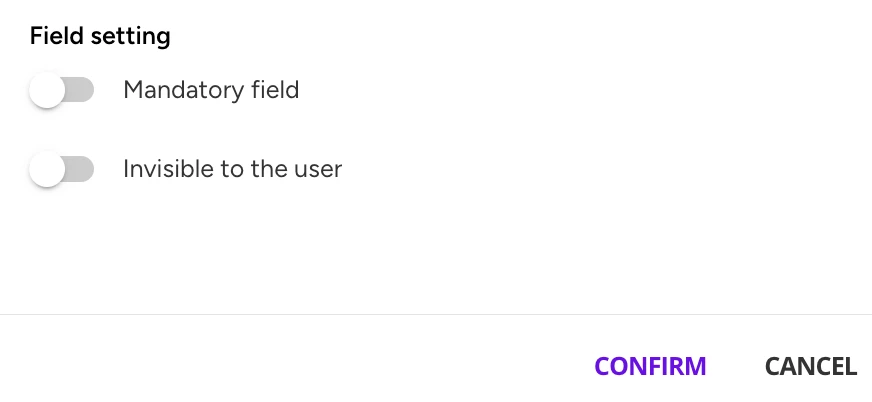
Two settings matter here:
- Invisible to the user: leave this unchecked if learners should be able to see and change the field in My Profile.
- Mandatory field: only use this when everyone must make a choice. If you make it mandatory, also enable the sign-in prompt described in Step 2.
Step 2: Make the field viewable and editable in My Profile
Do this step if learners control the preference. If admins or an external system control it, you can skip the My Profile checks, but still review the provisioning check below.
Where to go: Navigation menu > Configuration > Platform setup and tools > Advanced settings > Users. See Advanced settings in Docebo Help.
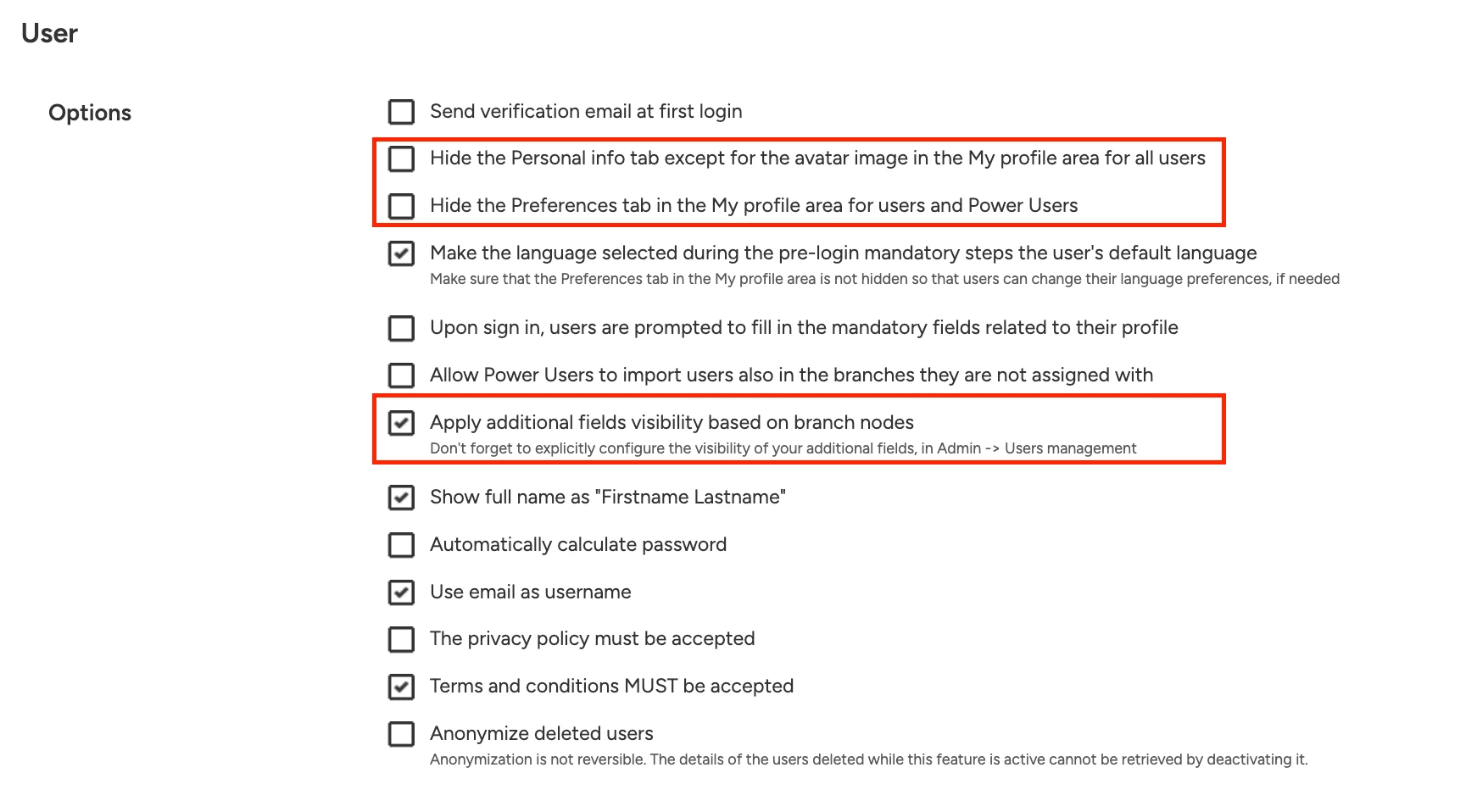
- Keep the Personal info tab available. Make sure the option Hide the Personal info tab except for the avatar image in the My Profile area for all users is not selected. If it's enabled, learners can't reach additional profile fields.
- Prompt for mandatory fields (only if you made the field mandatory). Enable the sign-in prompt, labeled Upon sign in, users are prompted to fill in the mandatory fields related to their profile, so learners are asked to complete the field when they log in. [NEEDS: confirm this setting sits on the Users tab of Advanced settings]
- Check branch-based visibility (only if you use it). Confirm the field is visible for every branch that should use the alternate experience: Users > branch > ellipsis > Set additional fields visibility.
- Check SSO and HRIS provisioning. If SAML SSO, HRIS, or an API pipeline provisions your users, check whether it locks or overwrites the field (provisioning option: Lock provisioned user fields). Then follow the decision you made earlier:
- Learner-controlled: keep the field editable and don't overwrite it through provisioning.
- Admin-controlled: populate the field through CSV, API, SSO, or admin actions, and don't present it as a learner toggle.
When you're done, confirm each of these:
- The field's Invisible to the user option is unchecked.
- The Personal info tab is not hidden in Advanced settings.
- Branch-based visibility includes the field wherever it's needed.
- Provisioning doesn't lock or overwrite the field if learners should control it.
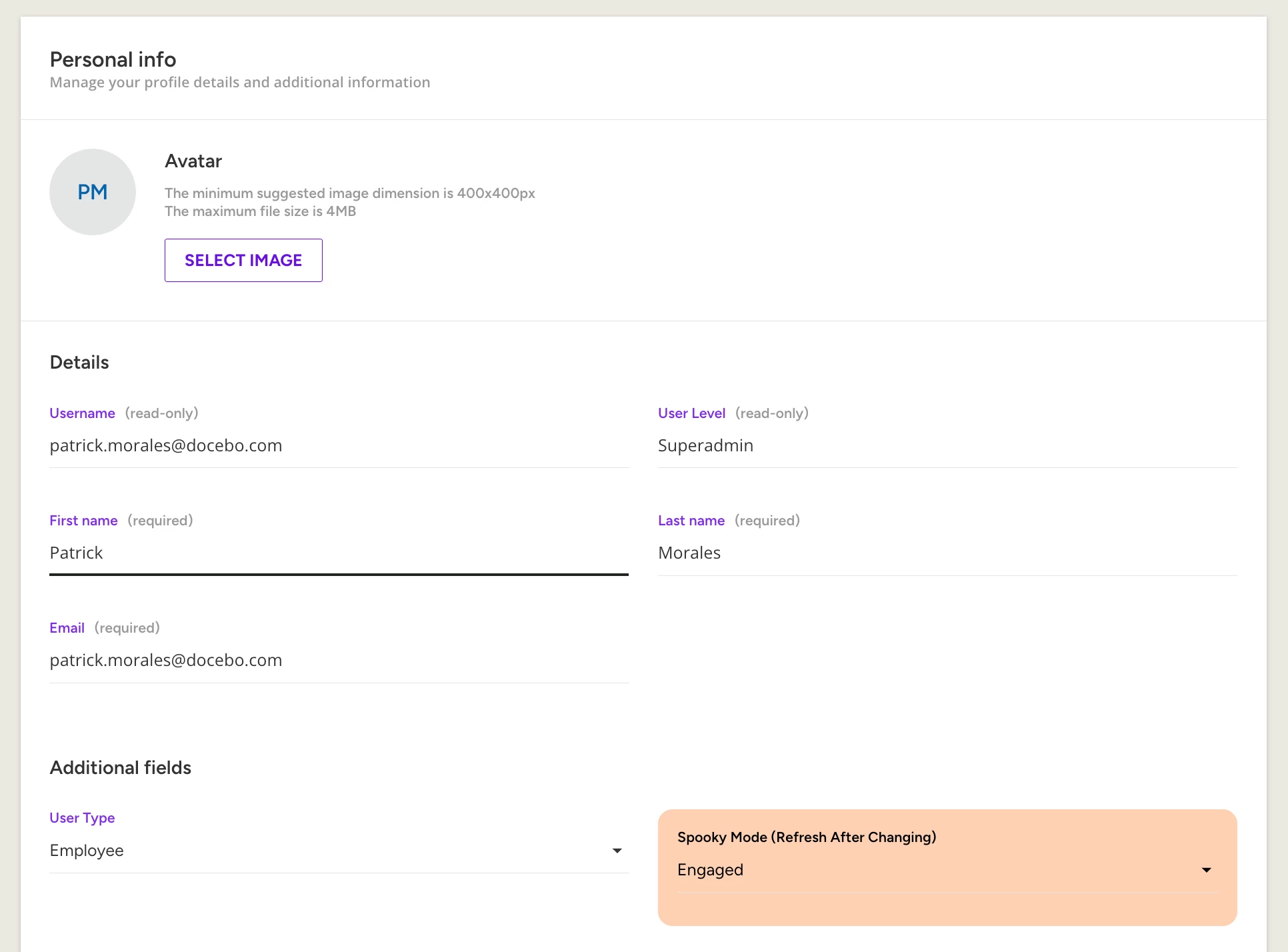
- A test learner can see and change the field in My Profile > Personal info.
Step 3: Create the automatic group
Where to go: see Groups (manual and automatic) in Docebo Help.
Create an automatic group whose rule evaluates the new field. Example rule:
| Rule setting | Value |
|---|---|
| Condition type | User additional field |
| Field | Homepage Experience |
| Operator | Equals |
| Value | Alternate Experience |
Save the group, then test it with a learner account that has the matching value.
Note: Automatic-group evaluation is asynchronous, so allow time for recalculation before you check membership.
Step 4: Assign the alternate experience through a menu
Where to go: see Creating and managing custom menus for users in Docebo Help.
- Prepare an alternate learner menu, starting from your standard learner menu. Make sure essential navigation remains available.
- Add the alternate homepage to the alternate menu.
- Set the alternate page as the menu's landing page, if that suits your design.
- Assign the menu to the automatic group you created in Step 3.
- If menu priority applies on your platform, place the targeted menu above the standard menu so it loads first for eligible learners.
- Publish the page and the menu.
- Leave the standard learner menu in place as the fallback for everyone else.
Note: This follows the same audience-and-menu pattern used for sequential learner experiences. [NEEDS LINK: sequential learner experience guide]
Step 5: Let learners change their preference
If learners control the experience, send them to /learn/my-profile. They open Personal info and change the additional-field value. After they save, Docebo recalculates automatic-group membership, which can take a little time. If the navigation doesn't update right away, suggest that they sign out and back in.
If admins control the preference, tell learners how to request a change, or how and when admins will update the values.
Step 6: Test the complete experience
Test with at least two learner accounts so you can check both directions, and cover different branches and SSO states.
| Scenario | What you should see |
|---|---|
| Field is set to Standard Experience | The learner receives the standard menu |
| Field is set to Alternate Experience | The learner joins the group and receives the targeted menu |
| Field changes from Alternate to Standard | Group membership updates and the standard menu returns after recalculation or sign-in |
| Branch-based visibility is in use | The field appears for every branch that should use it |
| SSO users | The field stays editable or locked, according to your ownership decision |
Also verify that:
- The alternate page is published and accessible to the intended audience.
- The alternate menu includes the essential destinations from the standard menu.
- Direct links don't expose pages that learners shouldn't access.
- Field labels and values are clear, and translated where your platform needs it.
Common customizations
- Using the pattern for a different audience: the four pieces stay the same, only the labels change. Rename the field and its values for your use case (an onboarding track, a conference, a product launch, a partner audience), then point the group rule and the targeted menu at them.
- Offering more than one alternate experience: add another value to the dropdown, then repeat Steps 3 and 4 for it. Each value gets its own automatic group, its own targeted menu, and its own landing page, and the standard menu remains the fallback.
- Using a simple on/off switch: a Yes/No field works as a controlled value too. Build the group rule to match the value that means "show the alternate experience."
Troubleshooting
| What you see | Likely cause | What to check |
|---|---|---|
| The field is missing from My Profile | The field, the Personal info tab, or the branch is hiding it | The field's Invisible to the user option, the Advanced settings option that hides the Personal info tab, and branch-based visibility settings |
| The field is visible but not editable | SSO or HRIS provisioning is locking or overwriting it | Your provisioning settings, including Lock provisioned user fields |
| A learner changed the field but still sees the old homepage | Group recalculation hasn't finished, or the saved value doesn't match the rule | Allow time for recalculation and suggest signing out and back in. Verify the saved value exactly matches the group rule, because case and spacing matter for dropdowns |
| A learner is in the group but still receives the standard menu | The targeted menu isn't live, isn't assigned to the right group, or sits below the standard menu | That the targeted menu is published, assigned to the correct group, and placed above the standard menu if priority decides which menu loads |
| A learner loses access after changing their preference | The standard menu isn't a proper fallback, or one menu is missing destinations | That the standard menu is still assigned as the fallback, and that both menus include the destinations learners need, so no one loses essential navigation |
Additional considerations
Sandbox testing, controlled field values, a single owner for the preference, and a standard-menu fallback are covered above. A few more things to plan for:
- Plan an end date for temporary campaigns. When the campaign ends, retire the targeted menu, the automatic group, and the field values you no longer need.
- Translate for multilingual platforms. Translate the field label and its values so learners understand the choice in their own language.
- Document the dependency. Write down which field value maps to which group and which menu, so other admins can maintain the setup later.
What we accomplished
Using standard Docebo Learn configuration, you now have an optional alternate homepage experience controlled by a profile preference. The reusable pattern is:
Profile field → Automatic group → Targeted menu → Alternate homepage
The same approach supports seasonal experiences, onboarding variations, conference pages, product launches, partner audiences, and other targeted journeys.
Share your experience
Have you used additional fields and automatic groups to create targeted learner experiences? Share your approach and lessons learned in the comments. Your examples help others design robust, low-risk experiences.