



Showcase Your Docebo Achievements on LinkedIn
Earning a certification or badge is a great way to highlight your skills and expertise, but showcasing it on LinkedIn ensures your network and potential employers see your accomplishments. This guide walks you through the simple steps to extract your badge URL from Docebo and add it as a certification on your LinkedIn profile—boosting your professional credibility in just a few clicks!
1. Retrieve the Badge URL from Docebo:
-
Access Your Badges:
- Log in to your Docebo platform.
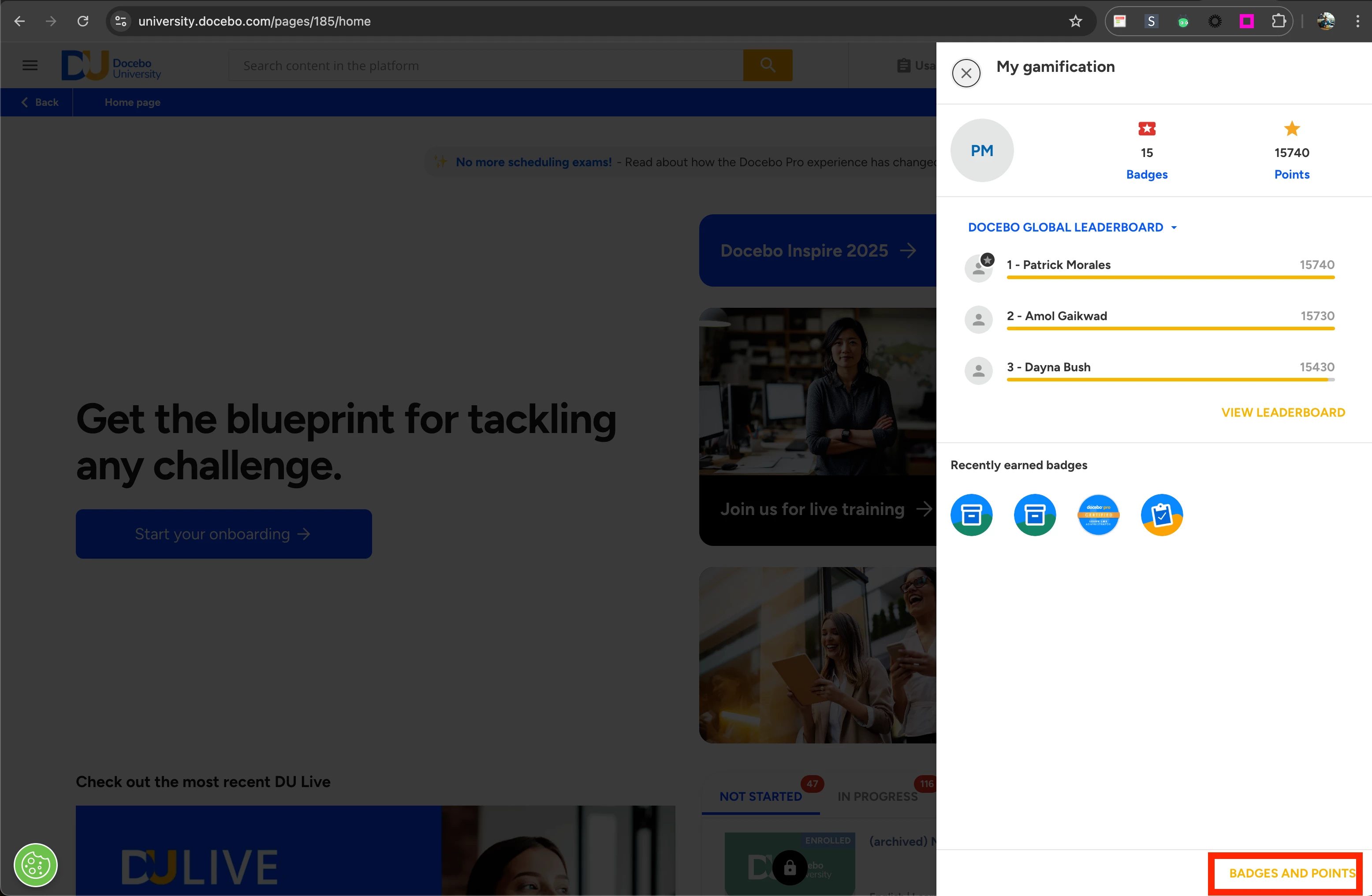
- Click on the trophy icon in the header to open the "My Gamification" panel.
- Select "Badges" to view the "My Badges and Points" page, which lists all badges you've earned.
-
Copy the Badge Link:
- Identify the badge you wish to share.
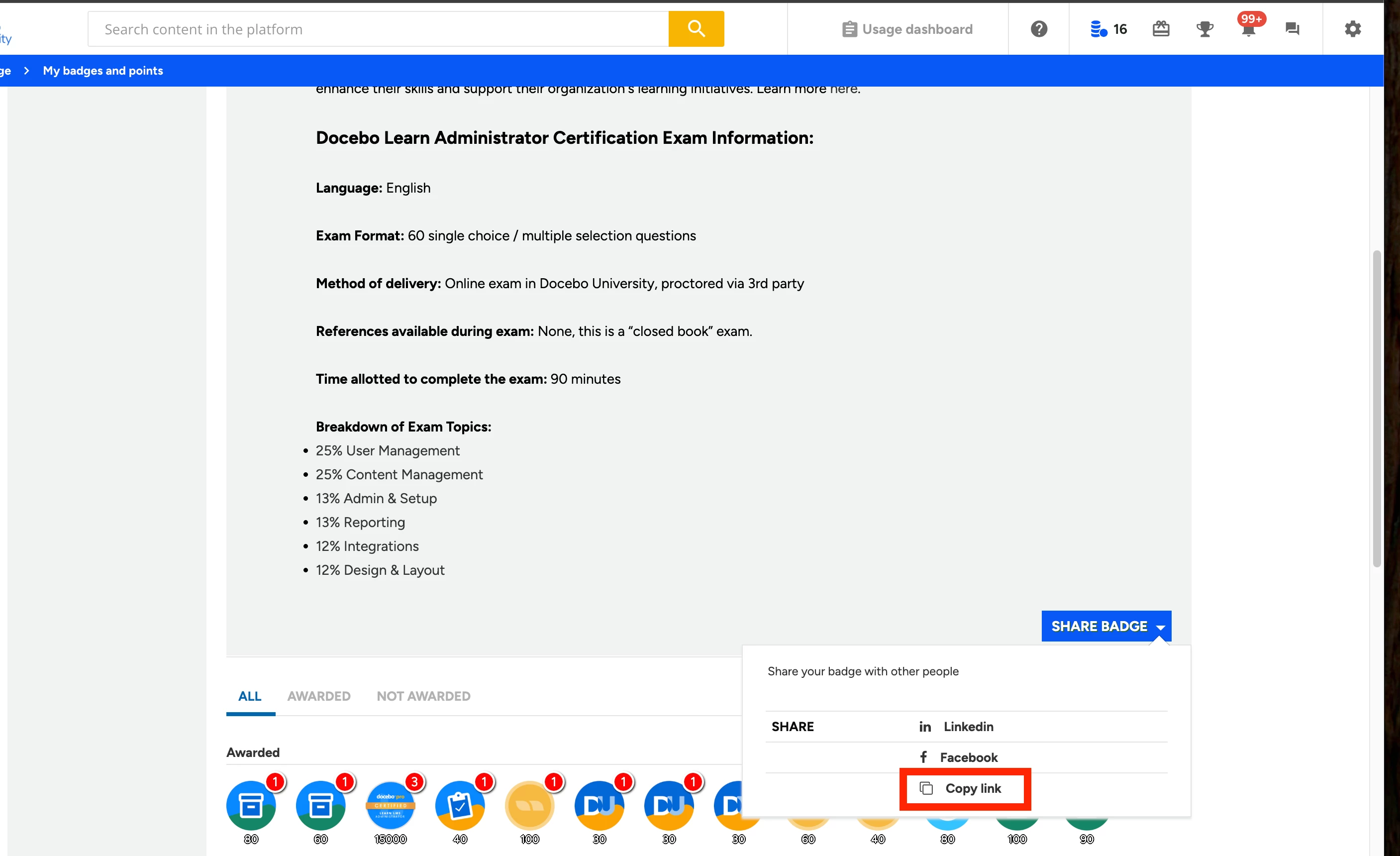
- Click the "Share Badge" button associated with that badge.
- Choose the "Copy Link" option to copy the badge's unique URL to your clipboard. This URL directs to a public page detailing your achievement.
2. Add the Certification to Your LinkedIn Profile:
-
Navigate to Licenses & Certifications:
- Log in to your LinkedIn account.
- Go to your profile page.
- Click on the "Add profile section" button.
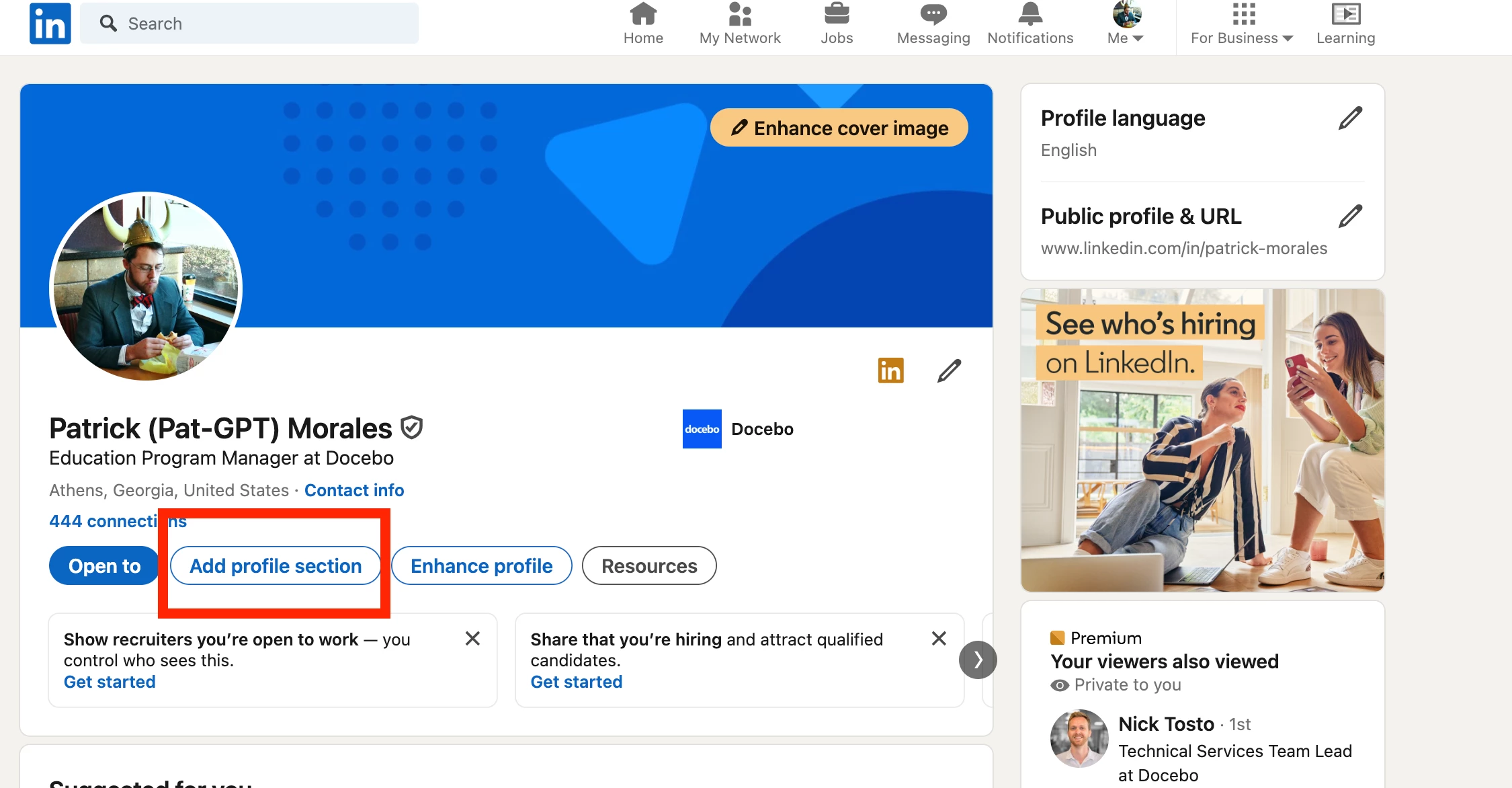
- From the dropdown, select "Licenses & Certifications."
-
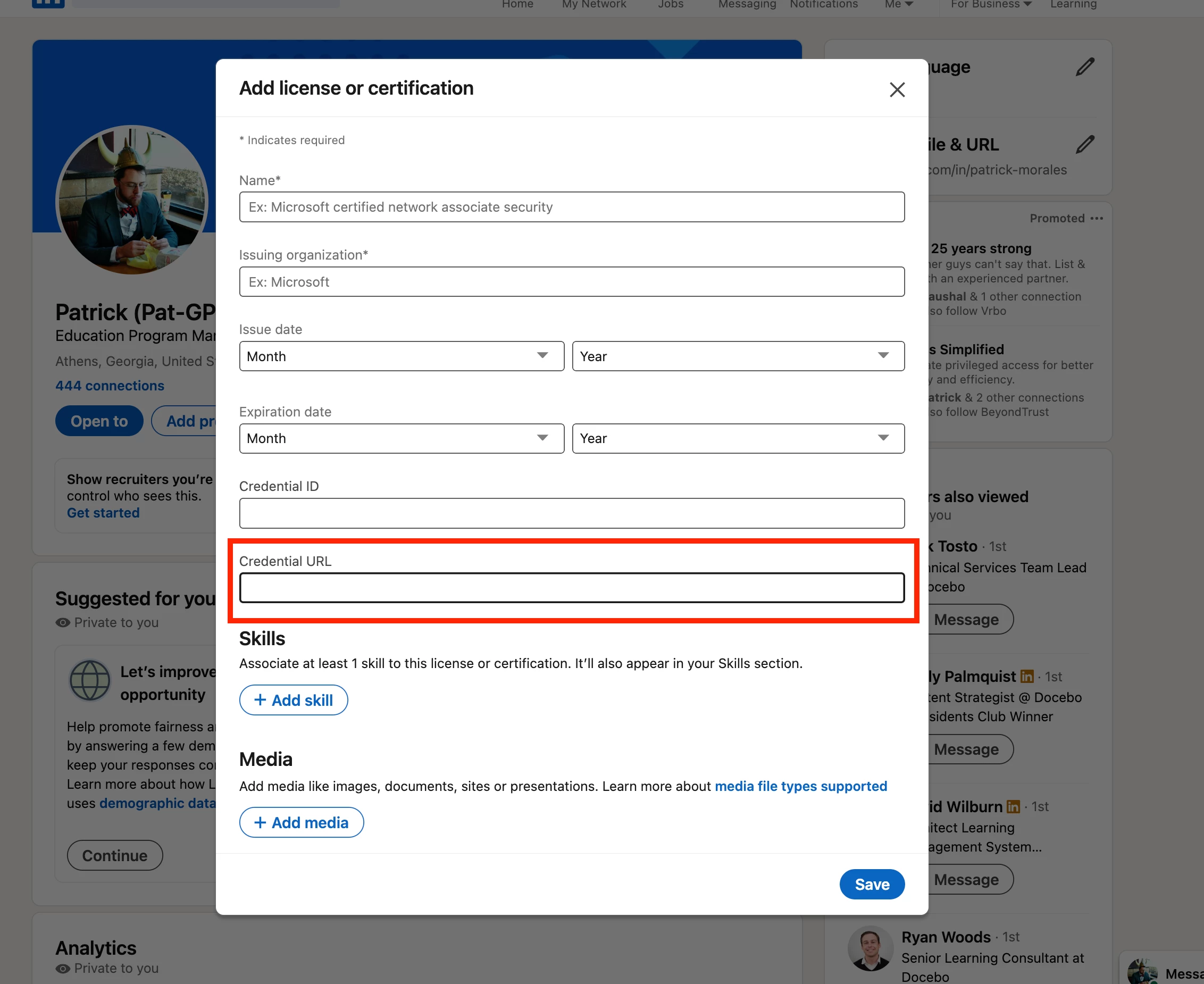
Enter Certification Details:
- Name: Enter the name of the badge as it appears in Docebo.
- Issuing Organization: Input "Docebo" as the issuing body.
- Issue Date: Specify the date when the badge was awarded to you.
- Expiration Date: Not required at this time
- Credential ID: Leave it blank.
- Credential URL: Paste the badge URL you copied from Docebo into this field.
-
Save the Certification:
- After filling in the necessary details, click "Save" to add the certification to your profile.
By completing these steps, your Docebo badge will be displayed in the "Licenses & Certifications" section of your LinkedIn profile, allowing your network and potential employers to verify and recognize your accomplishment.