Reporting

Automation App - How to Export Platform Reports to a Given FTP/SFTP

  • November 8, 2022
  • 13 replies
  • 1458 views

Hi everyone, I’m Elvin Torres-Alicea from the Docebo Support team and I would like to share this informational guide on - How to export platform reports to a given FTP/SFTP.


The guide will assume that you already have knowledge of your current FTP/SFTP credentials, have the automation app installed and have your desired report created on the LMS.


Note: If you have thousands of records in the platform, this is not an ideal option. It is recommended to export reports with thousands of records manually, as the time it takes for the automated rule to trigger is directly linked to the number of records in the report.


Please see the attachment’s section below to download the document.


Automation rules knowledge base:

https://help.docebo.com/hc/en-us/articles/360020082520-Creating-a-Rule-for-the-Automation-App#h_01FHZ4WBJ0KZNTY03ZGPSB88X4


Feedback/Questions

We’d love to hear your thoughts on this guide and if it was helpful for you. Please share any feedback and/or questions below.


How to export platform reports to a given FTP/SFTP

  1. Sign in your Docebo Learn LMS via your login method of choice
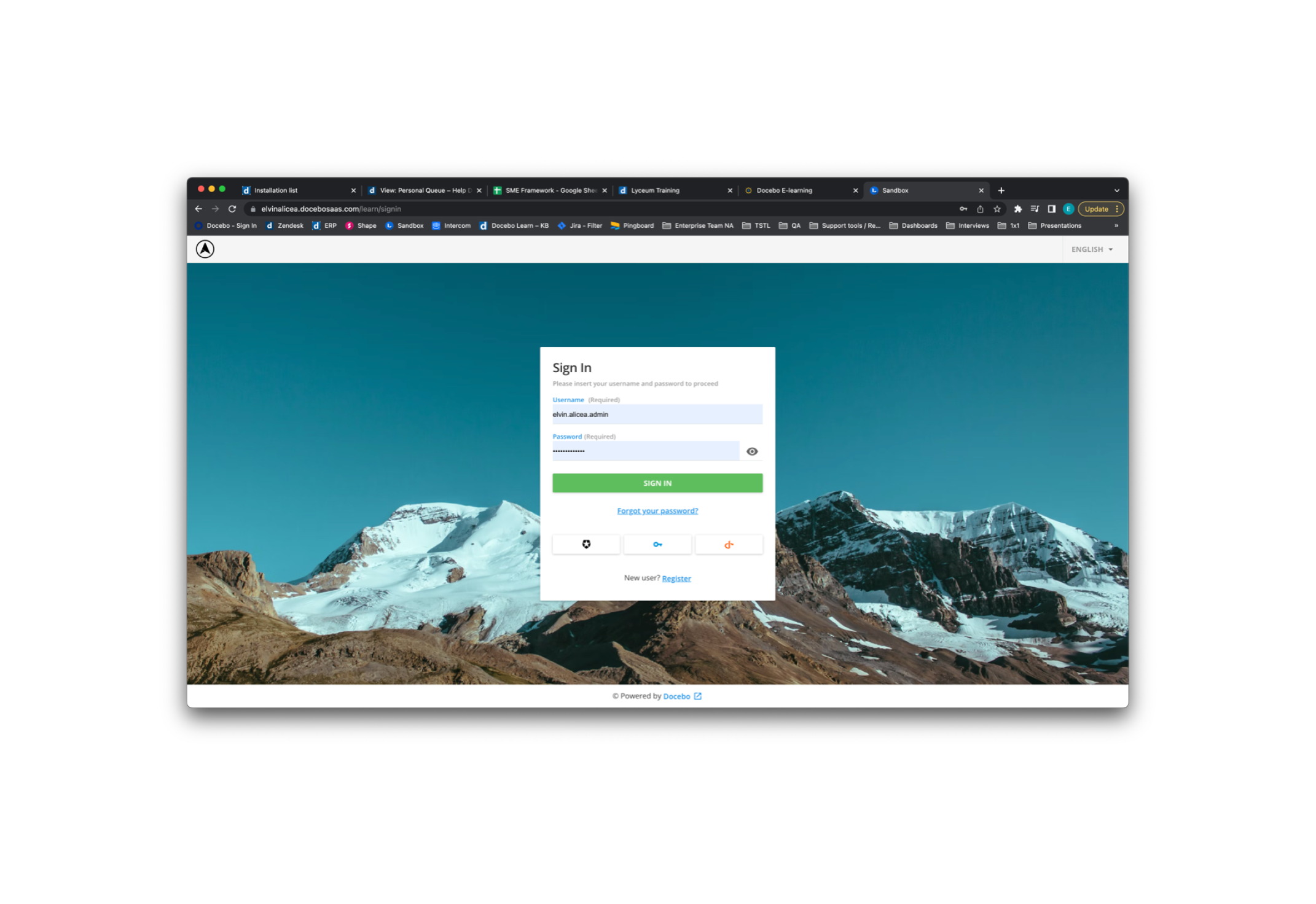
Log into LMS
  1. Navigate to the ⚙️ Admin Menu on the top right of the LMS
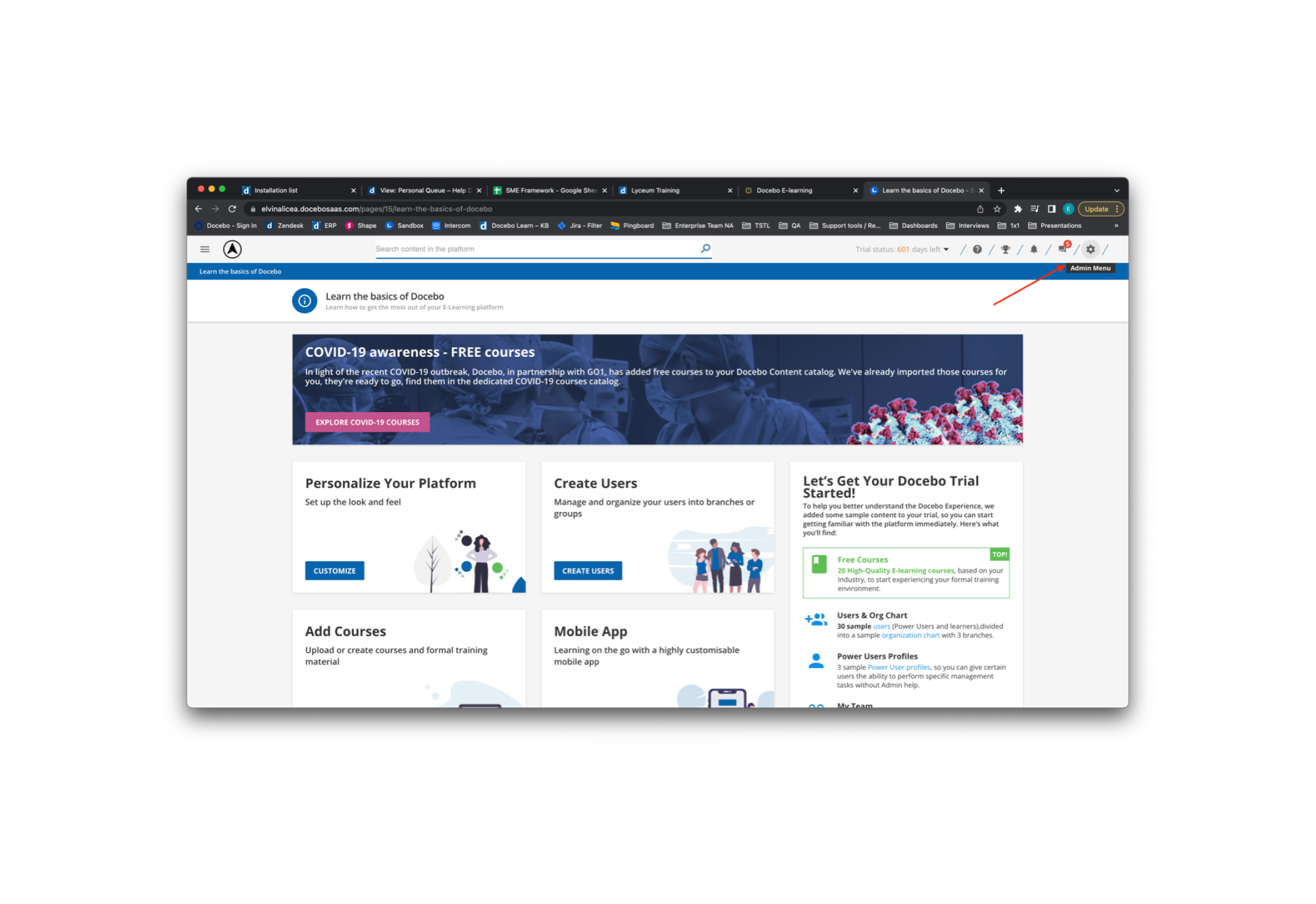
Navigate to Admin Menu
  1. Select the Manage option under the Automation application
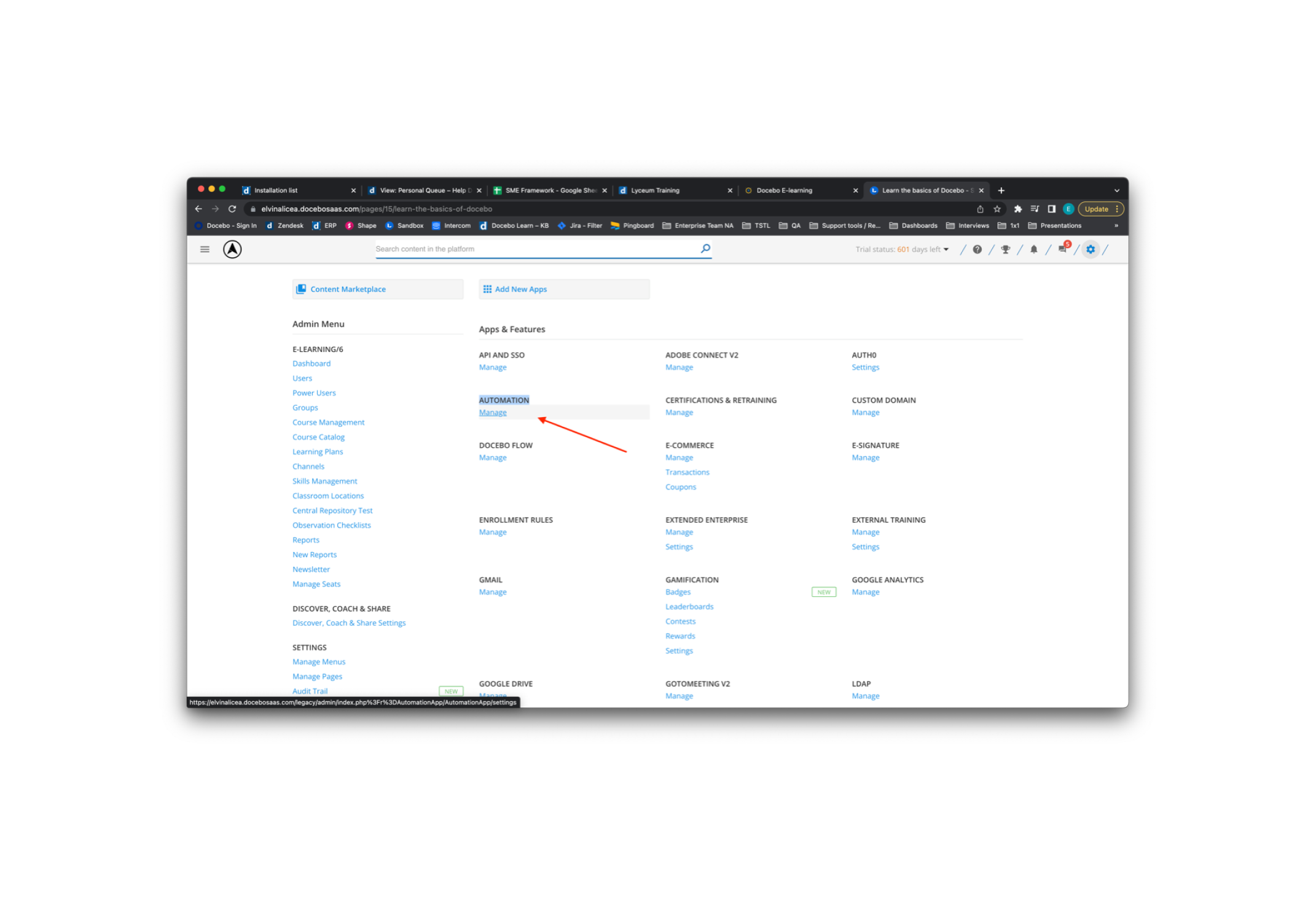
Select Automation > Manage
  1. Select New Rule to create the automation rule
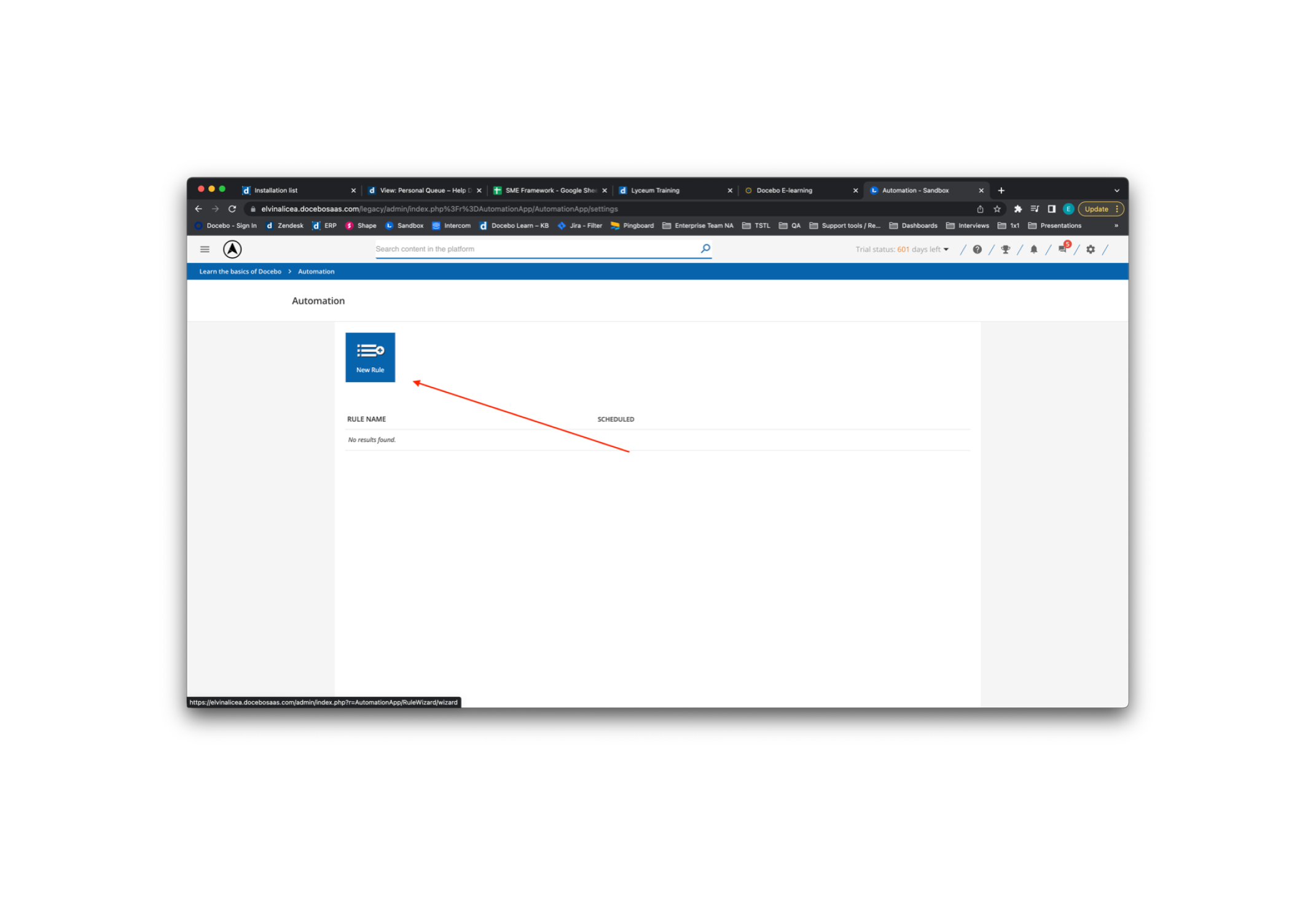
Select New Rule
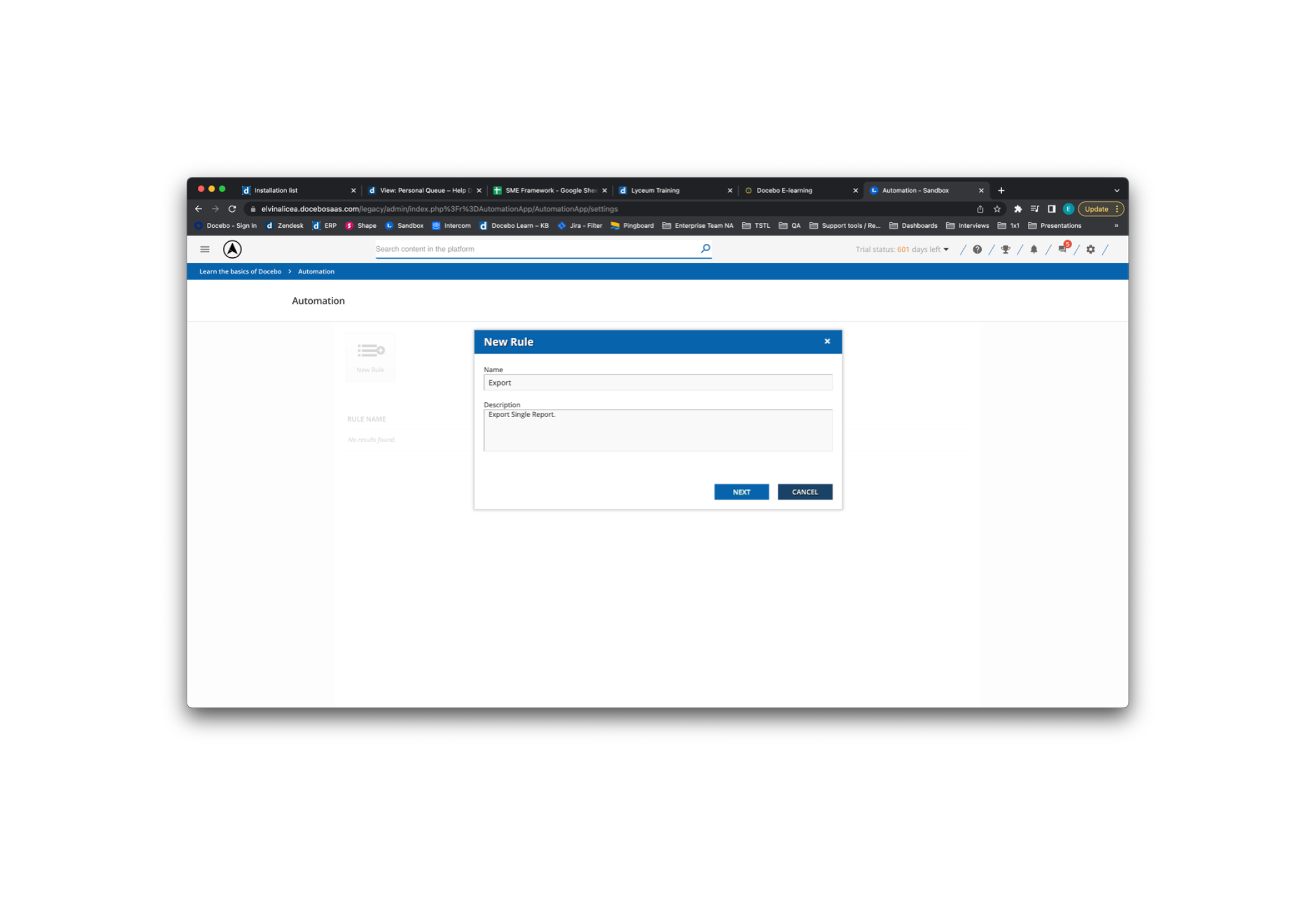
  1. Give your Automation a Name and a Description
  2. Select Next when completed
Create a Name and Description
  1. Select Schedule Rule and determine when the rule will execute. Example: Daily at 10 AM
  2. Select Next to continue the configuration
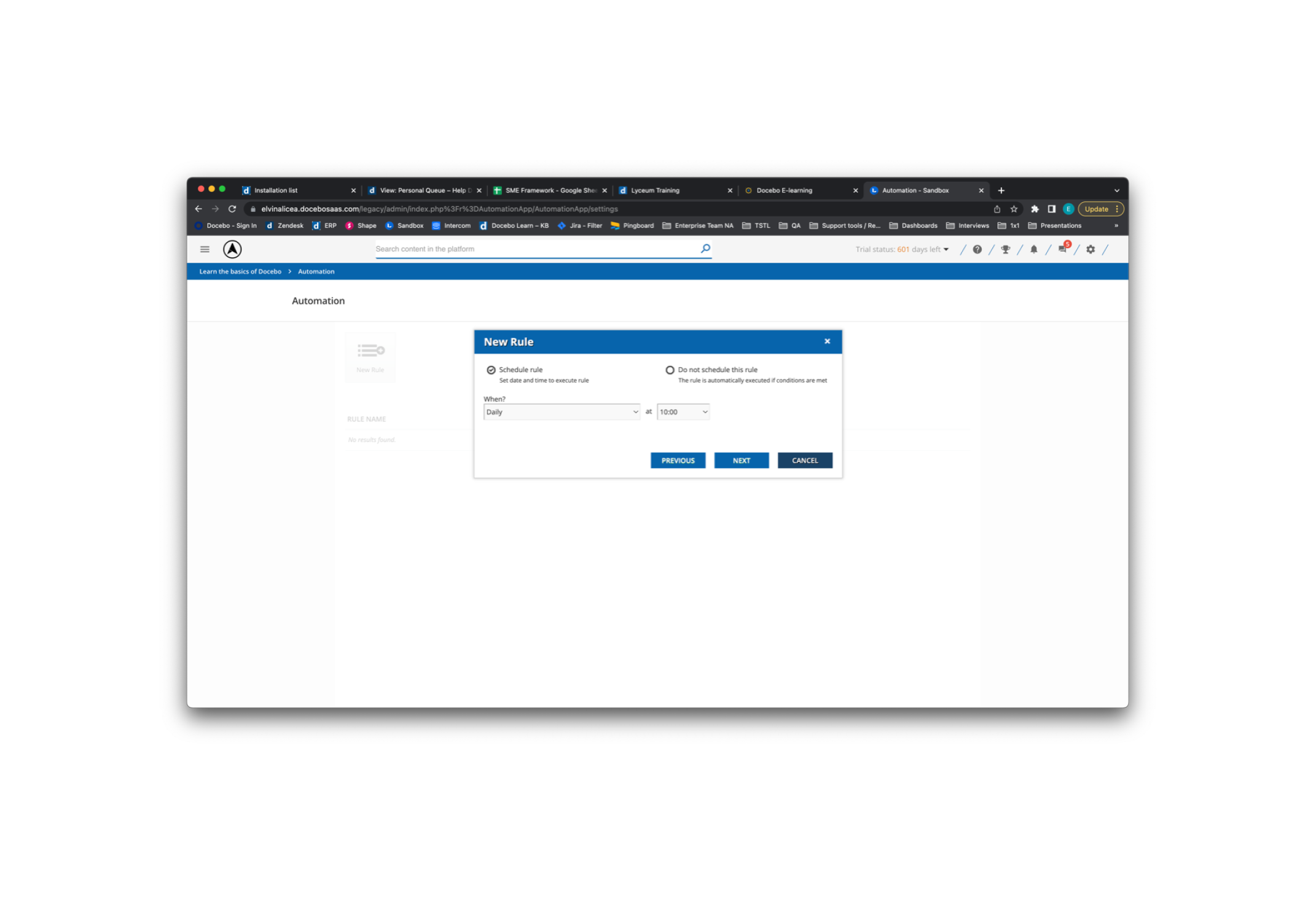
Schedule your rule
  1. For the IF condition of the Rule, select the report type of your choice (Legacy vs New Report)
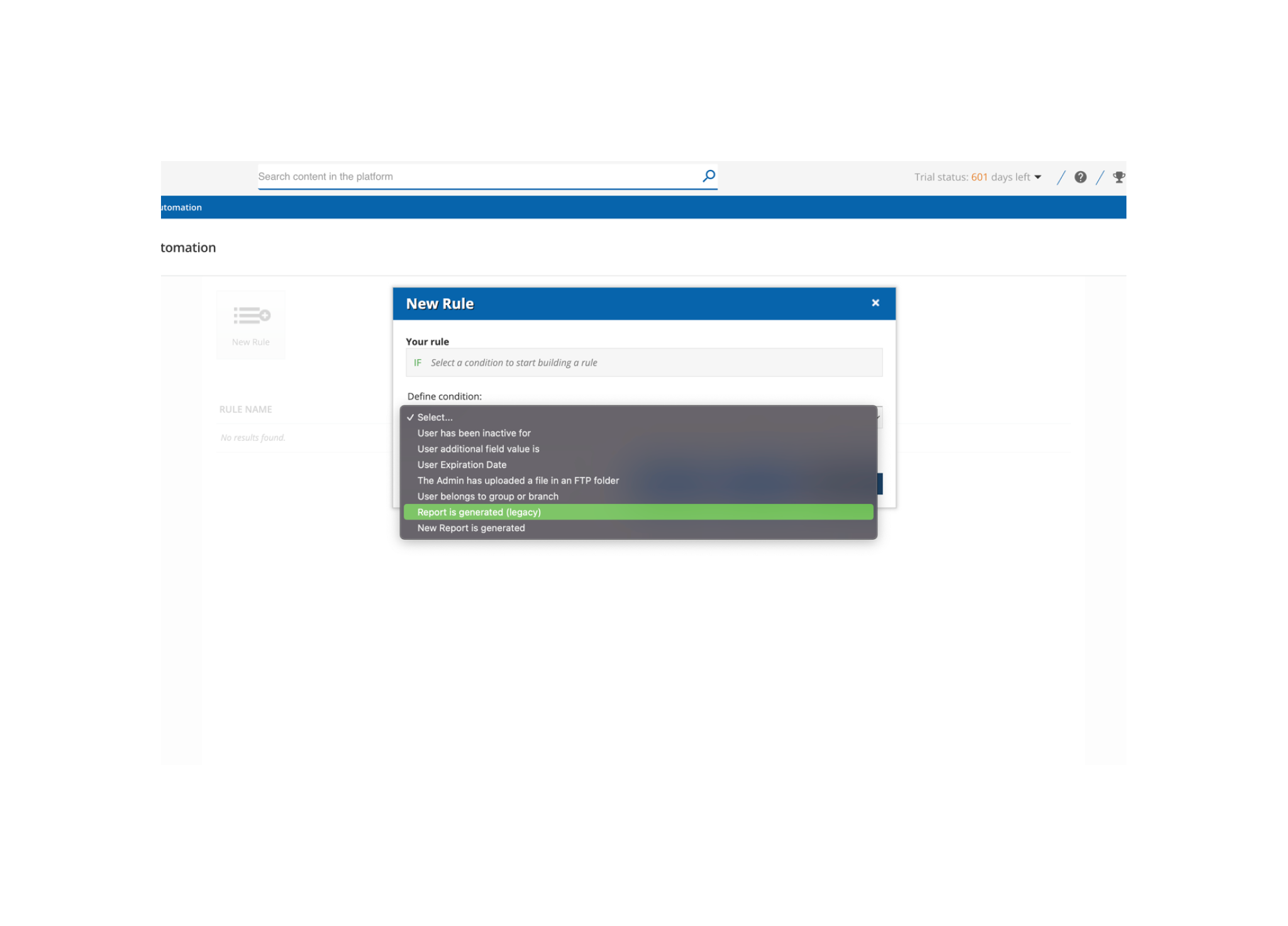
Select the Report Type
  1. Once you select the rule, select the Report you want to export and select Save Changes
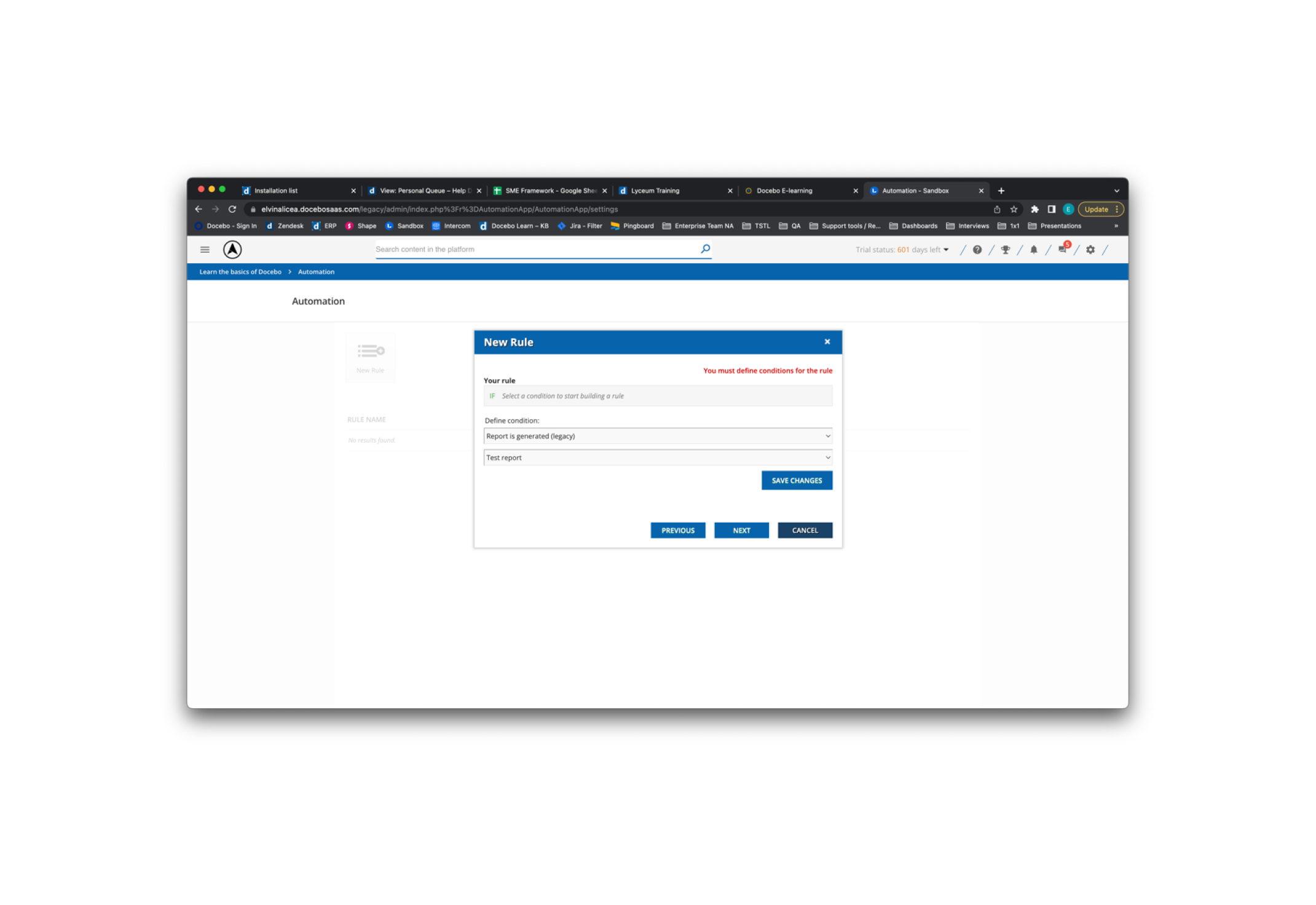
Select the Report you’d like to use
  1. Once you save your rule changes, select Next to continue
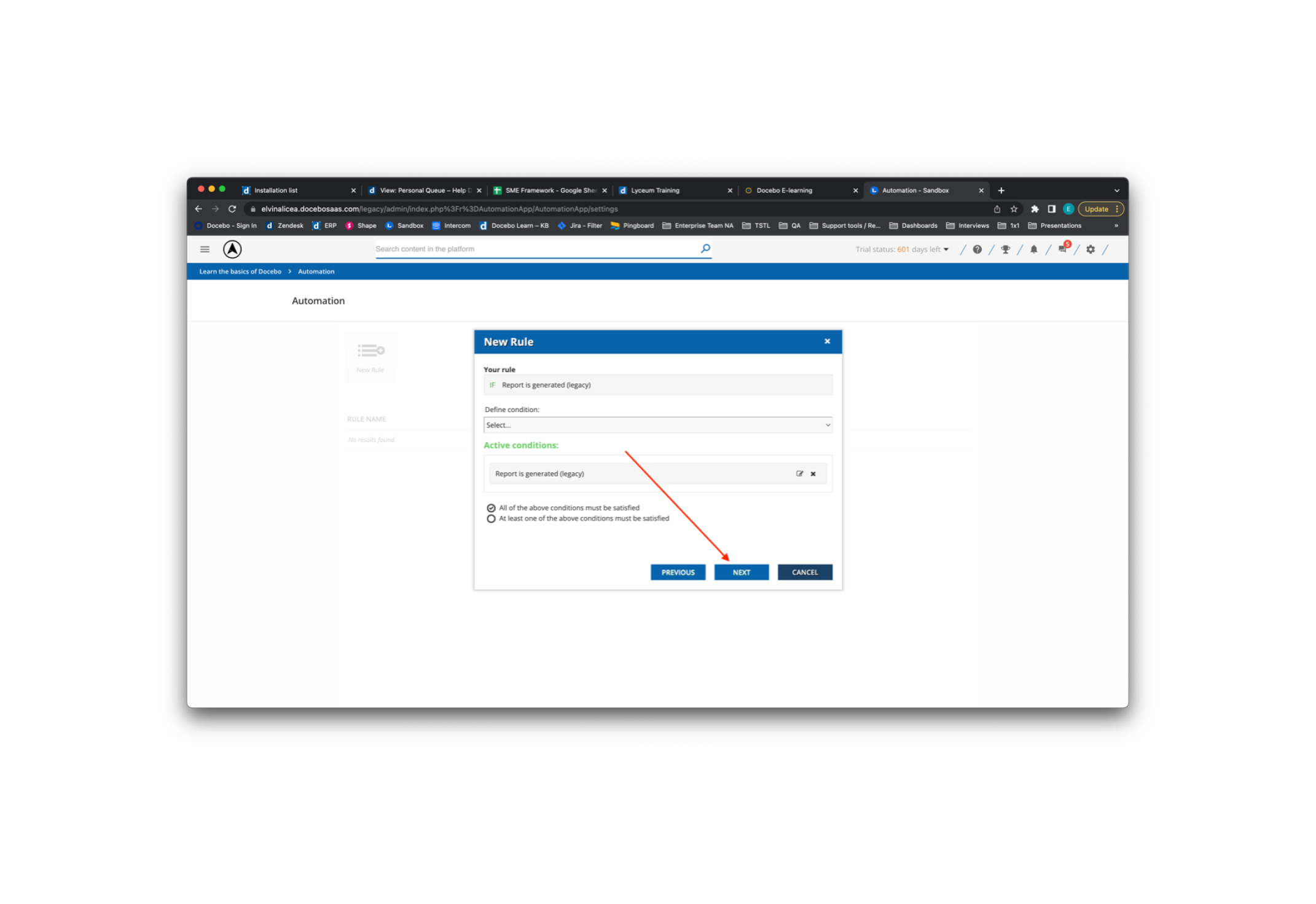
Select Next
  1. For your THEN action, select the Export to CSV option
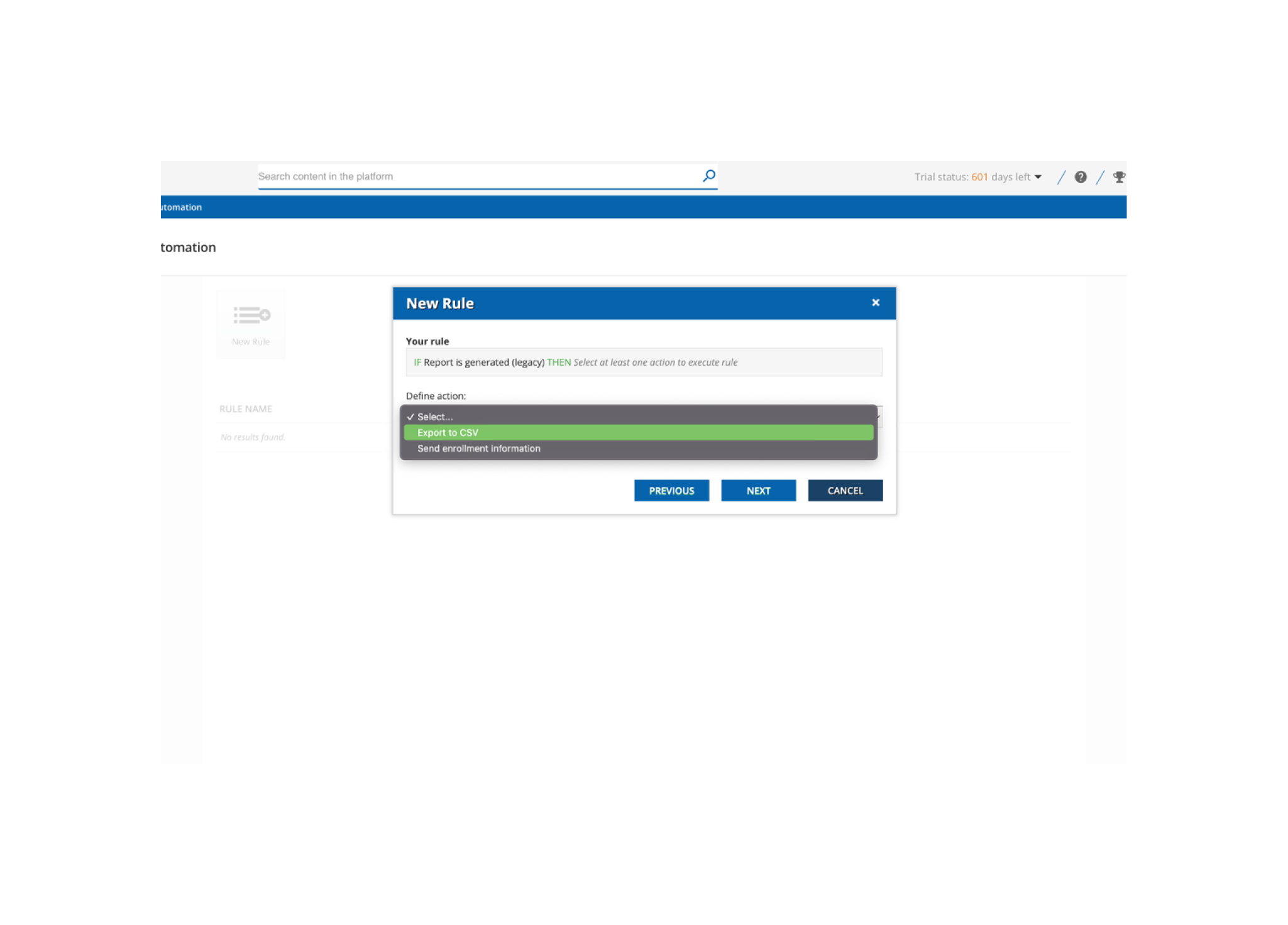
Select Export to CSV
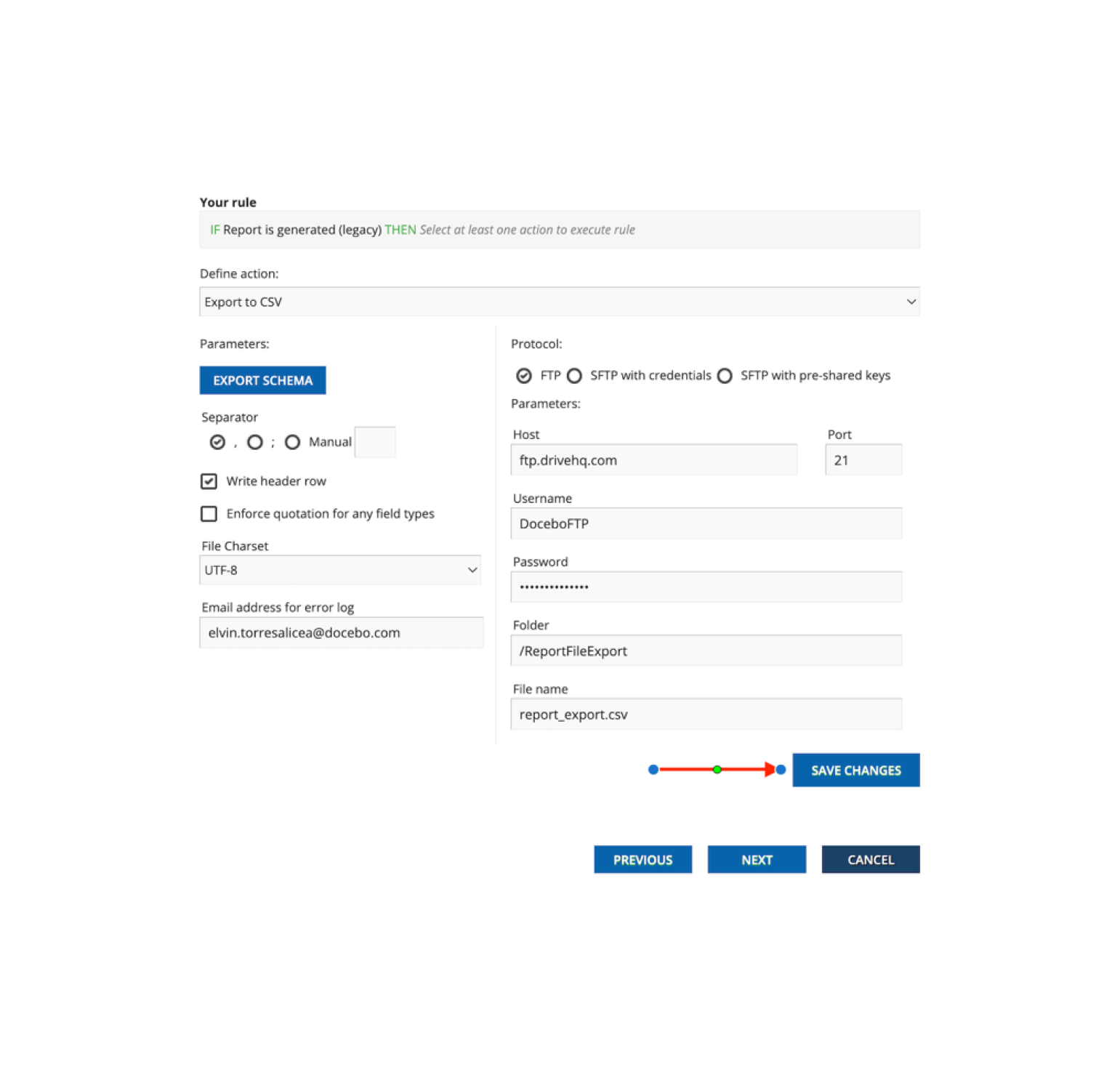
  1. This option will auto-expand, allowing your to enter you FTP/SFTP information. Determine the Folder where you want Docebo to place the report and the Name you wish to use for the file
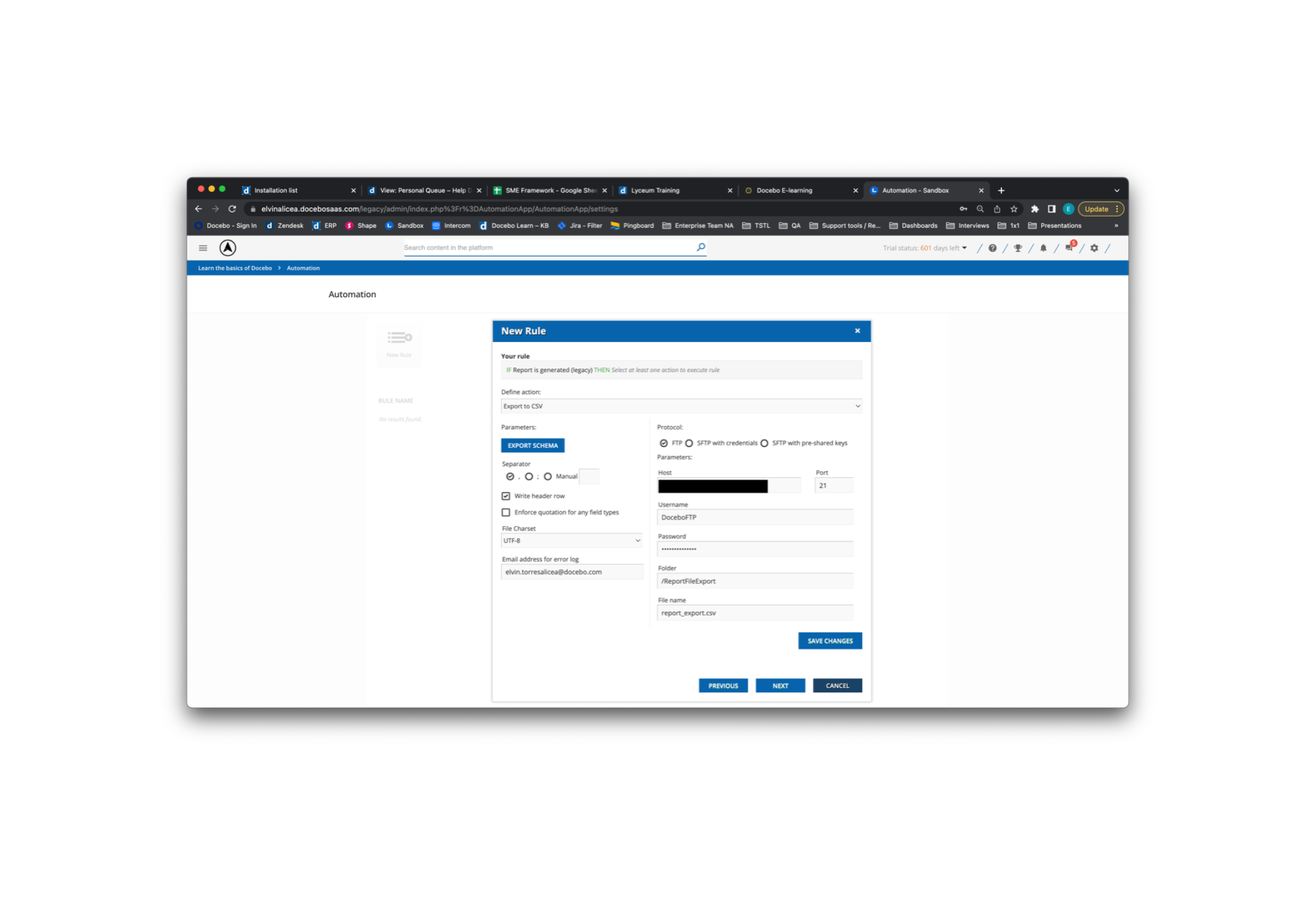
Select the Folder and File Name
  1. Once you complete the information, you can modify the schema of the export by selecting the Export Schema option. This will allow you to modify the row headers of the report you are exporting if you need to export the report with different column names
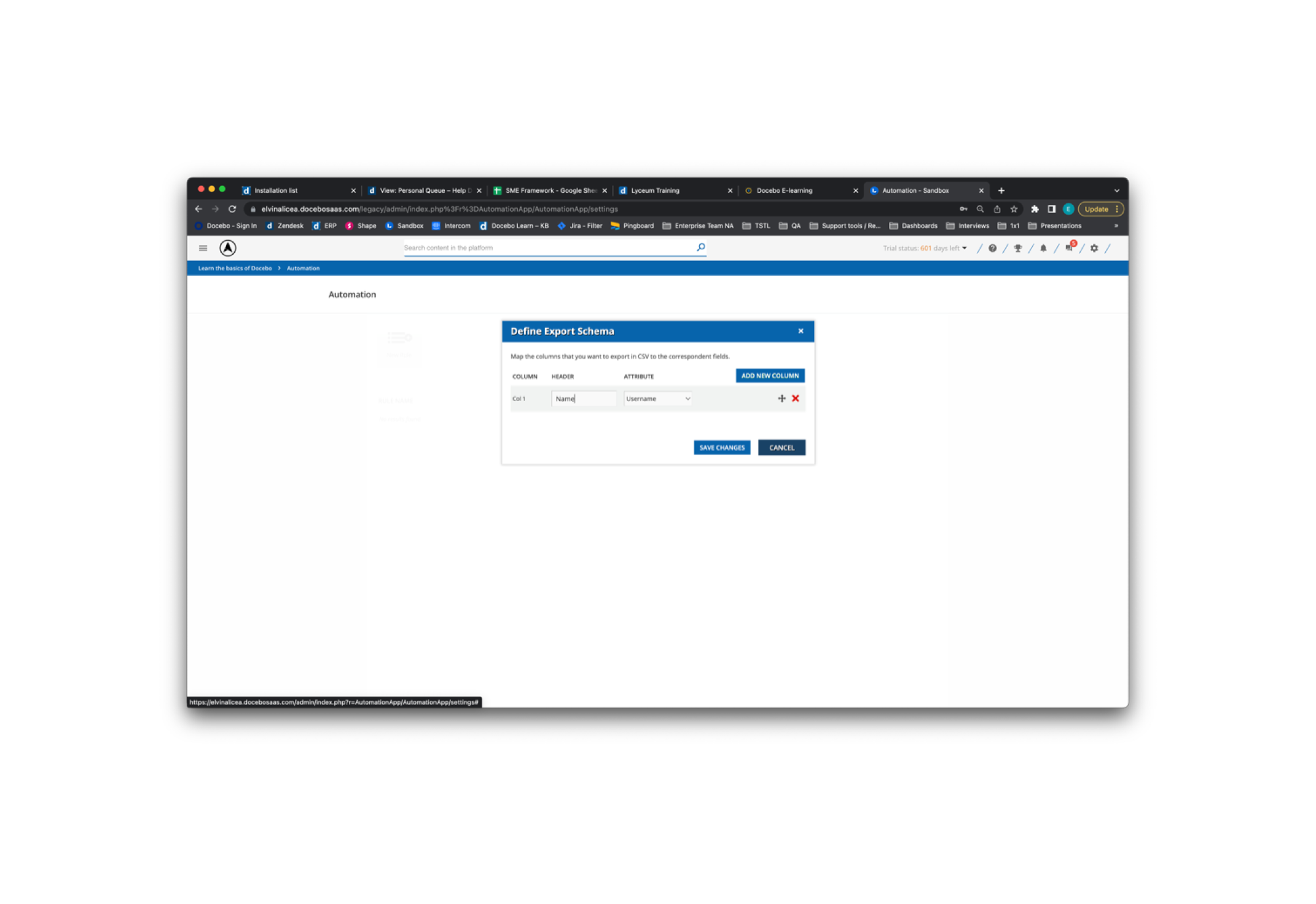
Define the Export Schema
  1. After defining the Export Schema, select Save Changes. Select Save Changes again for the FTP/SFTP configuration
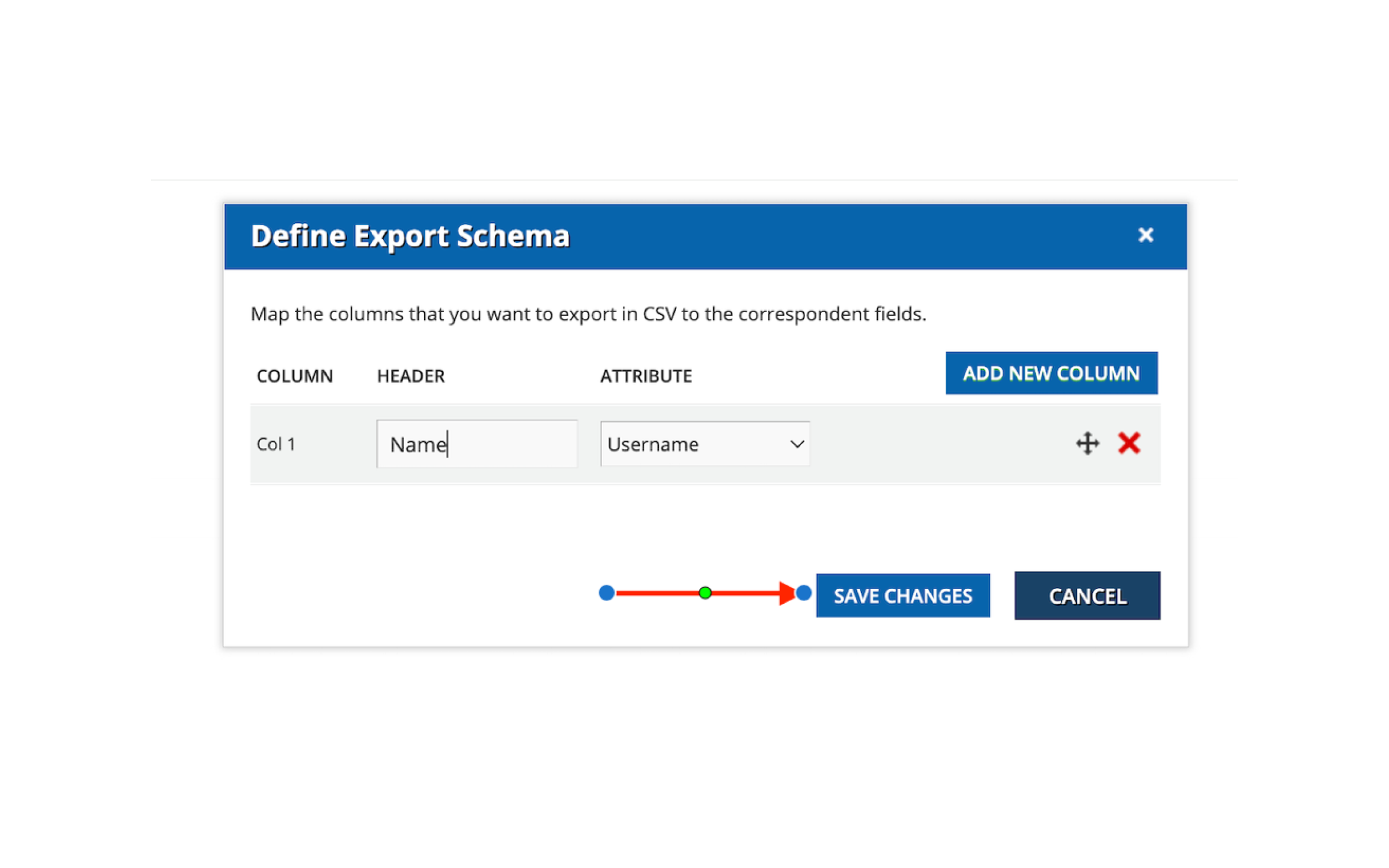
Select Save Changes​
Select Save Changes


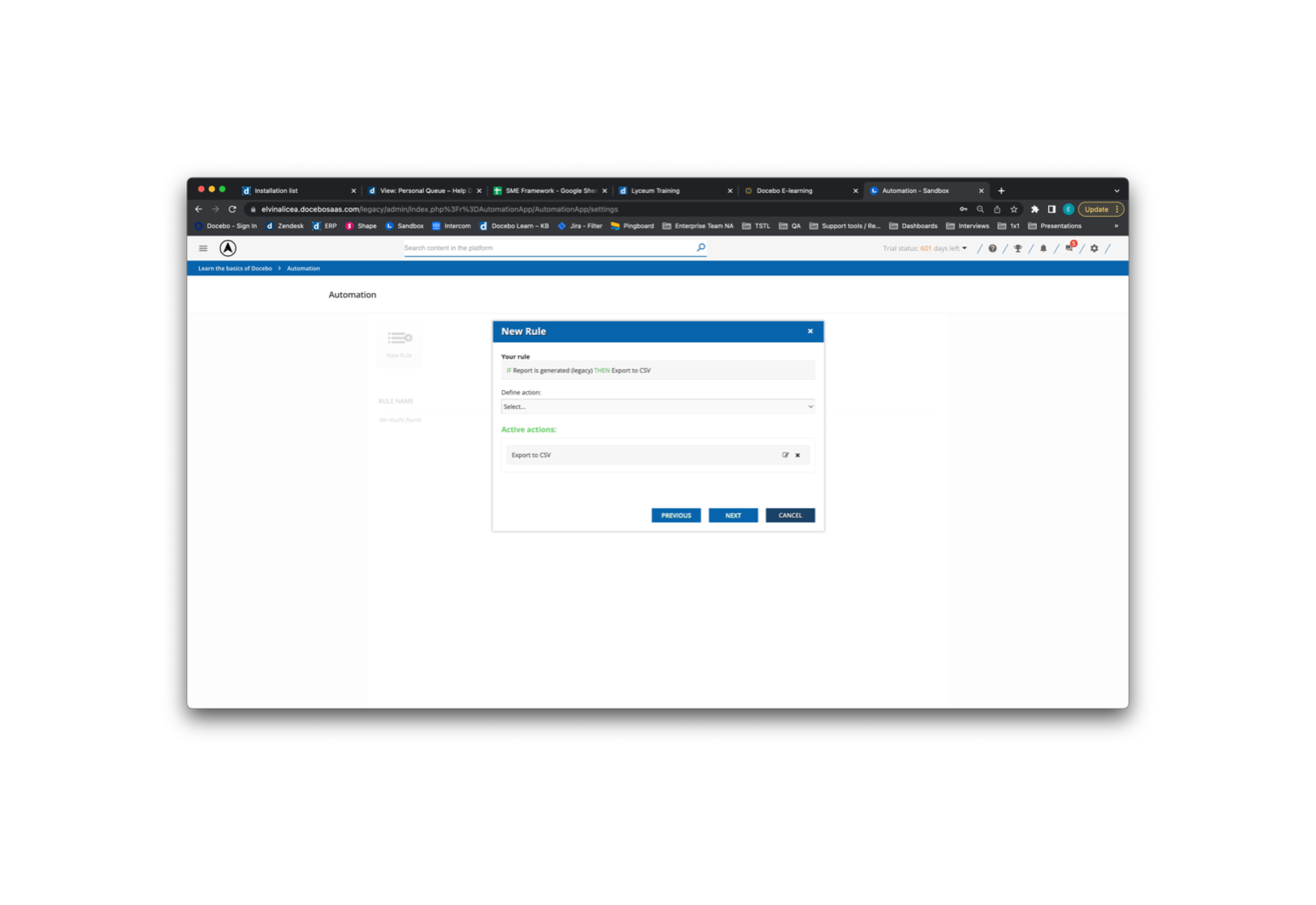
  1. Select Next
Select Next


  1. Save the automation rule using the 2 options available
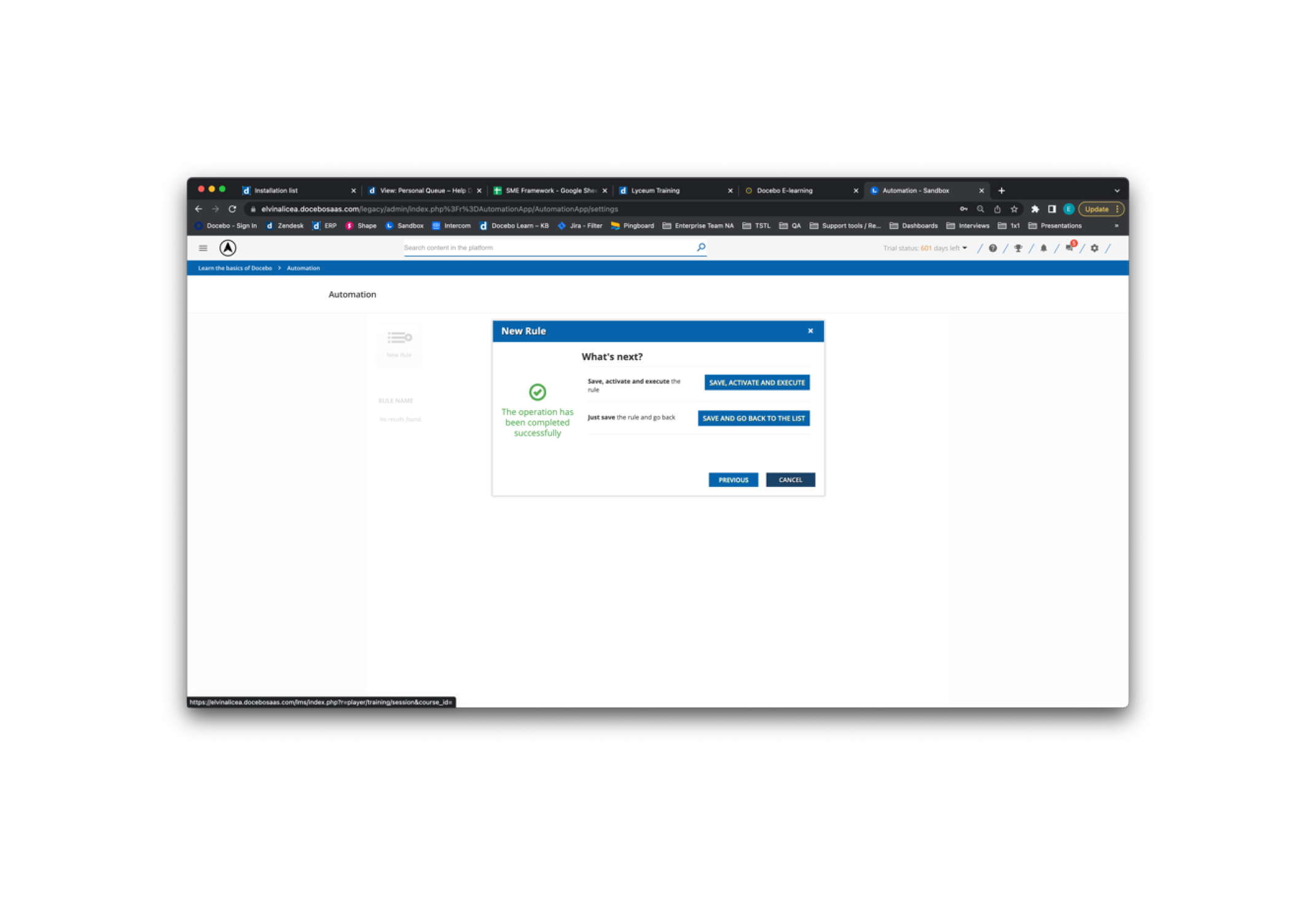
    Select one of the two options to Save


  1. Once the automation job has executed executed, the report selected to export should be inside the directory of choice when the job completes
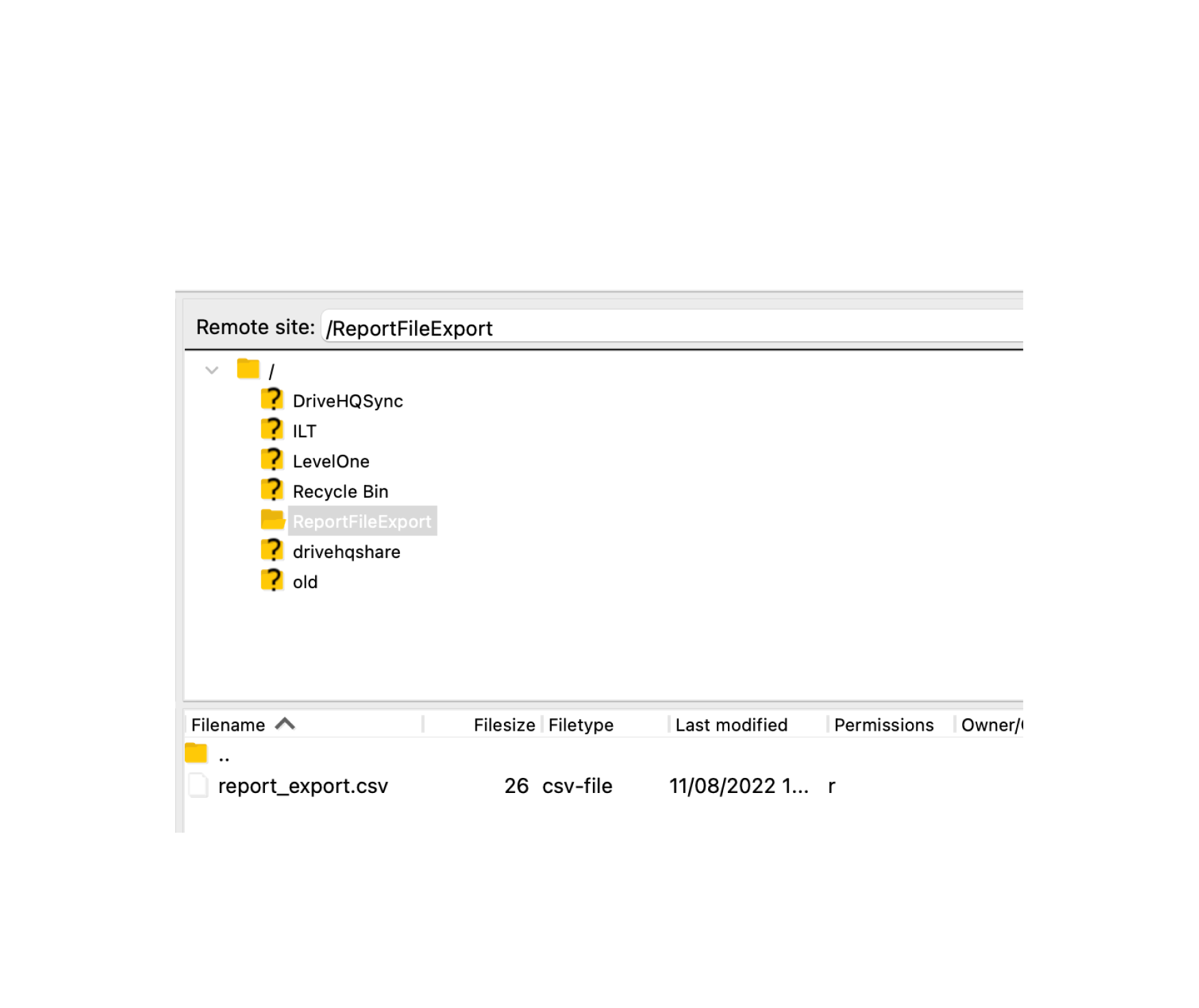
View File and Folder in appropriate location


13 replies

dklinger
Hero III
Forum|alt.badge.img+11
  • Hero III
  • November 8, 2022

Great write up.


Bfarkas
Hero III
Forum|alt.badge.img+6
  • Hero III
  • November 8, 2022

Nice!


aswartz
Helper II
Forum|alt.badge.img
  • Helper II
  • November 30, 2022

Hi, I can’t open or download the attachment. What’s the trick? When I click on it nothing happens. When I right click and open in a new window I see this:


This XML file does not appear to have any style information associated with it. The document tree is shown below.

<Error>

<Code>AccessDenied</Code>

<Message>Access denied</Message>

</Error>


Thanks,

Aimee 


aswartz
Helper II
Forum|alt.badge.img
  • Helper II
  • December 7, 2022

Hi, I can’t open or download the attachment. What’s the trick? When I click on it nothing happens. When I right click and open in a new window I see this:


This XML file does not appear to have any style information associated with it. The document tree is shown below.

<Error>

<Code>AccessDenied</Code>

<Message>Access denied</Message>

</Error>


Thanks,

Aimee 

@elvin.torres-alicea it works now! Thanks


Bfarkas
Hero III
Forum|alt.badge.img+6
  • Hero III
  • December 7, 2022

Did something change? What fixed it for you?


aswartz
Helper II
Forum|alt.badge.img
  • Helper II
  • December 7, 2022

No nothing changed as far as I’m aware I just realised I didn’t receive a response so came back and clicked on it again and it downloaded. 


Thanks

Aimee


msantos
Helper II
Forum|alt.badge.img+2
  • Helper II
  • December 13, 2022

Hello @elvin.torres-alicea , is it possible to export the report and upload the file in the sharedpoint?

I created a Power BI dashboard and I atualize the dashboard data, uploading manually a report in the sharedpoint .


If it´s possible I can automate the process.

Thank you.


Manoel


Lucy.blake
Helper II
  • February 20, 2024

@msantos I’m trying to automate some calendar invites going out and thought that this would be ideal however we use microsoft and FTP and SFTP don’t work with microsoft. There is apparently a way to use this with Power Automate but it seems a long winded way to just get a report sent to you and uploaded somewhere.


JKolodner
Helper III
Forum|alt.badge.img+6
  • Helper III
  • February 20, 2024

My IT colleague worked with me to set up a report and have it sent to him (using the report scheduler). Then we went into the API area and he determined how he could access the report through the API, so that he can use it in Power BI. It’s over my head, but apparently this way we can get a daily download/backup of user information for everyone in our Docebo instance.


msantos
Helper II
Forum|alt.badge.img+2
  • Helper II
  • February 20, 2024

My IT colleague worked with me to set up a report and have it sent to him (using the report scheduler). Then we went into the API area and he determined how he could access the report through the API, so that he can use it in Power BI. It’s over my head, but apparently this way we can get a daily download/backup of user information for everyone in our Docebo instance.

Hi @JKolodner , thank you for your advice. The problem is that the schedule report does not have a option to export in CSV with ; (semicolon) separator. So, it´s not possible to upload the report in the Power BI (In Brazil the separator csv is semicolon). The automation app has this option (Semicolon separator), but not send the report by email. 


aswartz
Helper II
Forum|alt.badge.img
  • Helper II
  • March 26, 2024

We finally have an SFTP server and are trying to get this working.

You don’t mention it here but I assume you also need to schedule the reports to generate in order for it to trigger the automation app? 

We have done this but it’s still not working. The report isn’t getting sent to the server. 

How does the automation app get triggered? Does it matter where you have the scheduled report sent? 

Thanks for any advise you can offer.

Best,

Aimee


JesusValencia
Novice III
Forum|alt.badge.img

Hello @elvin.torres-alicea. Questions regarding the Define Export Schema for the automation. I cant seem to find where the attributes is changed. Is this setup through the API browser?
Thanks. 


JKolodner
Helper III
Forum|alt.badge.img+6
  • Helper III
  • August 27, 2025

@elvin.torres-alicea In the opening of this documentation, you mention 


We are trying to export all of our User/Course data so that we can connect it to our Workday instance.  It appears there are 3 ways to do this:

  1. Automation App based on a report (as you document above)
  2. APIs to export a custom report (not sure how to do that, but I’ve got IT colleagues who do)
  3. Docebo Connect

We have thousands of users and hundreds of courses so an “All User x All Course” custom report will be large. Can you explain what would happen if I were to use option 1, as you’ve documented above? Would it be slow? Would it not work? Would it throw errors?