

Question

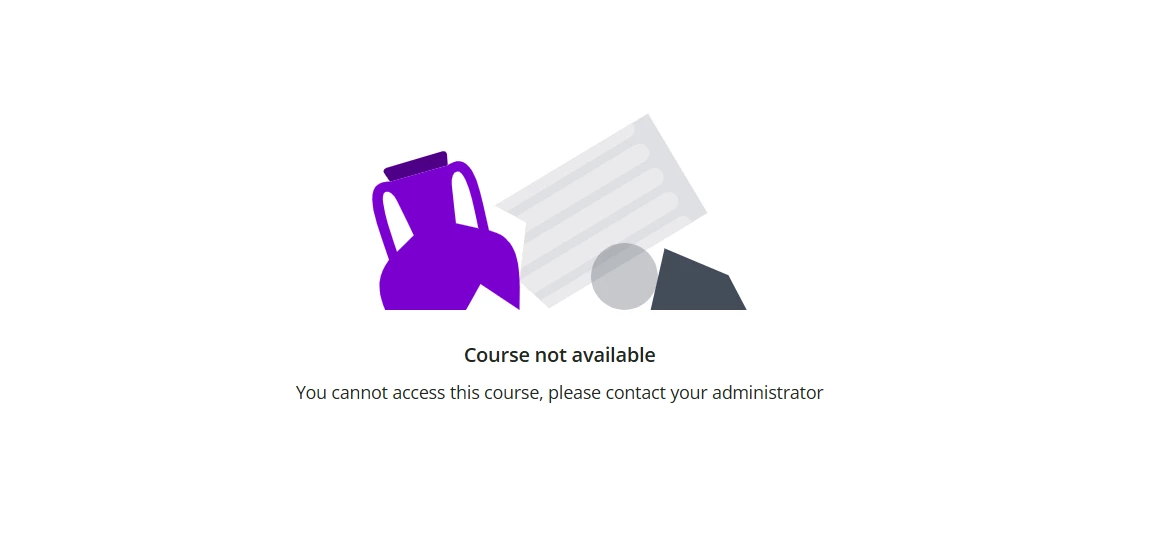
Course Not Available error message on Page not catalogue

  • October 19, 2026
  • 1 reply
  • 12 views

JulesH
Novice III

We have set up some courses for people to be able to access on request - ie we are not enrolling them centrally.
The courses can be accessed via a page in the side menu or through a catalogue.

Via the catalogue, the courses are available and users can access freely
When users try through the Page option, they are getting this error message. Clearly its the page / menu which is set up incorrectly, but I cannot see how - especially as there are other courses on the Page which the user can access??



1 reply

Moshe.Machlav
Helper III
Forum|alt.badge.img+2

Hi ​@JulesH ,

When a course works fine inside a Catalog but triggers a "Course Not Available" (or 403) error on a custom Page, the culprit is almost always how the course is linked or surfaced on that page rather than the menu permissions themselves.

Check these three configurations depending on how your page is built:

1. Direct Course URL vs. Catalog View URL (Most Common)

If you are using hyperlinks inside a Custom Content Box, HTML/WYSIWYG widget, or Image widget, check the URL structure of the failing courses versus the working ones:

  • Internal Player Link (/learn/course/{id}/{slug}): If an admin clicks Learner View from Course Management and copies the URL from the browser bar, Docebo automatically enrolls the admin and generates the enrolled learner URL. If an unenrolled learner clicks that link, Docebo blocks them because they don't have an active enrollment yet.

  • Catalog Preview Link (/learn/course/internal/view/elearning/{id}/{slug}): To let unenrolled users land on the course overview page and click Enroll, navigate to the course through the Catalog first, open its preview page, and copy that URL instead.

2. Native Course Enrollment Links

If you want learners to self-enroll with a single click from a custom button or link on a Page, use Docebo's built-in Enrollment Links:

  • Go to Admin Menu > Course Management, select the course, and go to Properties > Enrollment Options (or the Enrollment link section).

  • Check Enable enrollment link for this course and copy the generated URL (?generated_by=...).

  • Note: Make sure the user has catalog visibility for the course, or enable Make enrollment links valid for all available content under Admin Menu > Advanced Settings > Advanced Options > Enrollment links. You can review the exact behavior in Docebo's guide on Managing enrollment links.

3. Widget Mismatch on the Page

If you aren't using custom links and are instead using native page widgets:

  • Ensure the page uses the Catalogs widget rather than the Courses and Learning Plans widget. The Courses and Learning Plans widget only displays courses the user is already enrolled in, whereas the Catalogs widget allows unenrolled users to browse and self-enroll.

In enterprise environments I've worked with, the pattern that holds up best for curated landing pages is embedding a Catalogs widget filtered to a dedicated sub-catalog (set to Card or List display mode) rather than maintaining hardcoded links in content boxes. It completely eliminates broken URL issues and automatically respects your catalog visibility and self-enrollment policies as courses change over time.