

Docebo Connect Integration - Invites are missing Meeting Options

  • May 20, 2025
  • 3 replies
  • 120 views

KPIPG
Novice III

Hi - 

Is anyone else experiencing this?

We use 1 service email account for our Outlook Connect Integration.

We paired that MS Teams account in Docebo VILT Microsoft Teams to automate the meeting link process.

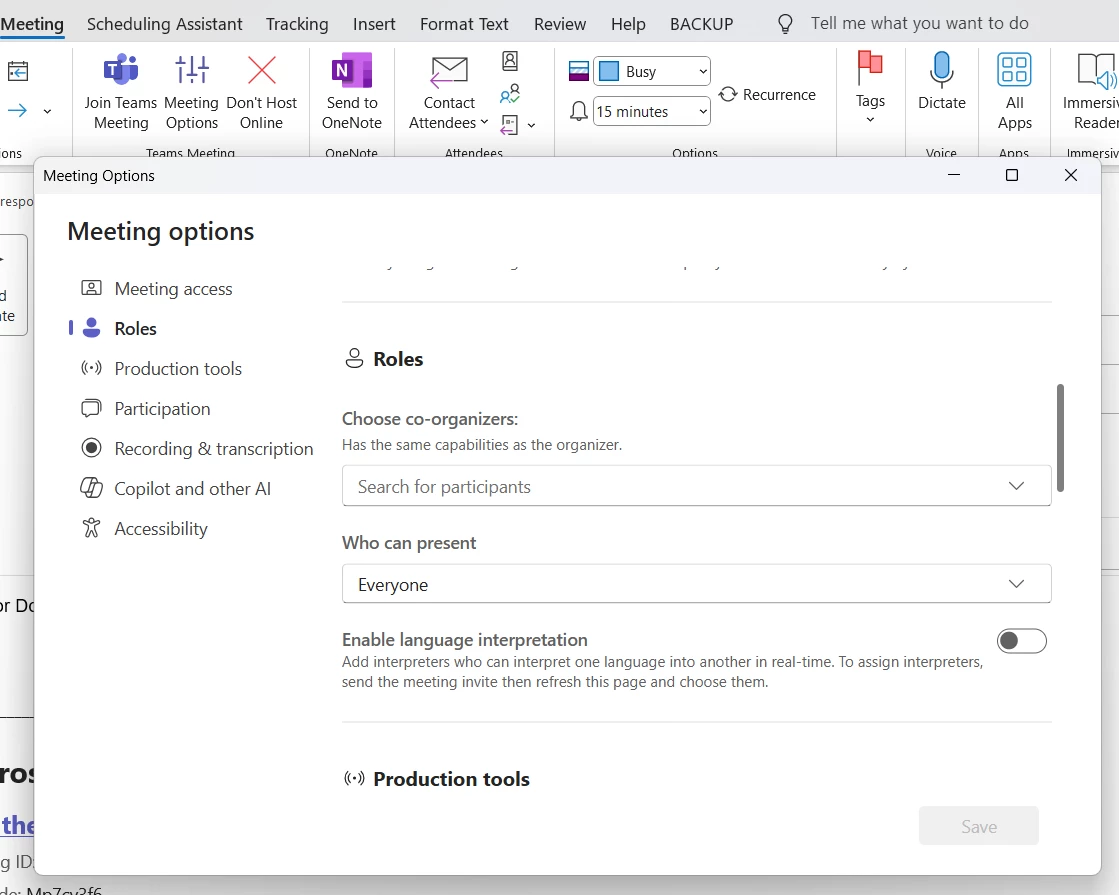
The generated meeting invites (Outlook and MS Teams) are missing Meeting Options. Having the options would allow us to assign instructors and others as co-organizers so they can start and manage the meetings on their own. As it is now, we have to start EVERY meeting for them.

The alternative to bypass this

  1. We have to manually create all invites and paste the meeting link URLs using the custom tool
    1. this creates 2 identical invites on our calendar for every meeting
    2. it turns an automated process into a manual one
    3. Even if we use the instructors created meeting links instead, it creates 2 invites for them and it’s confusing to maintain and change manage with a large instructor schedule.
  2. We have 30-40+ individuals who will be creating ILT courses, sessions and events. Individually pairing each account still presents a change management challenge if the meeting owner changes or they need to substitute an instructor because the original owner also will not have meeting options for any invites generated with the outlook integration.
 

3 replies

  • Novice I
  • March 13, 2026

I’m having the same issue! We are also using 1 service email account for MS Teams VILT and we need to be able to assign co-organizers.


ben.moore
  • Newcomer
  • July 8, 2026

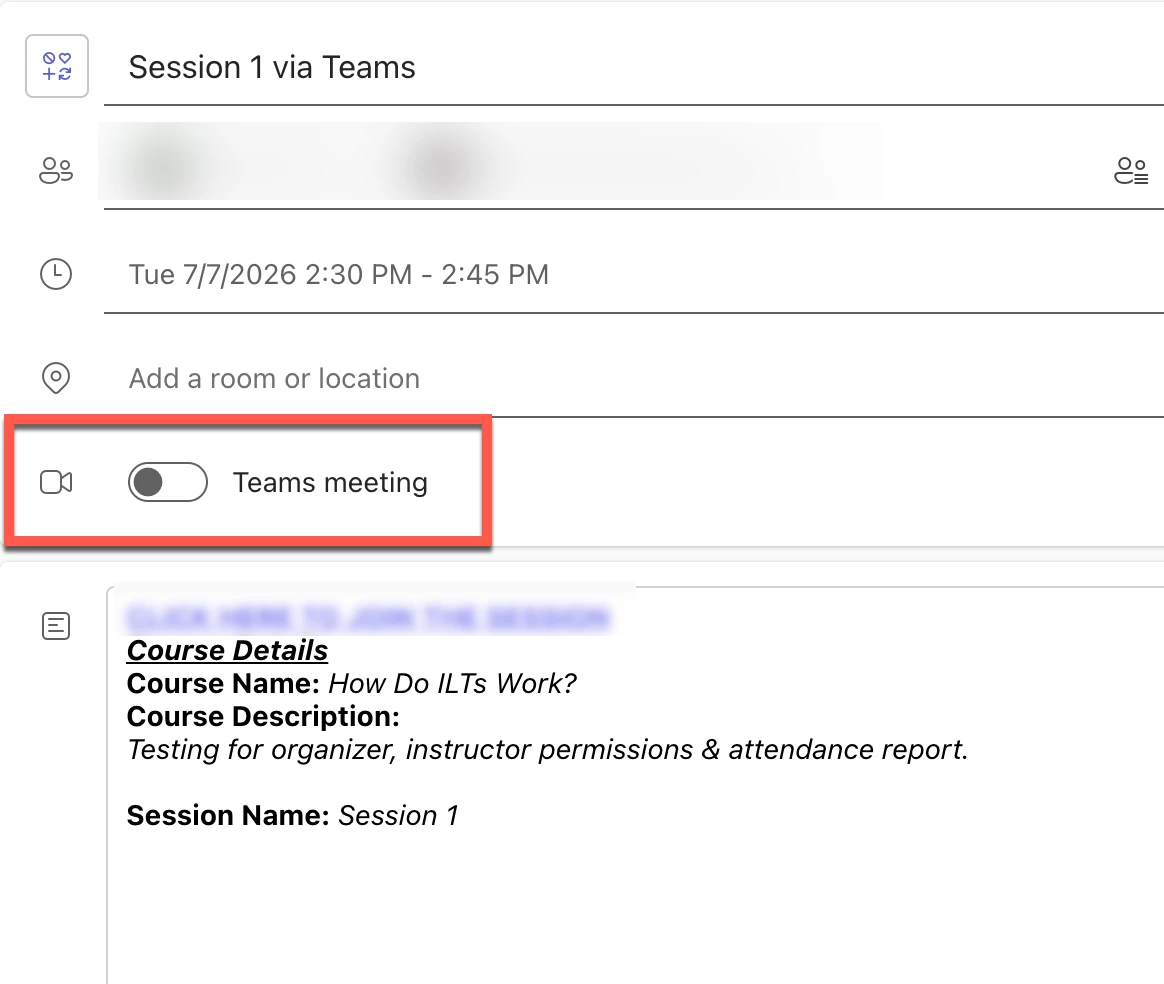
Hi ​@KPIPG, were you able to figure this out? We’ve noticed the same issue in our testing and the invites that get sent via the Connect recipe are just “standard” meetings, not “Teams” meetings (reference my screenshot).

I have a feeling this is the result of how we chose to track VILT attendance. Based on my understanding, in order to use the automated attendance tracking feature, our learners must join the VILT session from the course page. A link in their calendar invite redirects them to our course page, and from there, they are able to join the VILT using the provided button. 

The downside of this attendance tracking method is that we are unable to adjust any meeting options prior to the session starting. I think this is because we don’t technically have a Teams meeting link until the instructor or learners join the session. 


How do you track VILT attendance?


  • Newcomer
  • July 8, 2026

We are running into the same issue, and your assumptions match what I am seeing too.

We also use one service account for the Teams VILT integration, but we have about 40 to 50 instructors who may need to run their own sessions. Creating separate Outlook Connect accounts for each person is not realistic for our lean IT team, especially when instructors change or sessions are added with short notice.I’m the only learning and development person for my company, so now the burden falls on me. 

Right now, the only workable solution I have found is to

  1. Manually create the Teams meeting in Outlook
  2. Adjust the Teams meeting options from Outlook so the instructor can actually start and manage the meeting session. 
  3. Copy the meeting link from there
  4. Paste the link into the Docebo custom tool in the course

That is not a sustainable workflow. It also feels like it defeats the entire purpose of using the Connect integration. If the integration creates the meeting but does not allow the right people to manage it, then it is only solving part of the problem and creating a new one.

This is especially difficult for teams that do not have one centralized person running every VILT session. I would really like to see Docebo provide a cleaner solution here because the current options are not practical at scale.

I don’t have much to offer but commiseration and validation, unfortunately.