Question

Customizing the Password Requirements Popup

  • October 1, 2026
  • 2 replies
  • 24 views

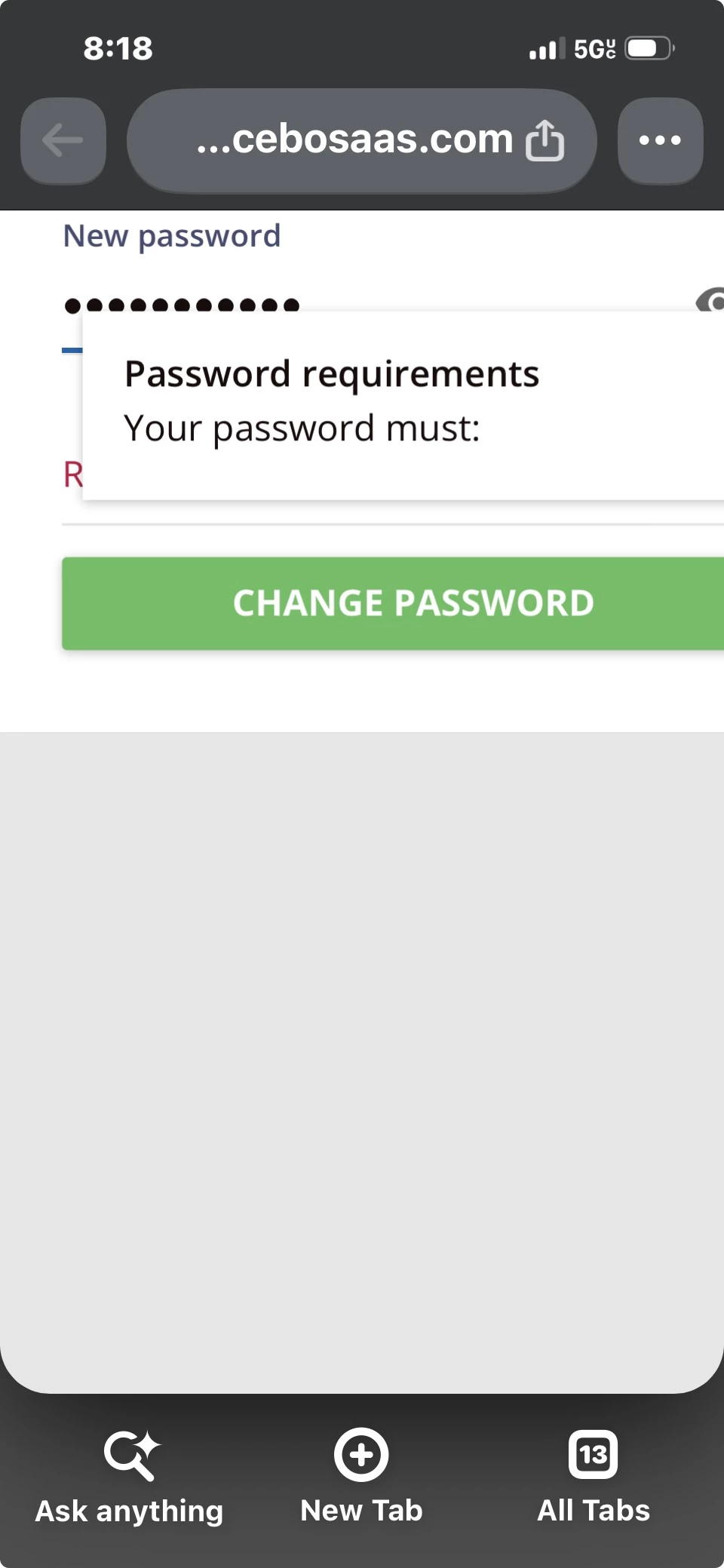
I want to customize the Password Requirements popup that appears when a user changes their password to showcase the fixed password rules that Docebo has in place. 

Does anyone know how to customize this popup?
 

2 replies

JKolodner
Helper III
Forum|alt.badge.img+8
  • Helper III
  • October 2, 2026

Hi Kaitlyn,

This looks like a Localization tool task.

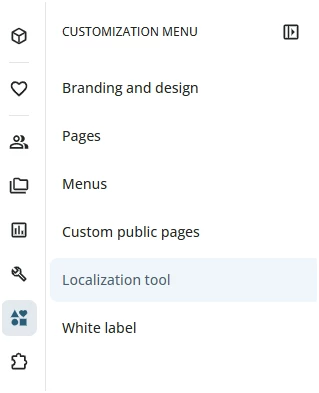
  1. Look in your Admin tool bar and select Localization on the Customization menu.
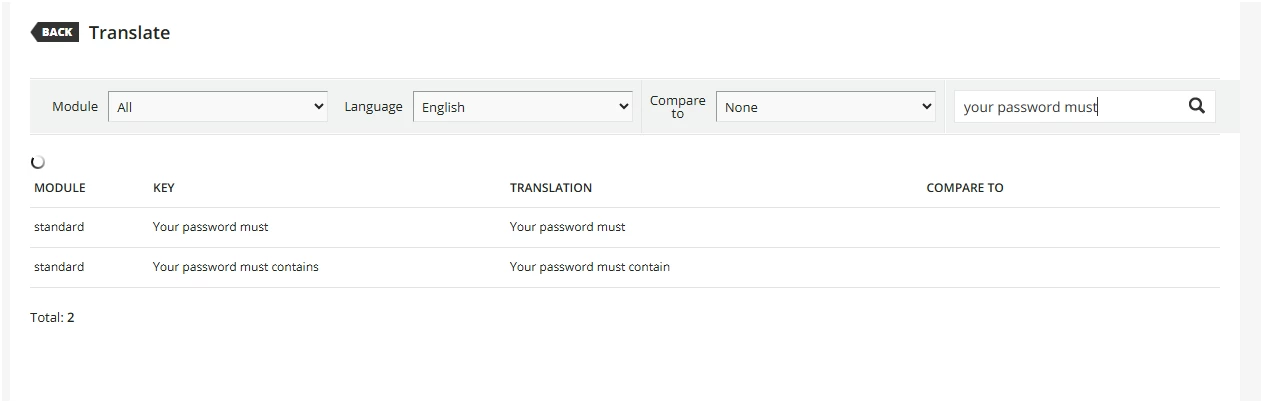
  1. Locate your language and click on the 3 line icon for Translate
  2. In the search bar in the upper right, type in your key words (e.g., your password must). You’ll see the areas where the text appears. 


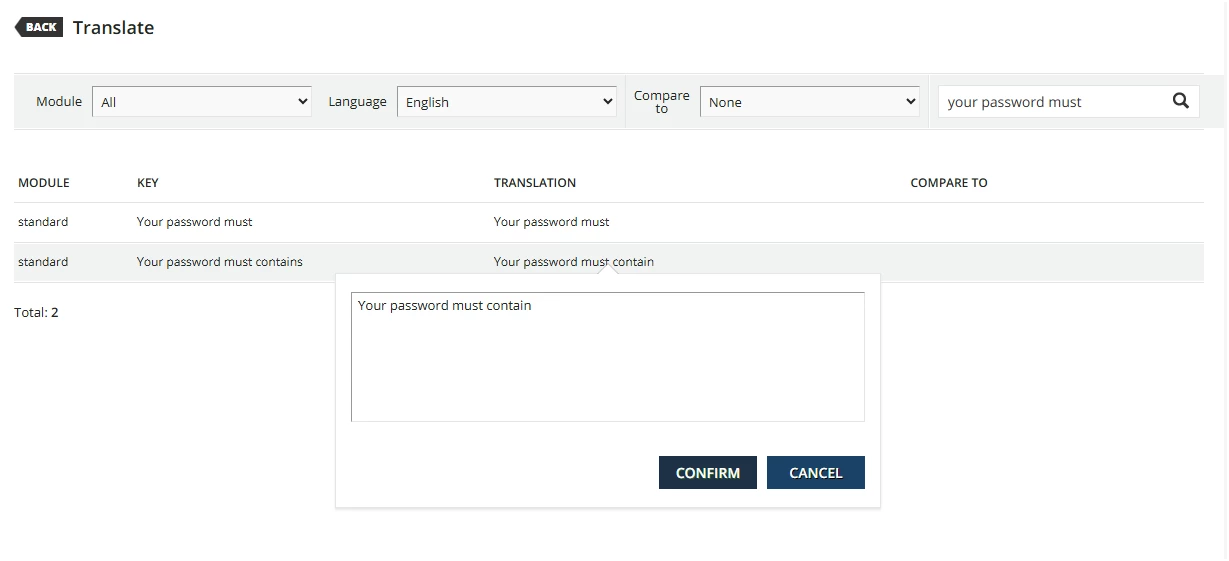
  1. Click on the translation text and replace the text with your updated text. Click Confirm.

NOTE: I’m not sure which text you actually want to replace, so this is general guidance. 


The more specific you can be about the text you’re looking for, the easier it will be to find the exact item you need to update.


Any questions? Is there something I’m not getting right about your request?


Hi ​@JKolodner, your instructions for locating the piece I needed were spot on. I was able to easily access it. Thank you for sharing the instructions above. 

My end goal is to share Docebo’s password requirements in the localization/translation field due to users trying to create passwords that go against Docebo’s standardized rules. 

When sharing the information, I would like to customize the text formatting, such as including bullet points or line breaks, which the field does not allow.

Do you know if there is a way to customize the html for the localization/translation fields?


JKolodner
Helper III
Forum|alt.badge.img+8
  • Helper III
  • October 2, 2026

Happy I can help! I do not know how to customize the html/formatting. Sorry about that. But there may be someone else who can help.